
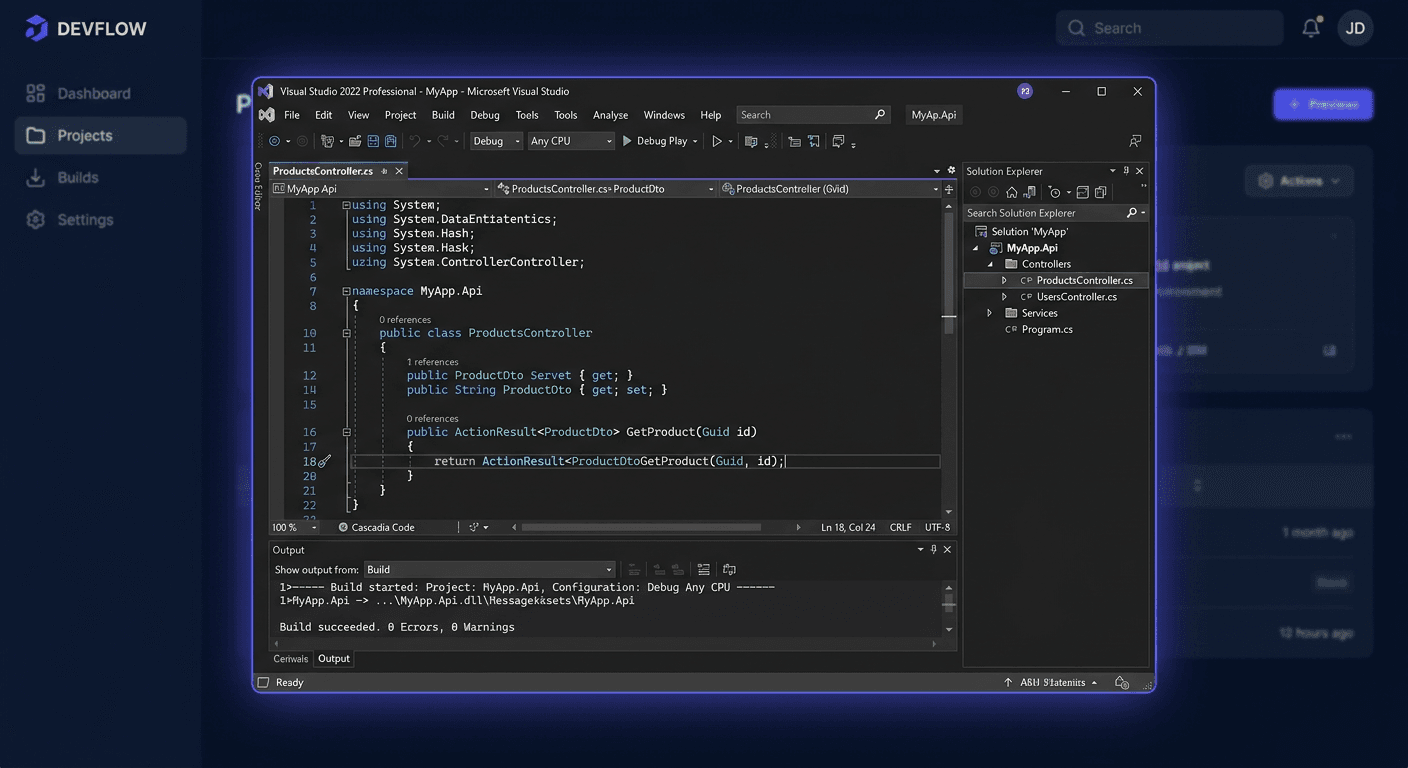
Activation of Microsoft Visual Studio 2019 Enterprise
This guide concerns the activation of Microsoft Visual Studio 2019 Enterprise exclusively. It does not describe the installation of the program. Below, you will find all the most important activation methods, ways to check the license status, troubleshooting of typical errors, and the procedure for re-activation after hardware changes.
Activation with a product key in the program interface
The simplest activation method takes place directly from the Visual Studio level.
- Run Microsoft Visual Studio 2019 Enterprise.
- In the top menu, select Help > Register Product.
- Click Unlock with Product Key.
- Enter the received product key.
- Confirm the activation and restart the program if the system requests it.
This method is recommended in standard cases, when the application works correctly and you have access to the full interface.
Activation from the command line
In the case of Visual Studio 2019 Enterprise, Microsoft does not provide an official activation tool similar to ospp.vbs for Office or slmgr.vbs for Windows and Windows Server. This means that basic activation of Visual Studio with a product key takes place from the GUI level:
Help > Register Product > Unlock with Product Key
If the problem concerns a corporate environment, user profile, or license memory, you can run Visual Studio with administrator rights and repeat the activation through the interface. In practice, no official command of the type /inpkey or /ipk is used to enter the key for Visual Studio 2019.
Telephone activation
If online activation fails or the key is correct, but the system cannot confirm the license via the Internet, use telephone activation.
Microsoft contact number for Poland:
00 800 121 1654
Before calling, prepare:
- product key,
- product name: Microsoft Visual Studio 2019 Enterprise,
- information on whether activation has been performed before,
- order data or proof of purchase, if provided by the seller.
During the conversation, the consultant may ask for verification of the license type and help with unlocking the activation or indicate whether the key requires assignment to a Microsoft account or transfer of rights.
Verification of activation
In Visual Studio 2019, there is no official equivalent of commands such as slmgr.vbs /xpr or ospp.vbs /dstatus, which directly returns the activation status of the product key for the Enterprise edition. The status should be checked mainly in the program itself:
- Open Help > Register Product.
- Check if the product is listed as activated and if it does not display a license expiration message.
Additionally, you can check if the system sees the installed instance of Visual Studio 2019:
"%ProgramFiles(x86)%\Microsoft Visual Studio\Installer\vswhere.exe" -products * -format json
This command confirms the presence of the installation, but does not replace the licensing screen. In practice, the exact verification of activation is performed through:
Help > Register Product
If you need help or have questions, please contact us at [email protected] or call 00 800 121 1654.
Resolving Activation Issues
Below are the most common, real problems related to activation and their typical meaning.
1. Error 0xC004C008
The key has been activated too many times or the system has determined that the activation limit has been exceeded.
What to do:
- wait a few minutes and try again,
- make sure you are activating the correct edition,
- if the license was used previously, call 00 800 121 1654.
2. Error 0xC004F050
The entered key is invalid or does not match the product.
What to do:
- check if the key is intended exactly for Visual Studio 2019 Enterprise,
- make sure you are not copying spaces,
- if the key comes from a subscription or volume license, verify its type with the seller.
3. Error 0xC004E016
The product key is not intended for this version or licensing channel.
What to do:
- compare the product edition with the key type,
- do not use a key from another version, such as Professional or a different year,
- in case of doubts, contact the seller.
4. Error 0x80072EE7
The system cannot connect to the activation server, usually due to a DNS or network connection issue.
What to do:
- check the Internet,
- temporarily disable VPN or network filtering,
- check if the firewall or proxy is blocking the connection,
- if online activation still does not work, use the phone: 00 800 121 1654.
5. Error 0x80072EFD
Problem with network connection or blockage on the firewall side.
What to do:
- run the program as an administrator,
- check proxy and firewall settings,
- try again later or use phone activation.
6. License expiration message despite entering the key
Sometimes the activation was saved incorrectly or the user profile does not read the license data.
What to do:
- restart the computer,
- reopen Help > Register Product,
- enter the key again,
- if the problem returns, use Microsoft support.
What to do when the key does not work
If the key does not activate the product:
- check if it applies exactly to Microsoft Visual Studio 2019 Enterprise,
- make sure it is not a key for another version, subscription, or licensing program,
- compare the key entry with the purchase document,
- test activation again after running the program as an administrator,
- contact the seller and ask for re-verification of the key,
- when the seller confirms the correctness, call Microsoft at 00 800 121 1654.
The most common reason is edition incompatibility or previous use of the key on another device.
Reactivation after hardware change
After replacing the motherboard, migrating the system, or making significant configuration changes, the computer may be recognized as a new device. Then, the previous activation may require re-confirmation.
The procedure is simple:
- Run Visual Studio 2019 Enterprise.
- Go to Help > Register Product.
- Select Unlock with Product Key again.
- Enter the same key.
- If the system rejects activation due to the limit or hardware change, contact Microsoft: 00 800 121 1654.
In the conversation, it's worth noting right away that it's about reactivation after hardware change, not using the license on an additional computer.
Summary
Activation of Microsoft Visual Studio 2019 Enterprise is primarily done through Help > Register Product > Unlock with Product Key. Unlike Windows, Office, or Windows Server, there is no standard official mechanism, such as slmgr.vbs or ospp.vbs, for full activation and licence verification from the console level. If online activation does not work, the key is rejected, or reactivation is required after a hardware change, the most reliable path remains contacting Microsoft at 00 800 121 1654.