
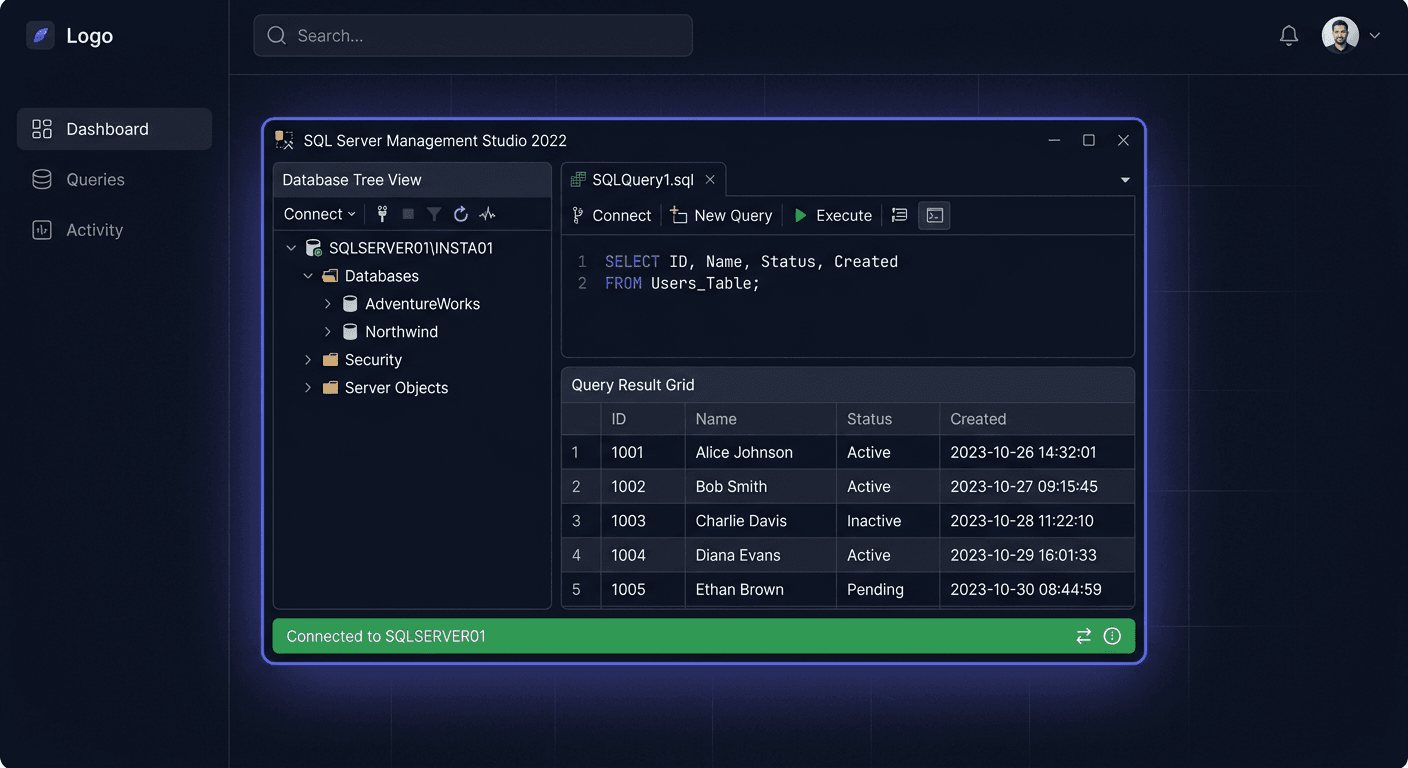
Activation of SQL Server 2019 Standard 50 Device CAL
The SQL Server 2019 Standard 50 Device CAL package is designed for environments where a specific number of devices in the company use the server. In this licensing model, permissions are assigned to specific computers, terminals, or other devices, rather than individual users. This solution works particularly well where multiple people work from a single workstation, such as in a warehouse, reception, production, or shift work.
Below is a practical guide on how to approach the activation and proper deployment of the SQL Server 2019 Standard 50 Device CAL licence, as well as how to check compliance and what to do in case of problems.
Step by Step
1. Verify the Exact Purchase
First, ensure you have the correct license bundle. The SQL Server 2019 Standard + 50 Device CAL variant typically includes two components:
- a SQL Server 2019 Standard server license,
- a package of 50 Device CAL access licenses.
It is crucial to distinguish between these components. The server license alone does not grant access to end devices. Conversely, CALs do not replace the server license. Both elements must be used together.
2. Install SQL Server 2019 Standard
If the server has not been deployed yet, install Microsoft SQL Server 2019 Standard on a chosen physical machine or in a virtual environment. During installation, select the appropriate components, such as:
- Database Engine Services,
- SQL Server Management Studio, if you are using a separate installation of administrative tools,
- any additional services required in your environment.
You may need a product key during or after installation, depending on the purchase channel and the type of installation media.
3. Enter the Product Key, if Required
In many cases, activation occurs by entering the product key during installation. In other scenarios, the installation may be based on a licensed image assigned to an account or licensing center. If you received an activation key, use it according to the instructions provided with the purchase.
It's worth noting that Device CAL typically does not activate separately within the SQL Server interface, unlike some desktop products. This is a licensing model based primarily on access rights and licensing documentation. This means that the product key usually applies to the server installation itself, and the number of CALs must match the actual number of devices using the service.
4. Assign Licenses to Devices
After deploying the server, prepare a list of devices that will connect to SQL Server. With the 50 Device CAL package, you can license up to 50 devices. These can include:
- desktop computers,
- company laptops,
- terminals,
- selected production devices or kiosks,
- workstations used by multiple employees.
Best practice is to maintain internal records: device name, departmental user, location, and date of CAL assignment. Such documentation is essential for audits and facilitates license management.
5. Keep Purchase Documents and Licensing Confirmations
Activation, in a practical sense, does not end with installation. It is equally important to keep:
- the invoice or purchase confirmation,
- product version information,
- licensing documentation,
- data on the number of devices with access.
This complete set of documents confirms the legality of using the solution.
6. Configure Client Access to the Server
Finally, ensure that end devices can connect to the database according to your security policy. Check:
- SQL instance configuration,
- firewall rules,
- login permissions,
- authentication mode,
- access for applications using the database.
The license itself does not provide technical access. Proper environment configuration is necessary.
Checking
After implementation, it is worth performing a brief compliance check. First, check if:
- the correct edition is running on the server, i.e. SQL Server 2019 Standard,
- the number of devices accessing it does not exceed 50,
- each device with access has been included in the documentation,
- proof of purchase and licence details are kept,
- only the workstations that should actually use the server have access to it.
It is also good practice to periodically review the infrastructure. In companies where the number of workstations is growing, it is easy to exceed the limit of purchased CALs. In such a situation, it is necessary to purchase additional licences or analyse whether a different licensing model would be more cost-effective.
Problems
The most common problem is confusing Device CAL with User CAL. If several people use one computer, Device CAL usually makes sense. However, if one employee uses multiple devices, the User CAL model may be better.
Another common mistake is assuming that CALs are visible as a separate counter in the SQL Server panel. In practice, SQL Server 2019 Standard does not always present this directly as a technical activation in the system. This means that the responsibility for correct access assignment lies with the organisation.
A problem can also be the expansion of the environment without updating the licences. New terminals, computers in branches or warehouse devices can increase the number of workstations with access to the database. If this is not taken into account, there is a risk of licence non-compliance.
If you are unsure whether your environment has been implemented correctly, it is worth consulting the configuration and licensing model. For sales and support, you can contact: [email protected] or call 00 800 121 1654.
FAQ
Is Device CAL assigned to a user?
No. Device CAL is assigned to a device. Several employees can use one licensed device, as long as it is in accordance with the organisation's rules.
Do you need to activate each CAL licence separately?
Usually not in the form of separate activation of each item in the programme interface. The key is to have the correct number of CALs, correctly assign them to devices, and keep licence documentation.
What if the company has more than 50 devices with access to SQL Server?
In this case, you need to purchase additional access licences or analyse a different licensing model. Using more than the purchased limit means a risk of licence non-compliance.