
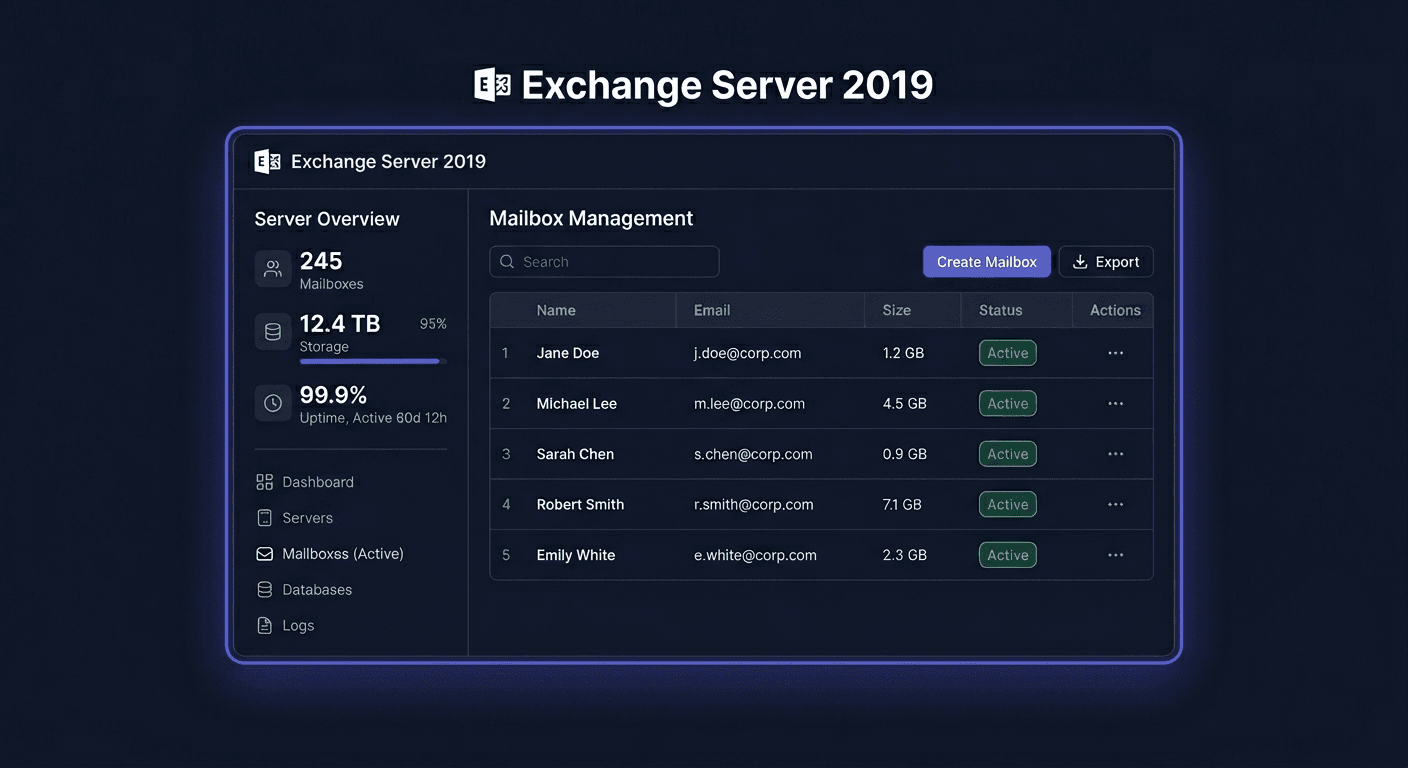
Microsoft Exchange Server 2019 Enterprise Activation Guide
This material applies exclusively to the activation of an already installed Microsoft Exchange Server 2019 Enterprise. It does not describe the installation of the system or configuration of roles. In Exchange, activation involves entering a valid product key into the Exchange server. This is not the slmgr.vbs mechanism, as in Windows Server.
What to know before activation
If you do not enter the key after installation, Exchange works as a trial version for 180 days. After this time, you must add the correct product key so that the server remains legally licensed and functions as a full edition.
Important:
- Exchange 2019 can be upgraded from
StandardtoEnterpriseby changing the key. - It is not possible to switch from
EnterprisetoStandardby simply changing the key without reinstalling. - After activating the
Mailboxserver, you need to restart theMicrosoft Exchange Information Storeservice. Exchange CALis not activated with a key. CAL is a licensing document and legal entitlement, not a code entered in the console.
Activation with a product key in the GUI
Activation can be performed in the Exchange admin center (EAC):
- Open
EAC. - Go to
Servers > Servers. - Select the server you want to activate.
- Click
EditorEnter Product Key. - In the
Generaltab, enter the product key. - Save the changes with the
Savebutton.
If the server was already licensed, you will see the option Change product key. This is the correct path when changing from a trial version or from Standard to Enterprise.
After saving, restart the Information Store service.
Restart-Service MSExchangeIS
Activation in the command line / Exchange Management Shell
The most reliable administrative method is the Exchange Management Shell. Use the exact syntax:
Set-ExchangeServer <ServerName> -ProductKey XXXXX-XXXXX-XXXXX-XXXXX-XXXXX
Example:
Set-ExchangeServer EX2019-MBX01 -ProductKey XXXXX-XXXXX-XXXXX-XXXXX-XXXXX
Restart-Service MSExchangeIS
This command is used for both activating an unactivated server and upgrading the edition from Standard to Enterprise.
Telephone activation: 00 800 121 1654
In the case of Exchange, a phone call usually does not replace entering the key in EAC or Exchange Management Shell, but it is a real escalation path when the key does not pass validation, has been blocked, or requires manual verification by Microsoft.
Contact number: 00 800 121 1654
Before calling, prepare:
- product key,
- server name,
- product version:
Microsoft Exchange Server 2019 Enterprise, - proof of purchase or licensing details,
- full error message and code,
- information about any hardware changes or migration.
Activation verification
After activation, check the status using these commands:
Get-ExchangeServer <ServerName> | Format-List Name,Edition,*Trial*
For all servers in the organization:
Get-ExchangeServer | Format-Table -Auto Name,Edition,*Trial*
The correct result should show the Enterprise edition and no trial status. Additionally, you can check this visually in EAC in the Servers > Servers section, where the correct edition and licensed status should be displayed for the server.
If you need assistance, please contact us at [email protected] or call 00 800 121 1654.
Troubleshooting Activation
Below are the most common real activation errors encountered when working with Microsoft keys and their practical interpretation in the Exchange environment:
-
0xC004F050
The product key is invalid. Most often, it means a typo, wrong key type, or a key for a different product. -
0xC004C003
The key has been blocked on the Microsoft activation servers. Usually, it requires contact with support or the seller. -
0xC004C008
The activation limit has been exceeded. Often appears after multiple reinstalls, migrations, or tests on several machines. -
0xC004C020
The MAK key has exceeded its usage limit. In practice, you need to report a request to increase the limit or exchange the key. -
0xC004F00F
The change in hardware identifier has exceeded the activation tolerance. A typical case after replacing the motherboard, controller, or transferring a VM. -
0x80070005
Lack of permissions. RunExchange Management Shellas an administrator and ensure that the account has permissions to manage Exchange. -
0x80070490
The entered key does not match the product or cannot be verified in the current system state.
What to Do When the Key Does Not Work
If the key does not pass activation:
- check if it is indeed the key for
Exchange Server 2019 Enterprise, not for another version or product, - enter the key again manually, without spaces and with dashes,
- ensure that you are activating already installed Exchange, not trying to use the key during installation,
- run
Exchange Management Shellwith elevated permissions, - restart the
MSExchangeISservice, - if the error returns, contact the license seller,
- when the key is rejected despite being correct, call Microsoft at
00 800 121 1654.
Reactivation After Hardware Change
After significant hardware changes or virtual machine migration, activation may require re-validation. Most often, this applies to:
- motherboard replacement,
P2VorV2Vmigration,- server recovery from a backup on a different host,
- change of hypervisor environment.
In such a situation:
- Verify the current edition using the
Get-ExchangeServercommand. - Enter the key again through
Set-ExchangeServer. - Restart the
MSExchangeISservice. - If a limit or block error appears, prepare the license data and contact Microsoft at
00 800 121 1654.
Summary
Activation of Microsoft Exchange Server 2019 Enterprise is done through EAC or through Exchange Management Shell with the command Set-ExchangeServer -ProductKey. After each key change, you need to run Restart-Service MSExchangeIS, and the status is checked with the commands Get-ExchangeServer <ServerName> | Format-List Name,Edition,*Trial* and Get-ExchangeServer | Format-Table -Auto Name,Edition,*Trial*.
If the key does not work, first check the version compatibility, entry correctness, and administrative permissions. For block, activation limit, or hardware change errors, the safest path is to contact Microsoft by phone: 00 800 121 1654. You can also contact KluczeSoft at [email protected] for assistance.