
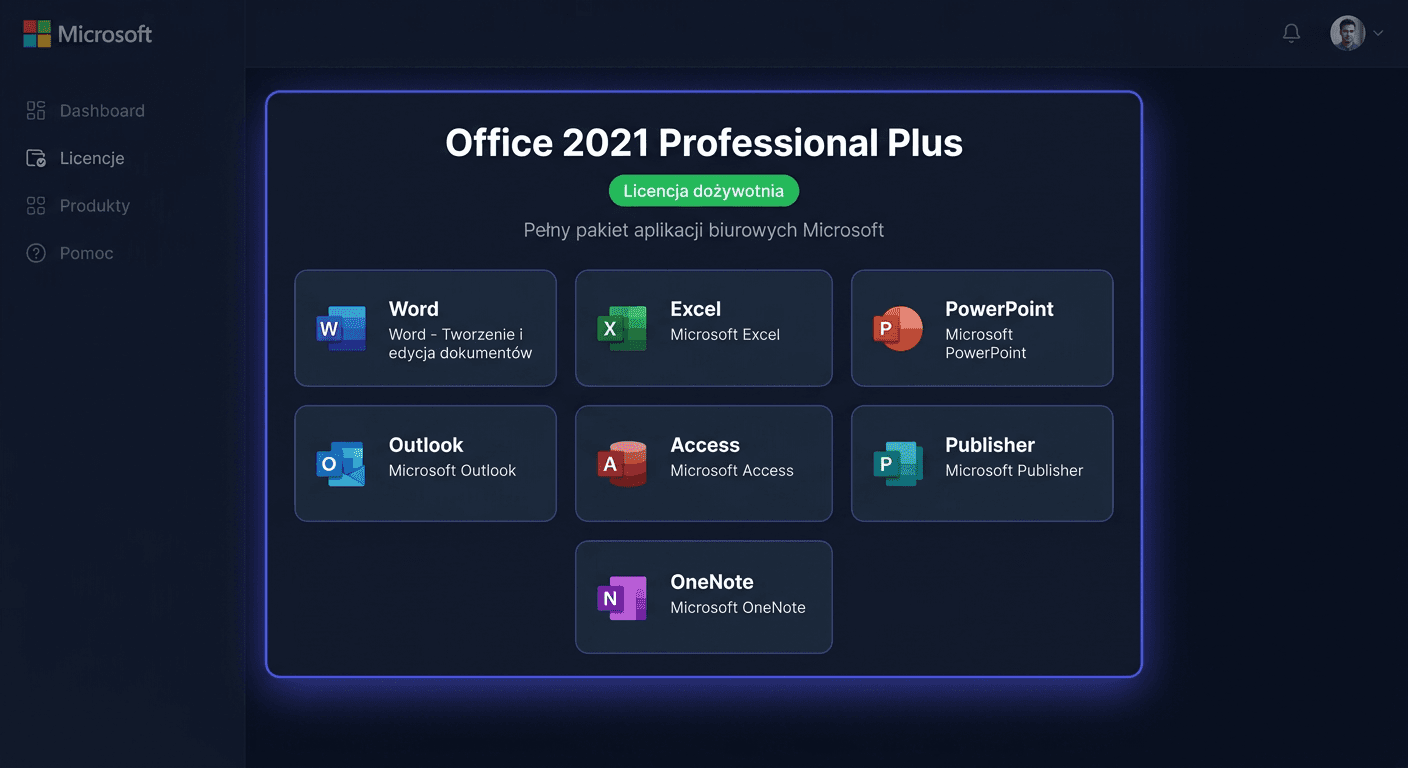
Activating Microsoft Office 2021 Professional Plus
Microsoft Office 2021 Professional Plus requires activation after installation to ensure all applications work without restrictions and to verify the license validity. Below, you will find procedures related to activation: entering the product key, online activation, telephone activation, status verification, and troubleshooting common errors.
Activating with a Product Key
Method 1: Activation via the Graphical Interface
This is the simplest method if the Office package runs correctly.
- Open any Office application, such as Word or Excel.
- Go to File > Account.
- Select the option Change product key or Activate product.
- Enter the received 25-character product key.
- Confirm and wait for the online activation to complete.
If the license is correct and has not been previously used in violation of the terms, Office should automatically switch to the activated state.
Method 2: Activation via the Command Line as Administrator
This method is recommended when the graphical interface does not accept the key or you want to confirm the process manually.
First, run the Command Prompt as an administrator, then navigate to the Office package folder. Most often, it will be one of the following locations:
cd /d "C:\Program Files\Microsoft Office\Office16"
or on a 64-bit system with 32-bit Office:
cd /d "C:\Program Files (x86)\Microsoft Office\Office16"
Then, enter the product key:
cscript ospp.vbs /inpkey:XXXXX-XXXXX-XXXXX-XXXXX-XXXXX
After correctly saving the key, run the activation:
cscript ospp.vbs /act
If the computer has internet access, activation usually completes within a few seconds.
Method 3: Telephone Activation
If online activation fails, you can use Microsoft's telephone activation.
Contact number for Poland:
00 800 121 1654
The standard procedure looks like this:
- Run an Office application and go to the activation screen.
- Choose telephone activation if this option is displayed.
- Prepare the installation ID or product information.
- Call 00 800 121 1654.
- Follow the consultant's or automated instructions.
- Enter the received confirmation ID.
Telephone activation is particularly useful after hardware replacement, system reinstallation, or when the activation server rejects the online activation attempt.
Verifying Activation
After completing the activation, it's worth checking the actual license status from the system level. Use the following command exactly:
cscript ospp.vbs /dstatus
The command should be run in the same Office16 directory where the activation was performed.
Pay attention to the result:
LICENSE STATUS: ---LICENSED---indicates correct activation.- You may also see a fragment of the installed key, usually the last 5 characters.
- If the status shows
NOTIFICATIONSorUNLICENSED, the activation was not completed correctly.
In practice, the best verification sequence looks like this:
cd /d "C:\Program Files\Microsoft Office\Office16"
cscript ospp.vbs /dstatus
If you're unsure about the path, also check the variant:
cd /d "C:\Program Files (x86)\Microsoft Office\Office16"
cscript ospp.vbs /dstatus
For any further assistance or questions, please contact [email protected] or call 00 800 121 1654.
Troubleshooting Activation Issues
Below are the most common, real activation errors for Office 2021 Professional Plus, along with a brief explanation.
Error 0xC004C060
The product key has been marked as invalid or blocked. This usually means the key is used, revoked, or from an unauthorized source.
Error 0xC004F050
The entered product key is incorrect. The cause may be a typo, confusion with the product version, or an attempt to use a key not intended for Office 2021 Professional Plus.
Error 0xC004C008
The key has been used the maximum number of times. This often occurs after previous activation on another computer or after significant hardware changes.
Error 0x80072EE7
There is a problem with the network connection or recognition of the activation server. It's worth checking the internet, DNS, firewall, and antivirus program blocking connections.
Error 0x8007232B
The system cannot find the appropriate activation server. This error is encountered especially when an incorrect type of key is used or the network environment forces an incorrect activation method.
Error 0xC004F074
There is no possibility of contacting the activation service. This may occur with incorrect system date and time settings, network restrictions, or an incompatible licensing channel.
Error 0xC004E016
The key does not match the installed edition of Office. For example, a key for a different edition than Professional Plus or for a different generation of the package.
What to Do When the Key Does Not Work
If the key does not work, do not enter it multiple times without checking the reason. First, perform the following steps:
- Check if the key is intended exactly for Microsoft Office 2021 Professional Plus.
- Ensure there are no typos and character confusion, e.g.,
Bwith8orGwith6. - Verify that Office is installed in a compatible edition.
- Run activation from CMD:
cscript ospp.vbs /inpkey:XXXXX-XXXXX-XXXXX-XXXXX-XXXXX cscript ospp.vbs /act cscript ospp.vbs /dstatus - If online activation still fails, use the phone: 00 800 121 1654.
- If the key was purchased in a store, prepare the proof of purchase and contact the seller to verify the license origin.
If the system accepts the key but does not complete activation, the problem usually concerns the connection, previous license usage, or hardware configuration changes.
Reactivation After Hardware Changes
After replacing the motherboard, disk, or after a major computer overhaul, Office may recognize the device as new and request reactivation. In such a situation:
- Run Word or Excel and check if an activation prompt appears.
- Attempt standard online activation.
- If an activation limit error or key rejection occurs, use the phone method.
- Prepare the product key and information about the previous activation.
- Call Microsoft at 00 800 121 1654.
Reactivation after hardware changes is a normal procedure. The most important thing is that the license is legal and used in accordance with the assignment conditions to the device.
For any further assistance or concerns, please contact us at [email protected] or visit the KluczeSoft website for more information.
Summary
Activation of Microsoft Office 2021 Professional Plus can be performed in three ways: through the application interface, through CMD using ospp.vbs, or by phone. The most important commands are:
cscript ospp.vbs /inpkey:XXXXX-XXXXX-XXXXX-XXXXX-XXXXX
cscript ospp.vbs /act
cscript ospp.vbs /dstatus
If online activation does not work, the safest next step is to contact Microsoft at 00 800 121 1654. This is the primary path for issues with rejected keys, reactivation after hardware changes, and activation errors that cannot be resolved locally.