
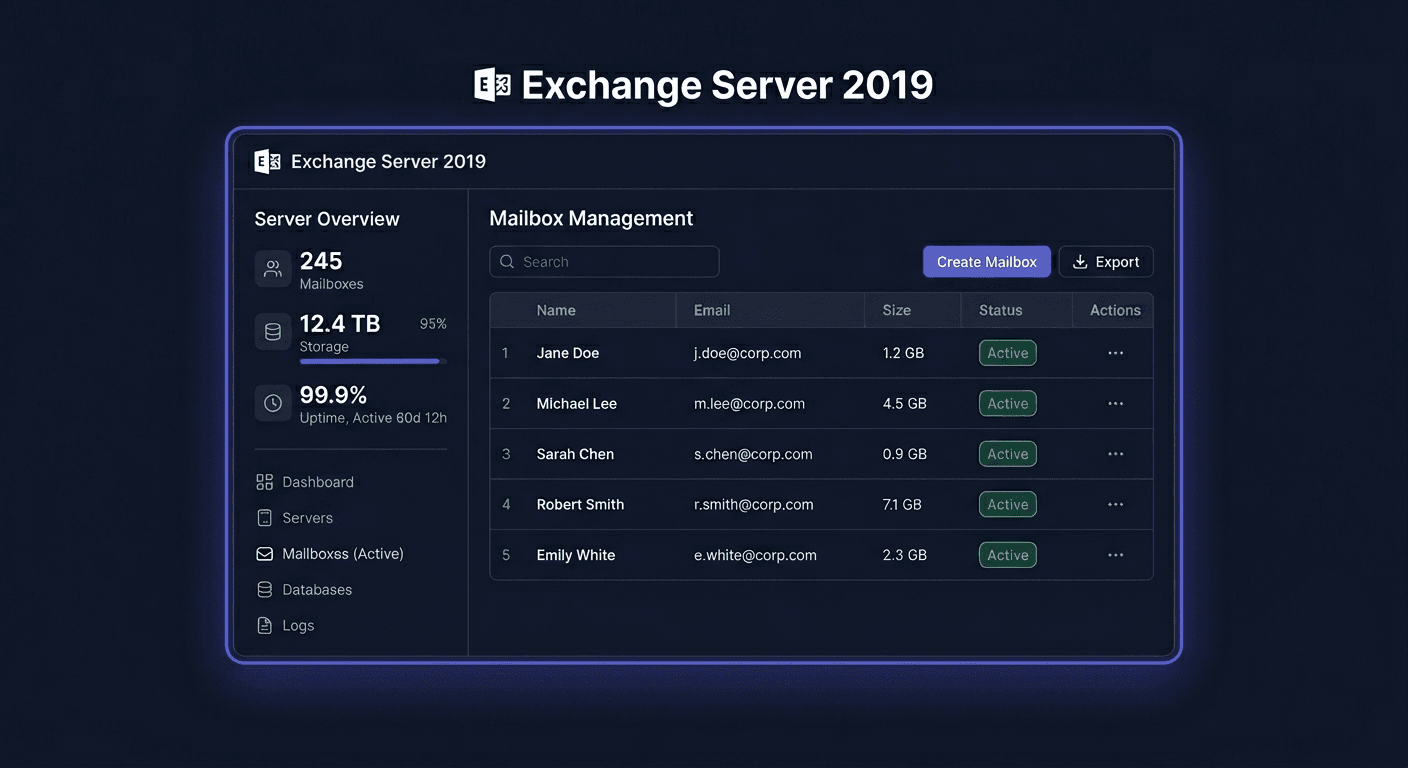
Activating Microsoft Exchange Server 2016 Standard
This guide is exclusively about activating Microsoft Exchange Server 2016 Standard after a correct system and Exchange role installation. It does not describe the installation, mailbox configuration, or service deployment.
What is Exchange Server 2016 Standard activation
After installation, Exchange Server 2016 can operate in trial mode. To switch the server to a licensed version, you need to assign a valid product key for Exchange Server 2016 Standard to it. The activation applies to the Exchange server itself.
Important:
- CALs are not activated with a key on the server.
- A CAL license is a legal document confirming the right to access users or devices.
- You do not enter a separate CAL key in the Exchange Admin Center or PowerShell.
Activating with a product key
Method 1: GUI in Exchange Admin Center
The simplest method is to use the Exchange administrative panel:
- Open Exchange Admin Center.
- Go to servers.
- Select the relevant Exchange 2016 server.
- Open the Enter Product Key option.
- Enter the 25-character product key.
- Confirm the change.
After saving the changes, you may need to restart the Exchange services or the server itself for the new edition to be properly read by all components.
Method 2: CMD / Exchange Management Shell
Activation can also be performed using a command in Exchange Management Shell:
Set-ExchangeServer -Identity "SERVER-NAME" -ProductKey XXXXX-XXXXX-XXXXX-XXXXX-XXXXX
Example:
Set-ExchangeServer -Identity "EXCH01" -ProductKey ABCDE-FGHIJ-KLMNO-PQRST-UVWXY
After assigning the key, it is recommended to restart the server or at least check the Exchange services.
Method 3: Microsoft phone activation
If online activation fails or the key is rejected despite the correct product version, you can use Microsoft's activation hotline:
00 800 121 1654
Before contacting, prepare:
- the full product key,
- the product name and version: Microsoft Exchange Server 2016 Standard,
- server information,
- purchase or license origin data,
- the error message displayed during activation.
The phone activation path is particularly useful for issues with key validation, re-activation after hardware changes, or when the system incorrectly evaluates the key usage limit.
Verifying activation
After activation, check if the server is no longer working as a trial version.
Basic command:
Get-ExchangeServer -Identity "SERVER-NAME" | Format-List Name,Edition,IsExchangeTrialEdition,AdminDisplayVersion
Example:
Get-ExchangeServer -Identity "EXCH01" | Format-List Name,Edition,IsExchangeTrialEdition,AdminDisplayVersion
Verification for all Exchange servers in the organization:
Get-ExchangeServer | Format-Table Name,Edition,IsExchangeTrialEdition -Auto
Interpretation:
Edition : Standardmeans the server is running on the Standard edition.IsExchangeTrialEdition : Falsemeans the trial mode has been disabled and activation has been applied.
If you need further assistance, please contact [email protected] for more information.
Troubleshooting Activation
Below are the most common real issues related to activation.
1. Error 0xC004F050
Usually means that the product key is invalid or does not match the product being activated.
Possible causes:
- typo in the key,
- key for a different version or edition,
- key used previously in violation of licensing terms.
What to do:
- re-enter the key, preferably using copy-paste,
- ensure it's a key for Exchange Server 2016 Standard,
- if the problem persists, contact Microsoft: 00 800 121 1654.
2. Error 0xC004C008
Most often indicates that the activation limit for the given key has been exceeded.
What to do:
- verify that the license hasn't been used on another server,
- remove old, unused deployments from licensing documentation,
- use phone activation: 00 800 121 1654.
3. Error 0xC004C020
Indicates that the activation server rejected the attempt, usually due to licensing restrictions or too many uses of the key.
What to do:
- check the source of the license,
- confirm the license type in purchase documents,
- report the issue to Microsoft and prepare proof of purchase.
4. Error 0xC004E016
Usually means that the key does not match the installed product version.
What to do:
- confirm that you're activating exactly Exchange Server 2016 Standard,
- do not use a key from a different Exchange generation or another server product.
5. Error 0x80072EE7
Most often a problem with network connection or DNS resolution during verification.
What to do:
- check internet access,
- verify DNS and proxy,
- ensure the firewall is not blocking outgoing communication,
- if online activation still doesn't work, use the phone path.
6. Error 0x8007232B
In practice, appears with issues in the activation infrastructure or incorrect validation method in the environment.
What to do:
- check if you're using the correct procedure for the product,
- retry after restarting services,
- in case of doubts, switch to phone activation.
What to Do When the Key Doesn't Work
If the key is not accepted:
- check if it was entered without errors,
- confirm it's intended for Exchange Server 2016 Standard,
- compare the key with the purchase document or licensing panel,
- ensure it's not a key for another Microsoft product,
- check if the license hasn't been blocked or exhausted,
- contact the seller if the key comes from commercial distribution,
- in case of a legitimate license, use Microsoft's help under 00 800 121 1654.
Reactivation After Hardware Change
After significant hardware changes, virtual machine migration, or server restoration, reactivation may be required. In such a case:
- reuse your product key,
- verify the status with the
Get-ExchangeServercommand, - if activation is rejected due to previous key use, use phone activation under 00 800 121 1654,
- prepare information about the previous and current environment to confirm the legal transfer of the license.
For any further assistance, please contact us at [email protected] or use the phone 00 800 121 1654.
Summary
Activating Microsoft Exchange Server 2016 Standard involves assigning the correct product key in the EAC or through the Exchange Management Shell using the Set-ExchangeServer -ProductKey command, and then checking the status with the Get-ExchangeServer command.
If online activation does not work, the key is rejected, or reactivation is required after a hardware change, the safest route is to contact Microsoft at:
00 800 121 1654