
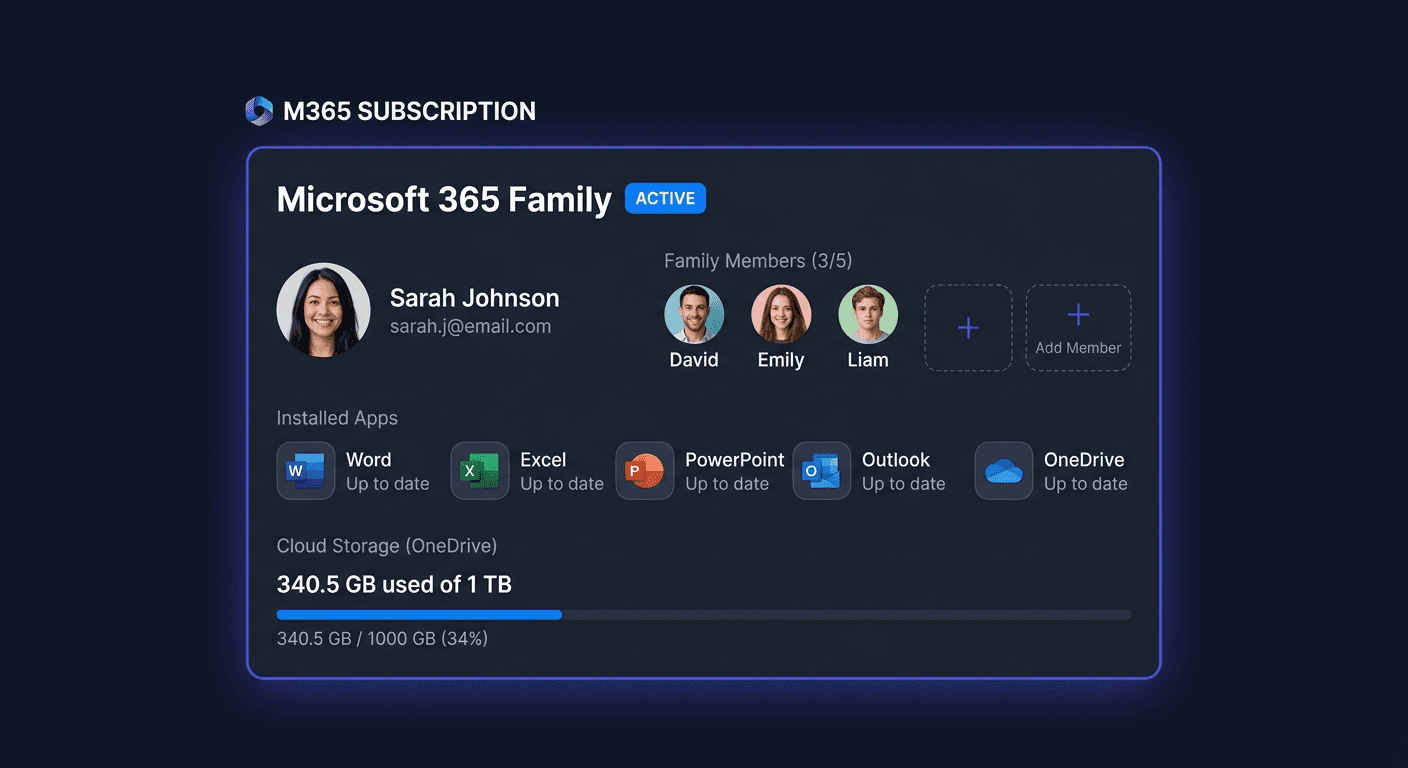
Microsoft 365 Family Activation Guide
Microsoft 365 Family is activated on the Microsoft account assigned to the subscription or product code. This guide is exclusively about activation, i.e., assigning a key, launching the license, and checking if the package has been properly activated.
Activation with a Product Key
Graphical Method in Microsoft Account
If you have a 25-character product key, the most reliable method is to assign it to your Microsoft account:
- Go to the Microsoft activation page.
- Log in to the Microsoft account you want to use for the subscription.
- Enter the product key.
- Confirm your country and language.
- After assigning the key, launch Word, Excel, or another Microsoft 365 application.
- Log in with the same Microsoft account.
- The application should automatically download the license status and complete the activation.
If the package is already installed, you usually don't need to install it again. Simply log in to the application with the correct account.
Graphical Method from Office Application
If the applications are already running, you can activate the package directly in Word or Excel:
- Open any Microsoft 365 application.
- Go to
File > Account. - Select the option to change the license, log in, or enter the product key.
- Log in to the Microsoft account associated with the subscription.
- Wait for the license to sync.
This method works best when the key has already been assigned to the Microsoft account.
Activation via CMD for Office
In some cases, activation can be forced from the command line as an administrator. First, go to the Office directory, for example:
cd /d "%ProgramFiles%\Microsoft Office\Office16"
On a 64-bit system with 32-bit Office, it may be:
cd /d "%ProgramFiles(x86)%\Microsoft Office\Office16"
Then, enter the key:
cscript ospp.vbs /inpkey:XXXXX-XXXXX-XXXXX-XXXXX-XXXXX
After saving the key, run the activation:
cscript ospp.vbs /act
This is the correct activation path for the Office package when there is a need to manually start the licensing process.
Telephone Activation
If online activation fails, use the Microsoft hotline:
00 800 121 1654
During the call, have ready:
- the product key,
- the Microsoft account used for activation,
- information on how many devices the subscription is used on,
- the error message, if any.
Telephone activation is particularly useful after changing hardware, with region issues, or when the system rejects a valid key despite its authenticity.
Verification of Activation
After activation, it's a good idea to manually check the license status.
Checking Office Status
Run CMD as an administrator and go to the Office directory, then type:
cscript ospp.vbs /dstatus
This parameter will show the activation status, the installed key, and the license type.
Additional Control Commands for Windows
If the problem also concerns the activation of the Windows system itself, other commands are used:
slmgr.vbs /ipk XXXXX-XXXXX-XXXXX-XXXXX-XXXXX
slmgr.vbs /ato
slmgr.vbs /xpr
slmgr.vbs /dlv
/xpr shows whether the system is permanently activated, and /dlv displays detailed license information.
For any further assistance, please contact [email protected] or call 00 800 121 1654.
Troubleshooting Activation
Below are the most common activation errors along with their practical implications.
Error 0xC004F050
Most often indicates an incorrect product key or a key that does not match the edition. Check if the code is entered without typos and if it applies to Microsoft 365 Family, not another product.
Error 0xC004C008
The key has been used too many times or the server has determined that the activation limit has been exceeded. In such a situation, it's best to contact Microsoft at 00 800 121 1654.
Error 0xC004F074
The system cannot contact the activation service. Most often, this is a network problem, incorrect date and time, or a conflict with the licensing service. Retrying activation after restarting and checking the internet connection helps.
Error 0x80070005
Lack of appropriate permissions. Run CMD as an administrator and perform the activation again. It's also worth checking if the security program is not blocking the ospp.vbs script.
Error 0xC004C060
The key has been blocked by Microsoft. Most often, this applies to previously invalidated keys or those from an unauthorized source. In such a case, reinstallation will not help — verification with the seller or directly with Microsoft is required.
Error 0x8004FC12
Connection problem during activation. Check the network firewall, proxy server, DNS, and whether the Microsoft account logs in correctly in the browser and in the Office application.
What to Do When the Key Does Not Work
If the key does not work, perform the actions in this order:
- Check if you are entering the key for the correct product.
- Verify that the key has not been assigned to another Microsoft account.
- Run manual activation with the commands
ospp.vbs /inpkeyandospp.vbs /act. - Check the result with the command
cscript ospp.vbs /dstatus. - Contact the seller and ask for confirmation of the license origin.
- If necessary, call Microsoft:
00 800 121 1654.
If the seller cannot confirm the legality of the key, it's not worth wasting time on further activation attempts.
Reactivation After Hardware Change
After replacing the disk, motherboard, or reinstalling the system, activating Microsoft 365 Family usually requires only re-logging into the correct Microsoft account. Then:
- Open the Office application.
- Go to
File > Account. - Log out of the incorrect account if it is saved.
- Log in with the account to which the subscription is assigned.
- Check the status with the command:
cscript ospp.vbs /dstatus
If the device is still listed as occupied in the Microsoft account panel, remove the old device from the list of services and subscriptions, and then reactivate the package.
Summary
For Microsoft 365 Family, the most important thing is the correct assignment of the key to the Microsoft account and logging in with the same account in Office applications. When activation does not pass automatically, use the commands:
cscript ospp.vbs /inpkey:XXXXX-XXXXX-XXXXX-XXXXX-XXXXX
cscript ospp.vbs /act
cscript ospp.vbs /dstatus
If errors 0xC004F050, 0xC004C008, 0xC004F074, 0x80070005, 0xC004C060, or 0x8004FC12 still appear, the fastest way to resolve the problem is to contact Microsoft support at 00 800 121 1654. If you need further assistance, you can also contact KluczeSoft at [email protected].