
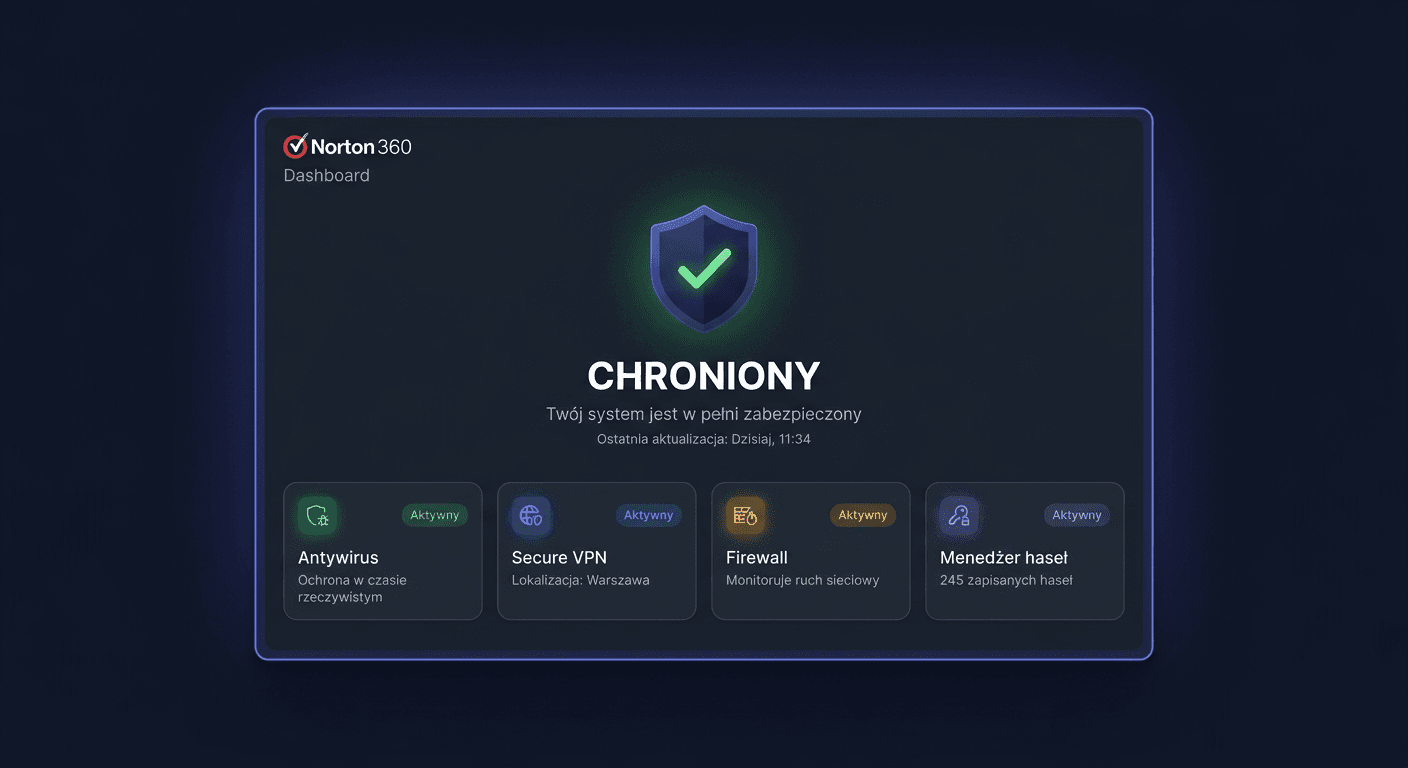
Activating Norton 360 Deluxe 5 Devices
Norton 360 Deluxe 5 devices is activated using a product key or by assigning a license to a Norton account. This guide only covers activation, without describing the installation process.
What to Prepare Before Activation
Before starting, ensure you have:
- A 25-character Norton product key
- A Norton account associated with an email address
- A stable internet connection
- Administrator privileges in the Windows system
- An available slot within the
5 deviceslimit
Activating with a Product Key: GUI Method
This is the primary and recommended activation method.
- Open the Norton application.
- Log in to your Norton account if prompted by the program.
- Go to the
Help,Account,Subscription, orEnter Product Keysection
The name may vary depending on the interface version. - Enter the product key exactly as it was issued.
- Confirm the activation.
- Wait for the license to synchronize with the Norton server.
After successful activation, the application usually displays a message like Subscription active, Device is protected, or the end date of protection.
Activation via the Norton Website
This method is particularly useful when you want to assign the key to your account first and then use it on a device.
- Go to
https://my.norton.com - Log in to your Norton account.
- Open the section for adding or redeeming a product key.
- Enter the key and confirm.
- After assigning the license to your account, run the Norton application on your computer and log in with the same account.
- The program should automatically download the status of the active subscription.
This is the safest way when the license is to be transferred between devices later.
Activation from the Command Line: What You Need to Know
In the case of Norton 360 Deluxe, the manufacturer does not provide a standard, public procedure for activating a key in the style of:
program.exe /inpkey
program.exe /act
Such commands apply to products like Microsoft Office or Windows, but are not the official activation mechanism for Norton 360 Deluxe. In practice, Norton activation is performed through:
- The program interface
- The user's account on
my.norton.com - Telephone contact with technical support
If someone expects "CMD activation", it's worth treating it as launching the activation process from the system level, but the key realization still ends up in the Norton interface or in the browser after logging into the account.
Telephone Activation
If the key does not pass, the license was previously used, or there was a problem with assigning it to the account, contact Norton support at:
00 800 121 1654
Prepare:
- The product key
- The email address of the Norton account
- The product name:
Norton 360 Deluxe 5 devices - Information on whether the license was previously activated
- Any error code from the screen
Over the phone, you can usually confirm the validity of the key, the subscription status, and the assignment of the license to the account. If you need further assistance, you can also contact KluczeSoft at [email protected].
Activation Verification
The most reliable verification takes place in the Norton application and on the user's account.
In the Norton Application
Check if you see:
Protectedstatus or equivalent- an active subscription
- the protection expiration date
- the name of the assigned plan
On the Norton Account
Log in to https://my.norton.com and check:
- if the subscription is active
- if the device is assigned to the account
- how many seats have been used out of the
5limit
Useful Diagnostic Commands in Windows
These do not activate the product, but help confirm that the application is working and Norton services are running:
sc query | findstr /I "Norton"
tasklist | findstr /I "Norton"
wmic product get name | findstr /I "Norton"
If the application is installed, but you still see a lack of subscription in the GUI, the problem usually concerns logging, account synchronisation, or the key itself.
Activation Troubleshooting
Below are real errors that often block activation or licence synchronisation.
8504,104
Usually indicates a conflict of programme components or a damaged installation.
What to do: restart the computer, log in to Norton again, and if the error returns, perform an installation repair using the Norton tool.
8506,421
Often indicates a problem with protection modules or their initialisation after activation.
What to do: restart the system, log in to the account again, and check if another antivirus is not blocking Norton services.
6015,1
Configuration error or damage to security components.
What to do: refresh the Norton account session, check the Windows system for updates, and if necessary, use the Norton repair tool.
3048,3
Most often related to a problem connecting to update servers or subscription synchronisation.
What to do: check the internet, temporarily disable VPN/proxy, and log in to my.norton.com again.
8920,208
Typical network error that can interrupt activation or licence status download.
What to do: check DNS, firewall, router, and whether the system date and time are correct.
0x80004005
General Windows system error, often appears with permission or application communication issues.
What to do: run Norton as an administrator, check the user account, and perform a re-synchronisation with the Norton account.
What to Do if the Key Does Not Work
If the product key is not accepted:
- Check if you are entering the key without typos.
- Ensure it is a key for
Norton 360 Deluxe, not another plan. - Verify that the key has not been already assigned to another Norton account.
- Check if the licence has not expired or comes from an unauthorised source.
- Log in to
my.norton.comand try to add the key manually through the account. - If it still does not work, contact Norton support:
00 800 121 1654.
In practice, the most common reasons are: incorrect product variant, previous use of the key, or assignment to a different email address. If you need further assistance, please contact us at [email protected].
Reactivation after hardware change
After replacing a computer, disk, or motherboard, you usually don't buy a new key, but reactivate the existing license.
- Log in to
https://my.norton.com - Check the list of devices assigned to the subscription.
- Remove the old device if the
5 devicelimit has been reached. - On the new hardware, log in to the same Norton account.
- Run the application and wait for the active subscription to download.
If the account does not recognize the license after changing the hardware, prepare the key and contact support: 00 800 121 1654.
Summary
Norton 360 Deluxe 5 devices activation is performed through the Norton application, through an account at my.norton.com, or by phone. Unlike the Windows system or Office package, Norton does not have a standard, official procedure for activating a key with a public CMD command. The correctness of activation is best confirmed in the application and on the Norton account. If the key does not work, the license does not synchronize after changing the hardware, or an error code appears, the fastest escalation path is to contact support at 00 800 121 1654.