
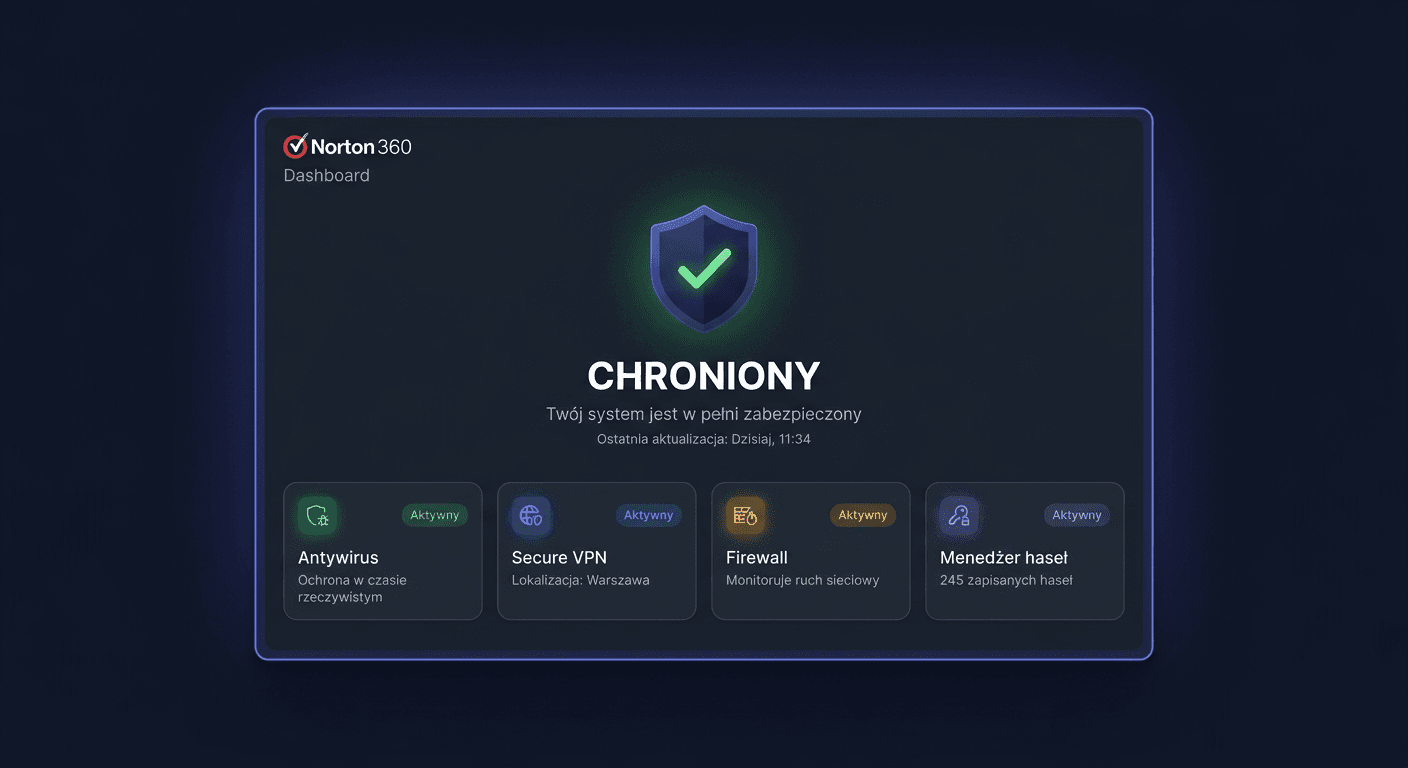
Activating Norton 360 Premium 10 Devices
Norton 360 Premium 10 devices is activated using a product key, not just by installing the application. This means that after downloading and running the program, you still need to assign a license to your Norton account or directly enter the activation code. Below, you will find procedures related to activation, license status verification, and troubleshooting common issues.
How Norton 360 Premium Activation Works
The Norton 360 Premium 10 devices license is activated by connecting the product key to a Norton account. In practice, for antivirus software, the standard is activation through the manufacturer's account, in this case, through the my.norton.com service. It is there that you add the key, check the subscription validity, and manage assigned devices.
Activation can be performed in several ways:
- through the Norton program interface
- through the Norton account in a browser
- from the command line, but only as an aid to launch the activation panel
- by phone at
00 800 121 1654
Activating with a Product Key: All Methods
1. Activation in the Norton Program
This is the simplest and most commonly used method.
- Launch Norton 360.
- Log in to your Norton account if the program asks you to.
- Open the
Help,Account,Subscription, orMy Nortonsection, depending on the interface version. - Choose an option like
Enter product key,Activate now, orUse code. - Enter the product key exactly as it was provided.
- Confirm the activation and wait for the license assignment message.
If the key is correct, the subscription will be added to your account, and the device will start using the Norton 360 Premium license.
2. Activation through the my.norton.com Website
This method is recommended when you want to first assign the key to your account and then connect the device to the active subscription.
- Go to
https://my.norton.com. - Log in to your Norton account.
- Open the section for adding a subscription or redeeming a key.
- Enter the product key.
- Confirm the activation.
- After activation, assign protection to the current device or send an installation-activation link to another device.
This is the safest method for multi-station licenses, as you can immediately see the number of occupied devices and the subscription expiration date.
3. Activation Using CMD
In the case of antivirus programs, commands like slmgr.vbs or ospp.vbs are not used, as activation takes place on the manufacturer's side. The command line can only be used to open the activation page or account panel.
Example command run in CMD:
start https://my.norton.com
You can also open the default browser directly on the login page and activate the key there. The activation itself still takes place through the Norton account, not through a local system script.
For any issues or concerns, please contact [email protected] or call 00 800 121 1654 for assistance.
4. Telephone Activation
If online activation does not work, the key does not want to be assigned to the account, or region or code usage errors occur, please contact Norton technical support at:
00 800 121 1654
Before calling, prepare:
- product key
- Norton account email address
- product name:
Norton 360 Premium 10 devices - error message visible on the screen
- information on whether the key has been used before
Support can confirm the key status, check regional blocking, verify the number of activations, or manually help with assigning a subscription.
Activation Verification
In the case of Norton, verification is performed primarily in the application and on the manufacturer's account.
In the Norton Application
Check if you see the status:
Active subscription- protection validity date
- plan name
Norton 360 Premium - information about assigning a device to the account
On the Norton Account
Log in to my.norton.com and check:
- active subscription
- expiration date
- number of devices used
- list of devices covered by protection
Detailed Verification Commands
For Norton, there are no official activation commands similar to slmgr.vbs /xpr or ospp.vbs /dstatus, as activation is not performed through the Windows or Office licensing system. To verify, you can use the command to open the Norton account:
start https://my.norton.com
and check the status directly in the Norton application. If someone expects a "status command", it should be clearly stated: Norton does not provide a standard public CMD command to check the activation status of the key in the style of /dstatus.
Resolving Activation Issues
Below are the most common real issues related to activation.
1. Error: Invalid Product Key
Typical message:
Invalid Product KeyThe product key you entered is not valid
Causes:
- typo in the key
- confusing
0withOor1withI - key for a different Norton product
Solution: re-enter the code, preferably using copy-paste, and if the problem persists, verify the product's compatibility with the license.
2. Error: Key Already Used
Typical message:
Product key already usedSubscription already redeemed
Causes:
- key was previously activated on a different account
- seller provided a used code
Solution: log in to the correct Norton account, check subscriptions at my.norton.com, and if the key was used without your knowledge, contact the seller and Norton.
3. Error: Problem with Connection to Activation Server
Typical indicators:
8504104- messages about lack of connection or service unavailability
Causes:
- temporary Norton service outage
- network firewall, proxy, or DNS filter
- unstable internet connection
Solution: check your internet, disable VPN, restart your computer, and try activation through my.norton.com.
4. Error: Unable to Log in to Norton Account
Typical messages:
Sign-in failedUnable to connect to accountAuthentication failed
Causes:
- incorrect password
- account block
- activation performed on a different account than before
Solution: reset your password, ensure you're using the correct email address, and then retry activation.
5. Error: Device Limit Reached
Typical messages:
No available licensesDevice limit reached
Causes:
- all 10 seats are already occupied
- old devices still appear as active
Solution: log in to my.norton.com, remove unused devices, and reassign protection.
6. Error: Region or Market Incompatibility
Typical messages:
This key cannot be redeemed in your regionCode not valid in this country
Causes:
- key intended for a different market
- regional license restriction
Solution: contact the seller or Norton support at 00 800 121 1654.
What to Do When the Key Doesn't Work
If the code doesn't activate Norton 360 Premium, follow these steps:
- Check if you're entering the key for the correct product.
- Verify there are no typos.
- Try activation directly through
my.norton.com. - Check if the key hasn't been assigned to another account.
- Ask the seller to confirm the license source.
- If necessary, contact Norton:
00 800 121 1654.
If the purchase comes from an unauthorized source, the problem might be a used, revoked, or region-specific code.
Reactivation After Hardware Change
After replacing a computer, disk, or motherboard, you usually don't need to activate a "new" key, but rather transfer the existing subscription.
- Log in to
my.norton.com. - Open the device list.
- Remove the old device if it won't be used anymore.
- Log in to Norton on the new hardware with the same account.
- Assign the active subscription to the new device.
If the system still shows no available seats or the old device can't be removed, Norton technical support can manually refresh the license assignment.
Summary
Activation of Norton 360 Premium 10 devices is primarily carried out through the Norton application or an account on the my.norton.com service. Unlike Windows, Office, or Microsoft servers, commands such as slmgr.vbs or ospp.vbs are not used here, as the antivirus licence is activated on the manufacturer's side. The most important elements are a correct key, a proper Norton account, and control over the number of assigned devices. If activation is unsuccessful, the quickest escalation route remains a phone call to Norton at 00 800 121 1654.