
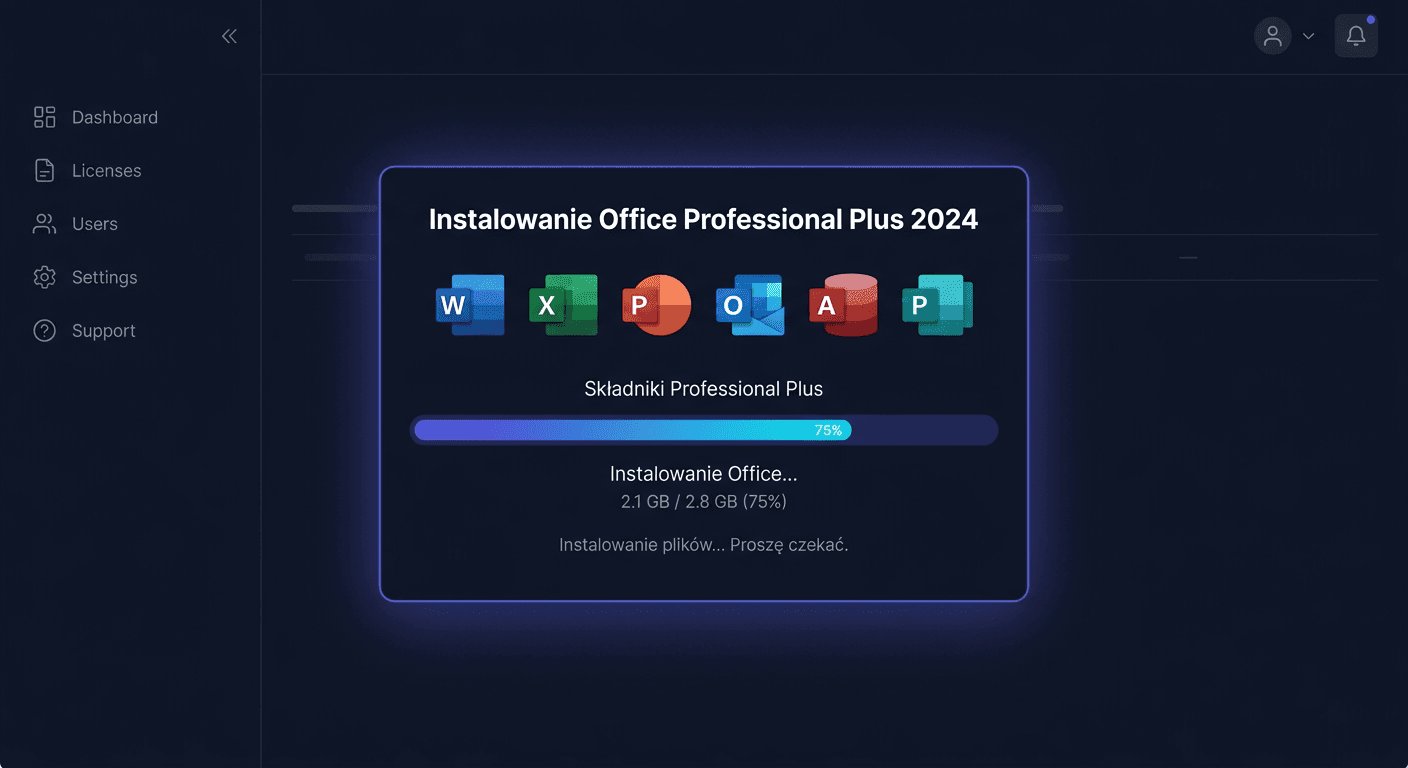
Activating Microsoft Office 2024 Professional Plus
Microsoft Office 2024 Professional Plus requires correct activation to function without limitations and displaying messages about non-genuine or inactive packages. This guide is exclusively about activation, not installation. Below, you will find all the most important methods: activation from the interface, via the command line, by phone, ways to verify the status, and solutions to typical errors.
Activating with a product key in the Office interface
The simplest method involves entering the product key directly in an Office application, such as Word or Excel.
How to activate Office 2024 Professional Plus through the GUI
- Launch any Office program, e.g., Word.
- Go to the File > Account section.
- If the package is not active, select the option to change or enter the product key.
- Enter the 25-character key in the format
XXXXX-XXXXX-XXXXX-XXXXX-XXXXX. - Confirm and wait for the activation process to complete.
This method is convenient, but in practice, when technical problems arise, using the ospp.vbs commands is often more effective.
Activating Office 2024 via CMD
Activation via the command line is the recommended method when Office does not accept the key in the interface or when activation errors occur.
Step 1: Run the Command Prompt as an administrator
In the Start menu, type cmd, right-click, and select Run as administrator.
Step 2: navigate to the Office directory
Most often, this will be one of the following locations:
cd /d "C:\Program Files\Microsoft Office\Office16"
or for the 32-bit version on a 64-bit system:
cd /d "C:\Program Files (x86)\Microsoft Office\Office16"
Step 3: enter the product key
cscript ospp.vbs /inpkey:XXXXX-XXXXX-XXXXX-XXXXX-XXXXX
Step 4: run the activation
cscript ospp.vbs /act
If the key is correct and the system has a connection to the activation servers, the package should be activated within a few seconds.
Telephone activation of Office
If online activation does not work, you can use telephone activation. For Microsoft assistance, use the number:
00 800 121 1654
Before contacting, prepare:
- the product key,
- information about the package version: Microsoft Office 2024 Professional Plus,
- the error message or error code, if displayed,
- information on whether the key has been used before.
Telephone activation is particularly useful after changing hardware, reinstalling the system, or when the activation server rejects the key despite its correctness.
Verifying Office activation
After activation, it's a good idea to immediately check the license status. This command is used for that purpose:
cscript ospp.vbs /dstatus
The command should be run in the same directory where ospp.vbs is located. As a result, you will see, among other things:
- license status,
- the last 5 characters of the installed key,
- information about the licensing channel type,
- any error code.
If the status indicates an active license, Office is ready to work. For any issues or concerns, you can contact [email protected] for assistance.
Troubleshooting Activation Issues
Below are real activation errors that most frequently occur with Office.
0xC004F050
The product key is invalid or does not match this edition of Office. This most often means:
- a typo when entering the key,
- attempting to use a key for a different version,
- a key intended for a different distribution channel.
0xC004C060
The key has been marked as blocked by Microsoft. This occurs with keys resold multiple times or from an unauthorised source.
0xC004C008
The activation limit has been exceeded. This error often appears after replacing a computer, motherboard, or several system reinstalls.
0x80072EE7
A problem with the network connection or recognition of the activation server. It's worth checking DNS, firewall, internet connection, and proxy settings.
0x80070005
Lack of appropriate permissions. Most often, running cmd as an administrator and re-executing the activation commands helps.
0xC004F074
The computer cannot contact the activation service. This error occurs especially in corporate environments or after incorrect licensing configuration.
LICENSE STATUS: ---NOTIFICATIONS---
This is not a code, but a very common result in ospp.vbs /dstatus. It means that the package is not properly activated and is working in notification mode.
What to Do When the Key Does Not Work
If Office does not accept the key:
- check if you are entering the key exactly for Office 2024 Professional Plus,
- ensure you are not confusing
Bwith8,Gwith6,Owith0, - re-enter the key using
cscript ospp.vbs /inpkey:KEY, - run activation again with the command
cscript ospp.vbs /act, - verify the status with
cscript ospp.vbs /dstatus, - if the error repeats, contact the seller and prepare the error code,
- if necessary, use Microsoft's phone assistance: 00 800 121 1654.
If the key has already been used on another device, reactivation or clarification of the licence status with the seller may be required.
Reactivation After Hardware Change
Changing the motherboard, disk, processor, or full system reinstall can be treated as a device change. In such a situation, Office may lose activation.
The safest procedure:
- Install the same edition of Office.
- Enter the key again using the command
cscript ospp.vbs /inpkey:XXXXX-XXXXX-XXXXX-XXXXX-XXXXX. - Run
cscript ospp.vbs /act. - Check the result with
cscript ospp.vbs /dstatus. - If online activation fails, use phone activation by calling 00 800 121 1654.
In practice, errors 0xC004C008 or 0xC004C060 most often appear after a hardware change.
Summary
Activation of Microsoft Office 2024 Professional Plus should be performed exclusively using a valid key and official methods. The most important commands are:
cscript ospp.vbs /inpkey:XXXXX-XXXXX-XXXXX-XXXXX-XXXXX
cscript ospp.vbs /act
cscript ospp.vbs /dstatus
If activation from the application level does not work, use CMD as an administrator. If the error still appears, note the problem code and use Microsoft's phone assistance at 00 800 121 1654. This is the fastest way when the key requires manual verification or reactivation after a hardware change. For further assistance, you can also contact KluczeSoft at [email protected].