
Microsoft Windows 11 Home Activation Guide
Activating Windows 11 Home confirms that the system copy in use is original and has been properly assigned to the device. This guide is exclusively about activation, not system installation. Below, we describe all the key activation methods, how to check the licence status, common errors, and actions to take when the product key does not work or after hardware replacement.
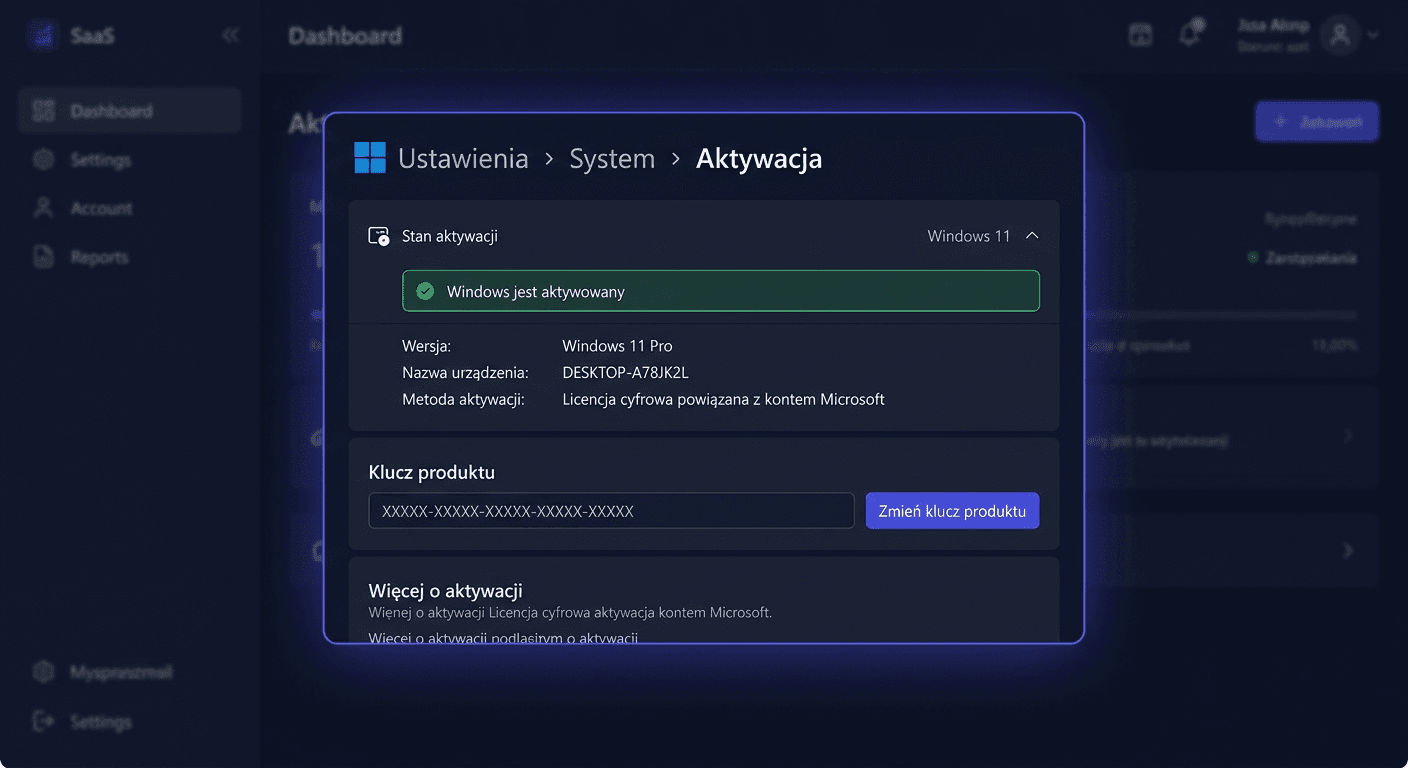
Activating with a Product Key in the Graphical Interface
The simplest way to activate Windows 11 Home is through the system settings:
- Open
Start. - Go to
Settings. - Navigate to
System. - Select
Activation. - Click
Change product key. - Enter the 25-character product key in the format
XXXXX-XXXXX-XXXXX-XXXXX-XXXXX. - Confirm and wait for the connection to Microsoft's activation servers.
If the key is correct and matches the Windows 11 Home edition, the system should activate automatically. If the device was previously activated and the digital licence is linked to a Microsoft account, activation may occur without re-entering the key.
Activating Windows 11 Home via Command Line
This method is useful when GUI activation does not work or you want to perform detailed diagnostics.
Run Command Prompt as an administrator and enter the following commands:
slmgr.vbs /ipk XXXXX-XXXXX-XXXXX-XXXXX-XXXXX
slmgr.vbs /ato
Meaning of the commands:
slmgr.vbs /ipkinstalls a new product keyslmgr.vbs /atoforces an online activation attempt
After each command, the system usually displays a separate window with a success or error message. The key must exactly match the system edition, in this case, Windows 11 Home.
Telephone Activation
If online activation fails, you can use Microsoft's telephone activation. In practice, it's a good idea to have the product key and installation ID from the activation wizard ready.
Phone number to contact:
00 800 121 1654
During the call or in the automated system, you may be asked to provide the installation ID and transcribe the confirmation ID. Telephone activation is particularly helpful when:
- activation servers reject a valid key
- the key has already been used on the same device
- reactivation is needed after hardware changes
- online activation is temporarily unavailable
Verifying Windows 11 Home Activation
After activation, it's a good idea to confirm the actual licence status. For Windows, use the following commands exactly:
slmgr.vbs /xpr
slmgr.vbs /dlv
Meaning:
slmgr.vbs /xprshows whether the system is permanently activatedslmgr.vbs /dlvdisplays detailed licence information, activation channel, and partial key
In many cases, it's also worth checking the screen:
Settings > System > Activation
If the system is properly activated, you should see a message about Windows system activation.
For any further assistance or issues, please contact [email protected].
Troubleshooting Activation
Below are the most common real activation errors for Windows and their meanings.
Error 0xC004C003
The key has been blocked or rejected by the licensing service. This most often means a problem with the key itself or its previous revocation.
Error 0xC004F050
The entered product key is invalid. This often appears due to a typo or when the key does not match the Windows 11 Home edition.
Error 0x803FA067
The system cannot activate the specified edition using the provided key. This usually indicates a mismatch between the key and the currently installed version of Windows.
Error 0xC004F213
The system did not find a valid product key. This occurs after changing the motherboard, reinstallation, or when there is an issue with saving the digital license.
Error 0xC004F034
The activation server is temporarily unavailable or the key cannot be verified. It's worth waiting and retrying, then using phone activation.
Error 0x8007232B
There is a problem with the DNS name or an attempt to activate in an environment that expects a different type of licensing. In home systems, this usually means incorrect configuration or an inappropriate key.
Error 0xC004E016
The provided key does not match this version of the system. This is a classic case of using a key from a different edition of Windows.
What to Do When the Key Does Not Work
If the product key does not work, follow these steps:
- Check if you are entering the key exactly without mistakes.
- Ensure the key is intended for
Windows 11 Home, not e.g., Pro. - Try activation via CMD:
slmgr.vbs /ipk XXXXX-XXXXX-XXXXX-XXXXX-XXXXX slmgr.vbs /ato - Verify the status:
slmgr.vbs /xpr slmgr.vbs /dlv - If online activation does not pass, use the phone
00 800 121 1654. - If the key is still rejected, contact the seller and prepare the error code and a screenshot of the activation window.
The most common practical problem is purchasing a key for a different edition than the installed system or a key previously blocked by Microsoft.
Reactivation After Hardware Change
After replacing significant components, especially the motherboard, Windows may consider the device as a new computer. In such a situation:
- Open
Settings > System > Activation. - Check if there is an option to troubleshoot activation issues.
- Log in to your Microsoft account if the license was associated with it.
- Try reactivating with the key:
slmgr.vbs /ipk XXXXX-XXXXX-XXXXX-XXXXX-XXXXX slmgr.vbs /ato - If this does not help, use phone activation by calling
00 800 121 1654.
With a digital license linked to a Microsoft account, reactivation is usually simpler. For one-time or OEM licenses, the possibility of transfer may be limited. If you need further assistance, please contact us at [email protected] or visit the KluczeSoft website for more information.
Important information about activating other products
Microsoft Office
Activation of the Office package with a product key is usually done through:
ospp.vbs /inpkey:XXXXX-XXXXX-XXXXX-XXXXX-XXXXX
ospp.vbs /act
ospp.vbs /dstatus
ospp.vbs /inpkeyenters the keyospp.vbs /actstarts the activationospp.vbs /dstatuschecks the activation status
Visual Studio
For Visual Studio, use the path:
Help > Register Product > Unlock with Product Key
Antivirus software
Antivirus programs are usually not activated with a system command. Activation is done on the manufacturer's website, e.g.:
my.norton.comcentral.bitdefender.com
Windows Server
In server systems, key activation is performed standardly:
slmgr.vbs /ipk XXXXX-XXXXX-XXXXX-XXXXX-XXXXX
slmgr.vbs /ato
CAL
CAL licenses are not activated with a product key. CAL is a license document confirming access rights and is not subject to standard activation like Windows or Office.
Summary
Activation of Windows 11 Home can be performed through system settings, slmgr.vbs commands, or by phone. For basic support and diagnostics, the most important commands are:
slmgr.vbs /ipk XXXXX-XXXXX-XXXXX-XXXXX-XXXXX
slmgr.vbs /ato
slmgr.vbs /xpr
slmgr.vbs /dlv
If the key does not work, first check compatibility with the system edition, then perform manual activation and verify the status. In case of persistent problems or reactivation after hardware changes, the safest solution is to contact KluczeSoft at [email protected] or Microsoft at phone 00 800 121 1654