
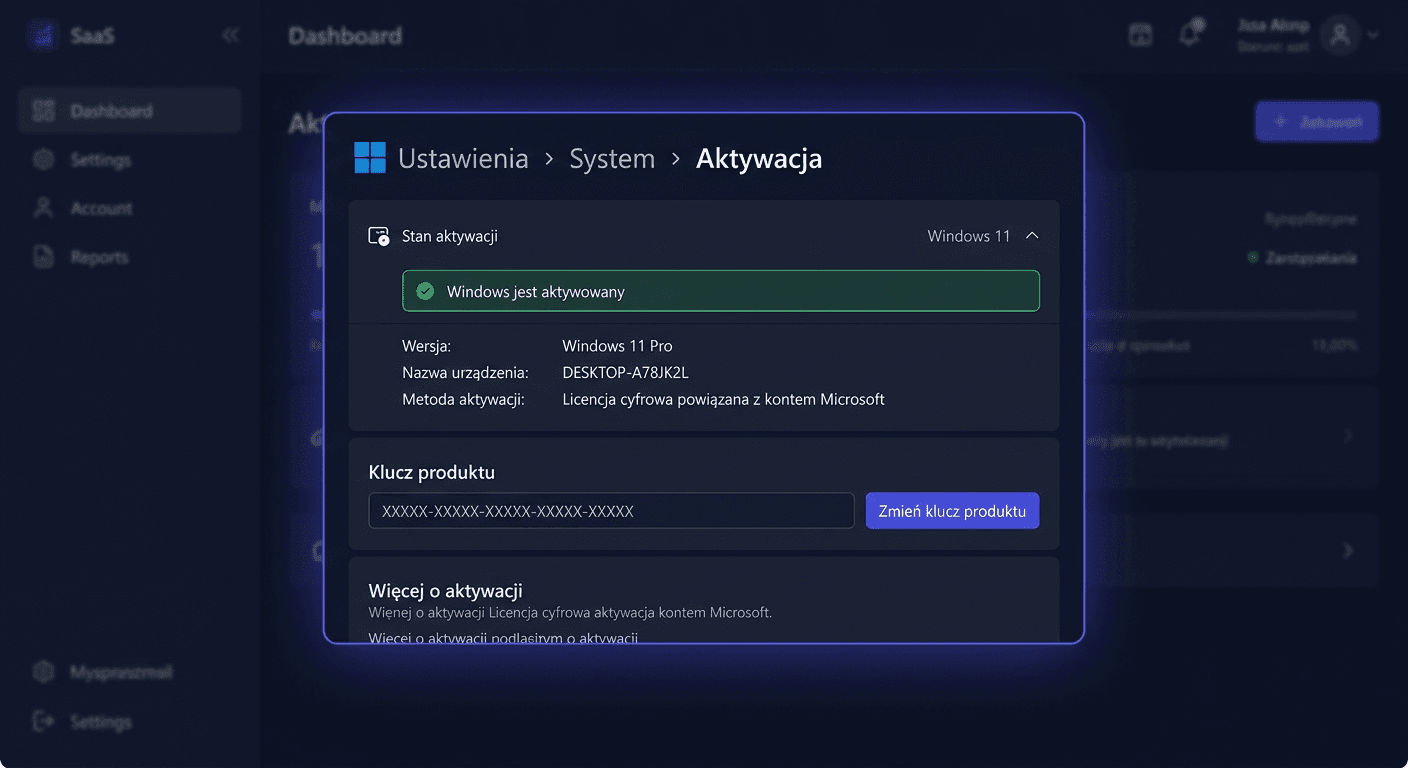
Microsoft Windows 11 Professional Activation Guide
Activating the Windows 11 Professional system involves assigning a valid product key to the installed system and confirming it on Microsoft's servers. This guide is exclusively about activation, not system installation. You will find all the most important activation methods, detailed commands to verify the status, and practical solutions to the most common errors.
If online activation fails, you can use Microsoft's phone activation: 00 800 121 1654.
When to Activate Windows 11 Pro
Activation is usually performed in one of the following situations:
- after a fresh installation of Windows 11 Professional,
- after changing the edition from Home to Pro,
- after replacing the main board or another significant component,
- after reinstalling the system,
- when the system reports a lack of activation despite a previously valid license.
To activate, you need a valid Windows 11 Pro product key or a digital license associated with a Microsoft account.
Activating with a Product Key in the Graphical Interface
This is the simplest method for most users.
- Open Settings.
- Go to System.
- Click Activation.
- In the key change section, select Change product key.
- Enter the 25-character product key.
- Confirm and wait for the activation message.
If the key is correct and the system has an internet connection, Windows should activate automatically. If an error occurs, proceed to the troubleshooting section or use the command line method.
Activating Windows 11 Pro via CMD
This method is particularly useful when the graphical interface does not work properly or you want full control over the activation process.
Run Command Prompt as administrator, then execute the following commands in sequence:
slmgr.vbs /ipk XXXXX-XXXXX-XXXXX-XXXXX-XXXXX
slmgr.vbs /ato
The meaning of the commands:
slmgr.vbs /ipkinstalls the product key,slmgr.vbs /atoinitiates online activation.
After successful execution, a confirmation message should appear, accepting the key and activating the system.
Phone Activation of Windows 11 Pro
If internet activation fails, you can use phone activation. This is often effective after significant hardware changes or when the activation server rejects automatic activation.
Microsoft's phone number for activation:
00 800 121 1654
The standard process looks like this:
- Press
Win + R. - Type
slui 4and confirm. - Select your country or region.
- Call the indicated number or provide the installation ID to the consultant / automated system.
- Enter the received confirmation ID in the appropriate fields.
- Complete the activation.
If slui 4 does not launch the activation window, you can still try activation via slmgr.vbs /ipk, then contact Microsoft by phone at 00 800 121 1654.
Verifying Windows 11 Pro Activation
After activation, it's always a good idea to check the system status with detailed commands. Run CMD as administrator and type:
slmgr.vbs /xpr
slmgr.vbs /dlv
Meaning:
slmgr.vbs /xprshows if the system is permanently activated,slmgr.vbs /dlvdisplays detailed information about the license and activation status.
These are the basic and correct verification commands for Windows.
Resolving Activation Issues
Below are the most common real activation errors for Windows 11 Professional.
Error 0xC004F050
Most often indicates an incorrect key or a key that does not match this edition of the system.
What to do:
- check if the installed edition is Windows 11 Professional,
- ensure you are not entering the key for a different version,
- re-enter the key via GUI or
slmgr.vbs /ipk.
Error 0xC004C003
Usually means the activation server rejected the key because it was blocked or used in violation of the license terms.
What to do:
- check the origin of the key,
- contact the seller,
- if necessary, use phone activation: 00 800 121 1654.
Error 0xC004F213
The system cannot find a valid product key or digital license.
What to do:
- re-enter the key,
- log in to your Microsoft account if the license was associated with it,
- check the status with the command
slmgr.vbs /dlv.
Error 0x803FA067
Often appears when changing editions or attempting to activate an incompatible version.
What to do:
- ensure you are activating Windows 11 Pro,
- if you previously had Home, check if the edition was changed correctly,
- restart the system and try
slmgr.vbs /ipk, thenslmgr.vbs /ato.
Error 0xC004FC03
Usually indicates a problem with the network connection or blocked communication with Microsoft servers.
What to do:
- check your internet connection,
- temporarily disable the firewall or proxy if they are blocking activation,
- repeat the command
slmgr.vbs /ato, - if the error returns, use phone activation.
Error 0x80072F8F
Most often relates to an incorrect date, time, or certificate issues.
What to do:
- set the correct date, time, and time zone,
- synchronize the system clock,
- try activation again.
What to Do When the Key Does Not Work
If the key does not work, do not repeatedly enter it without checking the reason. First:
- confirm the key is intended for Windows 11 Professional,
- check for typos,
- ensure the system is not a different edition,
- run
slmgr.vbs /dlvto see license details, - try phone activation at 00 800 121 1654,
- if the key is still rejected, contact the seller and ask for a replacement or license verification.
In practice, the most common issues are edition mismatch, used key, or block by Microsoft.
Reactivation After Hardware Changes
After replacing the motherboard, and sometimes other key components, Windows may consider the device a new computer. Then, activation may disappear.
What you can do:
- try standard activation over the internet,
- log in to the same Microsoft account if the license was associated with it,
- run
slmgr.vbs /ato, - if that does not help, use
slui 4and phone activation, - prepare proof of license purchase in case of contact with technical support.
With a digital license linked to a Microsoft account, reactivation is often simpler than with a one-time key. If you need assistance, please contact us at [email protected] or call 00 800 121 1654.
Brief information about activating other products
If you activate other products besides Windows, different mechanisms apply:
- Microsoft Office: use
ospp.vbs /inpkey, thenospp.vbs /act, and check the status withospp.vbs /dstatus. - Windows Server: standardly
slmgr.vbs /ipk, followed byslmgr.vbs /ato. - Visual Studio: Help > Register Product > Unlock with Product Key.
- Antivirus software: activation usually takes place through the manufacturer's account, e.g.
my.norton.com,central.bitdefender.comand similar. - CAL: the CAL licence is not activated with a key. It is a licence document confirming the legal right of access, not an activation key.
Summary
Activating Windows 11 Professional should always end with verification using the commands:
slmgr.vbs /xpr
slmgr.vbs /dlv
If online activation does not work, use:
slmgr.vbs /ipk XXXXX-XXXXX-XXXXX-XXXXX-XXXXX
slmgr.vbs /ato
And if the problem still occurs, the most reliable solution remains telephone activation with Microsoft at 00 800 121 1654. This is the most important number to have at hand when dealing with reactivation problems, errors after hardware changes, and product key rejection. If you need further assistance, please contact us at [email protected] or call 00 800 121 1654.