
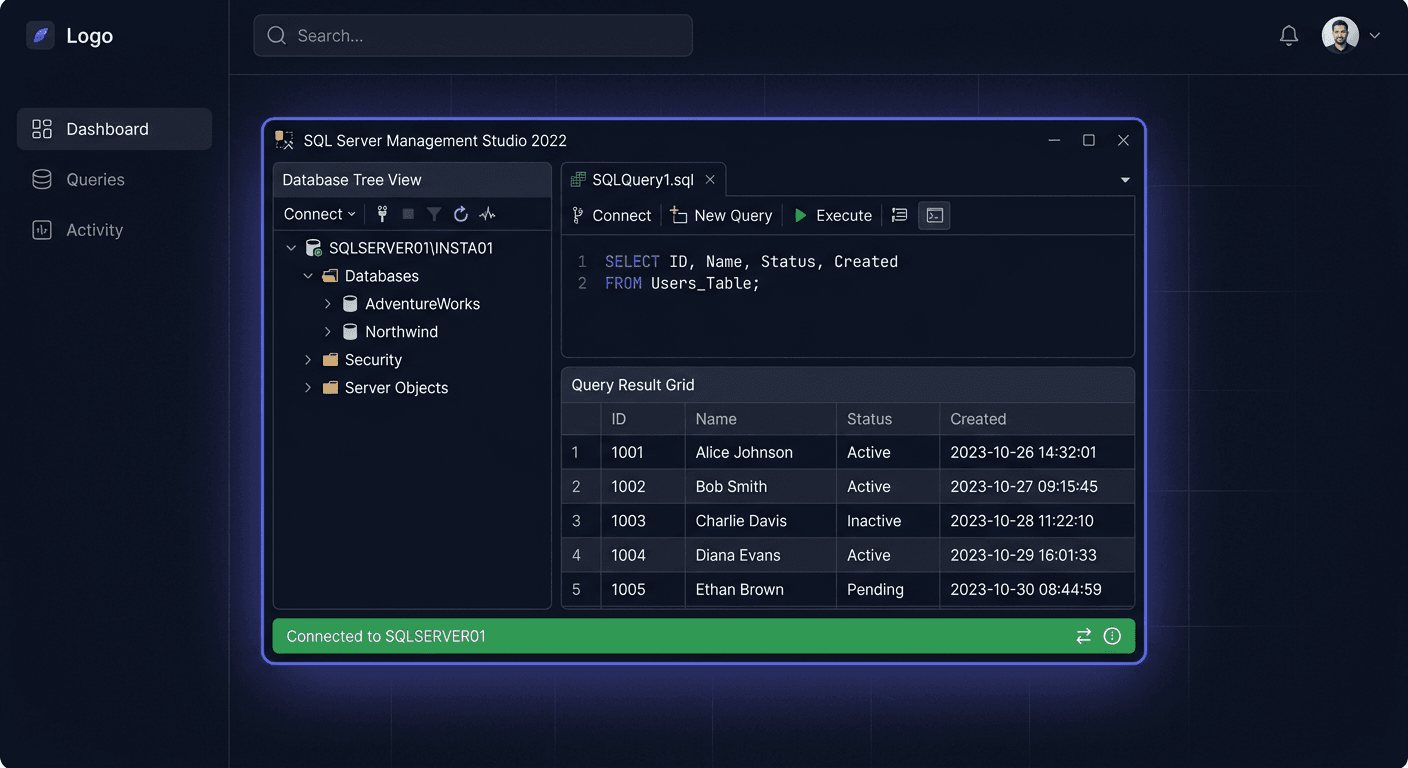
Activating SQL Server 2017 Standard 50 User CAL
SQL Server 2017 Standard in the Server + CAL licensing model requires the correct assignment of server licenses and the appropriate number of access licenses, User CAL. In the case of the 50 User CAL package, this means that up to 50 named users can legally use the server, regardless of the number of devices they connect from. This solution is often chosen in companies where employees use desktop computers, laptops, and mobile devices, but each user should have their own access license.
In practice, it is worth remembering that SQL Server 2017 does not have a classic "CAL activation" in the system, similar to a key entered for each user separately. Activation mainly concerns the installation and legal launch of the server edition, while User CAL licenses must be properly purchased, documented, and assigned to users within the organization. Therefore, proper implementation includes both technical and documentary aspects.
Step by Step
- Ensure you have the correct
SQL Server 2017 Standardlicense and the50 User CALpackage. - Verify the source of purchase and keep licensing documents, such as invoices, purchase confirmations, order numbers, or messages with license details.
- Install
SQL Server 2017 Standardon the target server using the official media or a valid installer. - During installation, select the
Standardedition if the installer requires you to specify the product version or key. - If you have a product key, enter it during installation or when changing the server edition from a trial version to a full version.
- Complete the instance configuration, services, administrative permissions, and network settings.
- After installation, prepare an internal list of users who will be using the SQL server.
- Assign
User CALlicenses to specific individuals, not devices. - Ensure that the number of users accessing the server does not exceed 50 if using the
50 User CALpackage. - Keep a record of license assignments for internal control or audit purposes.
It is essential to distinguish between two elements. The first is the server edition itself, SQL Server 2017 Standard, which must be correctly installed and licensed. The second is the users' right to access this instance. In the User CAL model, each account is not activated separately in the SQL Server console. Instead, the organization must have the correct number of CAL licenses corresponding to the number of people using the system directly or indirectly.
If the server was previously installed as a trial version (Evaluation) or in a different edition, it may be necessary to change the edition to Standard. This operation is performed using the SQL Server installation tool, selecting the option to update the edition and providing the correct product key if required. After completing the operation, it is a good idea to restart the SQL Server services and check the instance version.
Jeśli potrzebujesz dalszej pomocy, skontaktuj się z nami pod adresem [email protected] lub zadzwoń na numer telefonu 00 800 121 1654.
Checking
After implementation, you should check two things: the technical status of the server and licence compliance.
From a technical point of view, it is worth confirming:
- whether the
SQL Serverservice is working correctly, - whether you can log in to the instance via
SQL Server Management Studio, - whether the database is running without errors,
- whether the server is working in
Standardedition.
The edition verification can be performed using the SQL command:
SELECT @@VERSION;
or:
SELECT SERVERPROPERTY('Edition'), SERVERPROPERTY('ProductVersion');
From a licensing point of view, you should check:
- whether you have a
SQL Server 2017 Standardserver licence, - whether the
50 User CALpackage has been purchased correctly, - whether users have been assigned to the licence,
- whether the number of people using the server does not exceed the purchased limit.
The best practice is to prepare a simple user register with the date of licence assignment. Such a document greatly facilitates later administration and organises the issue of licence compliance.
Problems
The most common problem is the mistaken assumption that User CAL is activated within the SQL Server itself. In reality, SQL Server does not provide a separate activation wizard for each CAL user. The key is proper licensing and documentation of assignments.
Another common problem is confusing the User CAL model with Device CAL. If multiple employees use one server on different devices, User CAL is usually the right choice. However, if many people work on one shared workstation, the Device CAL model may be more suitable.
Another difficulty arises when a company uses more than 50 users but still relies on the 50 User CAL package. In such a situation, it is necessary to extend the licensing with additional CALs or analyse whether the Core model is more cost-effective.
A problem may also be the installation of the evaluation version instead of the full Standard edition. In this case, the server works correctly only for a limited time, and then it is necessary to change the edition and organise the licence.
If you have any doubts about activation, licence compliance, or choosing the right model, please contact us: [email protected].
FAQ
Does SQL Server 2017 CAL enter as a separate key for each user?
No. In the Server + CAL model, the server edition is activated first, and User CAL licences grant access rights to assigned users. You must possess and properly document them.
What does the 50 User CAL package mean?
It means the right to access the SQL server for a maximum of 50 named users. Each of them can use different devices, but the number of users cannot exceed the purchased pool.
How to check if the server is running as SQL Server 2017 Standard?
The easiest way is to connect to the instance and execute the query SELECT SERVERPROPERTY('Edition'). The result should indicate the Standard edition. Additionally, it's worth checking the version with the command SELECT @@VERSION;.
If you need help with choosing a licence, activation, or verification of compliance, write to [email protected] or call 00 800 121 1654.