
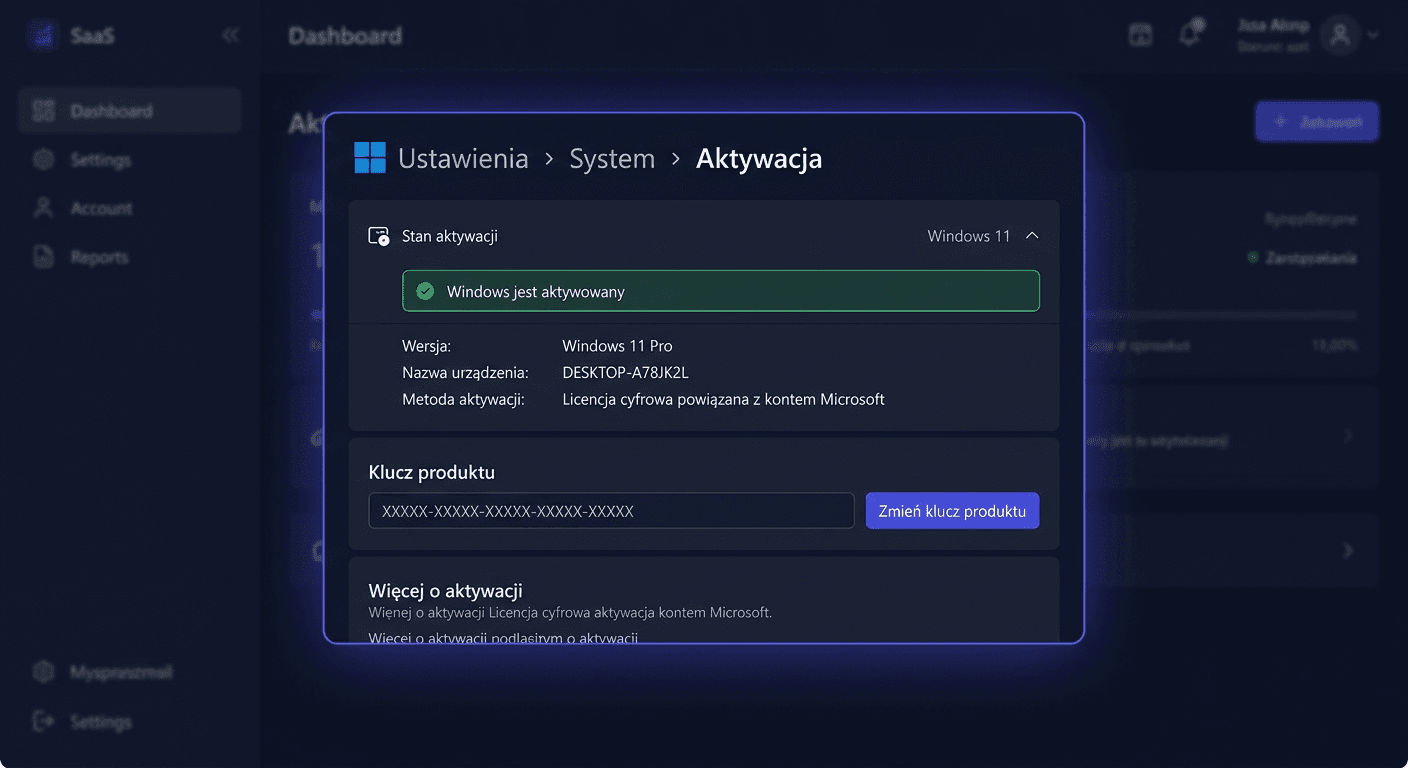
Activation of Ultimate Windows 11 Pro + Office 2024 + Visio 2024 + Project 2024
Below, you will find a complete activation guide for the Ultimate bundle, which includes 4 separate product keys: one for Windows 11 Pro and three separate keys for Office 2024, Visio 2024, and Project 2024. Each component must be activated separately using the appropriate system tool.
In this bundle, the following simple division applies:
- Windows 11 Pro is activated using the
slmgrcommand - Office 2024, Visio 2024, and Project 2024 are activated using
ospp.vbs
This is very important, as many users try to use one key for the entire package or activate all products in the same place. In this bundle, each product has its own key and must be activated separately.
If you have any questions or encounter error messages during activation, please contact us: [email protected]
What to prepare before starting
Before activation, make sure that:
- your computer has an internet connection
- the correct product compatible with the purchased key is installed
- you enter the key without spaces at the beginning and end
- you run the Command Prompt as administrator
- you activate each component separately using the correct key
For convenience, prepare the four keys in advance:
- the key for Windows 11 Pro
- the key for Office 2024
- the key for Visio 2024
- the key for Project 2024
1. Activation of Windows 11 Pro using slmgr
Windows activation is performed separately using the slmgr tool.
Step 1: Run Command Prompt as administrator
- Click Start
- Type:
cmd - Right-click on Command Prompt
- Select Run as administrator
If the User Account Control question appears, confirm with the Yes button.
Step 2: Enter the Windows 11 Pro product key
In the open window, type the command:
slmgr /ipk YOUR-WINDOWS-11-PRO-KEY
Example:
slmgr /ipk XXXXX-XXXXX-XXXXX-XXXXX-XXXXX
Press Enter and wait for the key installation confirmation message.
Step 3: Activate the system online
Next, type:
slmgr /ato
Press Enter. The system will attempt to connect to the Microsoft activation server and activate Windows.
Step 4: Check the activation status
To check if Windows has been activated, type:
slmgr /xpr
After a moment, you will see a message informing you whether the system is permanently activated.
Important notes for Windows activation
- the Windows key only works with the corresponding edition, i.e., Windows 11 Pro
- if you have a different version of the system installed, e.g., Home, you need to change it to Pro first
- during activation, the computer should have internet access
- do not use the Office, Visio, or Project key to activate the Windows system
You can also contact us by phone: 00 800 121 1654
2. Activating Office 2024 using ospp.vbs
Office 2024 is activated with a separate key, using the ospp.vbs tool, which is located in the Office installation folder.
Step 1: Run the Command Prompt as an administrator
If the previous window was closed, open it again:
- Click Start
- Type:
cmd - Select Run as administrator
Step 2: Navigate to the Office folder
Most often, Office is located in one of the following locations.
For 64-bit system and 64-bit Office:
cd /d "C:\Program Files\Microsoft Office\Office16"
For 32-bit Office installed on a 64-bit system:
cd /d "C:\Program Files (x86)\Microsoft Office\Office16"
If you are unsure which path is correct, start with the first one. If an error message appears, use the second one.
Step 3: Enter the Office 2024 key
Enter the command:
cscript ospp.vbs /inpkey:YOUR-OFFICE-2024-KEY
Example:
cscript ospp.vbs /inpkey:XXXXX-XXXXX-XXXXX-XXXXX-XXXXX
After confirmation, a message should appear indicating that the key has been installed correctly.
Step 4: Activate Office
Enter:
cscript ospp.vbs /act
Press Enter and wait for the activation result.
Step 5: Check the activation status
To check the license status, use:
cscript ospp.vbs /dstatus
The result will show information about the installed licenses and activation status.
Important notes for Office activation
- you are activating only the product for which you enter the key
- the Office 2024 key does not activate Visio or Project
- Office must be installed correctly before activation
- the
Office16folder is standard for newer versions of the Office package, so it is correct
3. Activating Visio 2024 using ospp.vbs
Visio 2024 is also activated with a separate key. The procedure is similar to Office, but remember that you are using a different key.
Step 1: Open the Command Prompt as an administrator
If you still have the administrator window open, you can continue using it. Otherwise, open it again.
Step 2: Navigate to the Office folder
Enter one of the following commands:
cd /d "C:\Program Files\Microsoft Office\Office16"
or
cd /d "C:\Program Files (x86)\Microsoft Office\Office16"
Step 3: Enter the Visio 2024 key
Enter:
cscript ospp.vbs /inpkey:YOUR-VISIO-2024-KEY
Example:
cscript ospp.vbs /inpkey:XXXXX-XXXXX-XXXXX-XXXXX-XXXXX
After a moment, a message should appear confirming that the key has been saved.
Step 4: Activate Visio
Run the command:
cscript ospp.vbs /act
The system will attempt to activate the installed product online.
Step 5: Verify activation
To confirm, enter:
cscript ospp.vbs /dstatus
The list of statuses should show information about Visio.
Important notes for Visio activation
- Visio must be installed on the computer before entering the key
- use only the key assigned to Visio 2024
- do not enter the key for Project or Office, as activation will result in an error
- if there are multiple Microsoft products on the computer,
dstatusmay show multiple license entries
If you need help with the activation process, please contact us at [email protected] or call 00 800 121 1654.
4. Activating Project 2024 using ospp.vbs
You activate Project 2024 in exactly the same way as Office and Visio, but once again, you use a separate key.
Step 1: Run the Command Prompt as an administrator
If the window is already open, proceed immediately.
Step 2: Open the directory with ospp.vbs
Enter:
cd /d "C:\Program Files\Microsoft Office\Office16"
If this does not work, use:
cd /d "C:\Program Files (x86)\Microsoft Office\Office16"
Step 3: Add the key to Project 2024
Enter:
cscript ospp.vbs /inpkey:YOUR-PROJECT-2024-KEY
Example:
cscript ospp.vbs /inpkey:XXXXX-XXXXX-XXXXX-XXXXX-XXXXX
Step 4: Activate Project
Run the command:
cscript ospp.vbs /act
After a moment, you should receive a message about successful activation.
Step 5: Check the licence status
Finally, enter:
cscript ospp.vbs /dstatus
This will allow you to confirm that Project has been recognised and activated.
Most common errors and how to avoid them
Most problems arise from a few simple reasons:
- entering the key for the wrong product
- attempting to activate Windows using
ospp.vbs - attempting to activate Office, Visio, or Project using
slmgr - lack of administrator privileges
- lack of internet connection during activation
- installing a different version of the product than the one the key is intended for
It's worth remembering a simple rule:
- Windows 11 Pro:
slmgr - Office 2024:
ospp.vbs - Visio 2024:
ospp.vbs - Project 2024:
ospp.vbs
Summary
The Ultimate Windows 11 Pro + Office 2024 + Visio 2024 + Project 2024 set contains 4 separate keys, so each component must be activated independently. You activate the Windows system using slmgr commands, while Office, Visio, and Project are activated using ospp.vbs with the correct key for each product.
If you follow all the steps in order and use the correct keys, activation should proceed without problems. If you have any questions, doubts, or error messages, please contact us at: [email protected] or call 00 800 121 1654