
Activation of Windows 11 Pro + Office 2024 Pro Plus + Norton 360 Deluxe Bundle
Below, you will find a simple activation guide for the bundle: Windows 11 Pro, Office 2024 Pro Plus, and Norton 360 Deluxe. The tutorial has been prepared to ensure that you can complete the entire process without unnecessary complications. Each product is activated in a different way, so it's worth performing the steps one by one and making sure that the correct key is entered for the correct program.
Before you start, prepare the 3 activation keys you received after purchase and check that your computer has an active internet connection. For Office and Norton, a network connection is particularly important, as activation requires contact with the manufacturer's servers. If any of the programs are not yet installed, complete the installation first, and only then proceed with activation.
Step by Step
1. Activating Windows 11 Pro using slmgr
Windows 11 Pro can be activated using the built-in system tool slmgr. This is the standard method for handling product keys in Windows.
- Click the Start menu.
- Type
cmd. - Right-click on
Command Promptand selectRun as administrator. - In the opened window, type the command:
slmgr /ipk YOUR-WINDOWS-11-PRO-KEY
- Press Enter and wait for the confirmation message of key installation.
- Then, type:
slmgr /ato
- After a while, the system should display information about the activation attempt.
If the activation is successful, Windows 11 Pro will be assigned to this system installation. When typing commands, pay attention not to confuse letters with numbers, e.g., B with 8 or G with 6.
2. Activating Office 2024 Pro Plus using ospp.vbs
Office 2024 Pro Plus is activated using the ospp.vbs script, which is located in the installation folder of the Office package. Most often, you need to navigate to the correct location first, then install the key, and finally run the activation.
- Close all Office package programs, such as Word, Excel, or Outlook.
- Run
Command Promptas an administrator. - Depending on the Office version, type one of the commands:
For 64-bit version:
cd "C:\Program Files\Microsoft Office\Office16"
For 32-bit version:
cd "C:\Program Files (x86)\Microsoft Office\Office16"
- Then, type:
cscript ospp.vbs /inpkey:YOUR-OFFICE-2024-KEY
- After installing the key, run the activation with the command:
cscript ospp.vbs /act
- Wait for the final message.
If you see information about successful activation, Office 2024 Pro Plus is ready to use. In some cases, it's helpful to restart the computer after completing the process.
3. Activating Norton 360 Deluxe through norton.com/setup
Norton 360 Deluxe is activated differently than Windows and Office, as it requires assigning the key to a Norton account.
- Open a web browser.
- Go to the website:
norton.com/setup
- Log in to your Norton account. If you don't have one, create a new account.
- Enter the received Norton 360 Deluxe activation key.
- Confirm activation.
- Download the Norton application if the system asks for installation.
- Install the program and log in to the same Norton account.
After assigning the key to the account, the subscription will be activated, and device protection should start automatically. If Norton was already installed earlier, sometimes it's enough to just log in to the account for the product to retrieve the active license.
Verification
After completing the activation, it's worth ensuring that all three products work correctly.
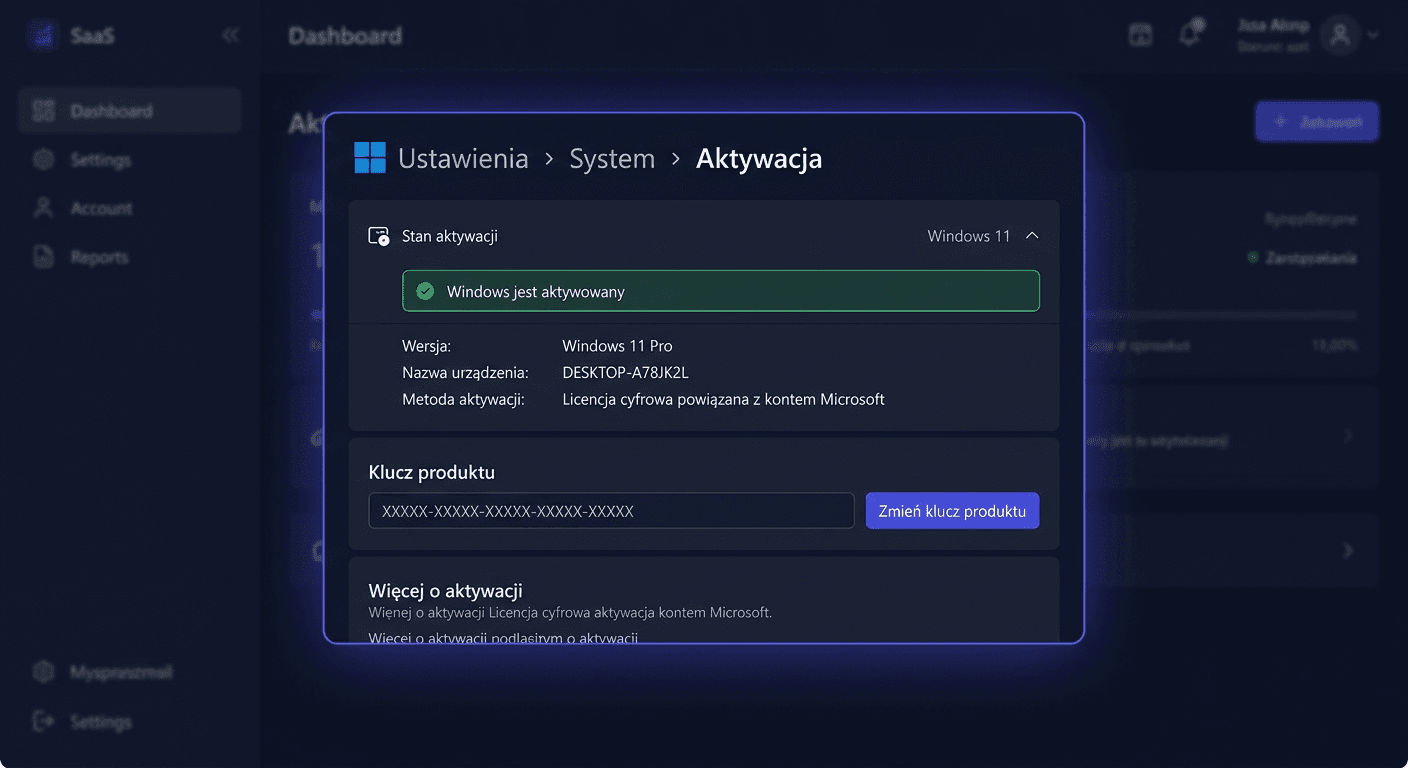
Windows 11 Pro:
- Go to
Settings > System > Activation. - The status should indicate that the system is activated.
Office 2024 Pro Plus:
- Open, for example, Word or Excel.
- Go to
File > Account. - In the product section, the activation status should be visible.
Norton 360 Deluxe:
- Run the Norton program.
- Check if the subscription is active and if device protection is enabled.
If any product does not show an active status, restart the computer and check again. Some license changes refresh only after restarting or re-logging into the account.
If you need help, please contact us at [email protected] or call 00 800 121 1654.
Problems
The most common problem is entering an incorrect key or using a key from one product for another. A Windows key will not work with Office, and an Office key will not activate Norton. It's worth pasting the key carefully and checking each group of characters.
Another common problem is the lack of administrator privileges. Both slmgr and ospp.vbs should be run in the Command Prompt with administrator privileges. Without this, the commands may not execute correctly.
An obstacle may also be the lack of internet connection or a temporary problem with the activation servers. In such a situation, wait a few minutes, restart the computer, and try again.
If Office does not recognize the ospp.vbs command, it usually means an incorrect path to the installation folder. Check if Office was installed in 32-bit or 64-bit version and use the corresponding cd command.
In the case of Norton, the problem is often logging into a different account than the one to which the key is assigned. If the activation on the website was successful, but the program still does not show the license, make sure that the Norton application is logged into the same account.
If despite performing all the steps, the activation still fails, please contact us: [email protected].
FAQ
Can I activate all 3 products on the same day?
Yes. Windows 11 Pro, Office 2024 Pro Plus, and Norton 360 Deluxe can be activated immediately after installation, best done by performing the steps one by one.
What to do if slmgr /ato or ospp.vbs /act returns an error?
First, check the correctness of the key, internet connection, and running the Command Prompt as an administrator. If the problem persists, write to [email protected].
Do I need to activate Norton with a command in the system?
No. Norton 360 Deluxe is activated through the norton.com/setup website, where the key is assigned to the Norton account, and not through a command in cmd.