
Activation of Windows 11 Pro + Office 2024 Professional Plus Bundle
Purchasing the Windows 11 Pro + Office 2024 Professional Plus bundle means you receive two separate activation keys: one for Windows 11 Pro and another for Office 2024 Professional Plus. Each of these products is activated independently, so it's best to go through the entire process separately for both components.
In this guide, we'll show you step by step how to properly activate both products. The instructions have been prepared for users of the pomoc.kluczesoft.pl service and cover both standard activation methods and auxiliary solutions in case of problems.
If you have any additional questions, you can contact us at: [email protected].
What's Included in the Bundle
The bundle includes:
- an activation key for Windows 11 Pro
- a separate activation key for Office 2024 Professional Plus
This is very important, as many users assume that one code activates both products. In the case of this bundle, that's not true. You activate the Windows system and the Office package separately, using two different keys.
Before you start, make sure that:
- your computer is connected to the internet
- the correct system is installed on the device: Windows 11 Pro
- a compatible version of the package is installed on the computer: Office 2024 Professional Plus
- you enter the key exactly as it was provided, without any additional spaces
Activating Windows 11 Pro Step by Step
Windows 11 Pro activation can be performed from the command line using the slmgr /ipk and slmgr /ato commands. This is one of the most commonly used methods and allows you to quickly add the key and start online activation.
Step 1. Check if You Have Windows 11 Pro Installed
Before you enter the key, check the system edition:
- Click Start
- Go to Settings
- Open the System section
- Go to Info
- Check the position regarding the system version
If Windows 11 Home is installed on the computer, the Pro edition key will not activate correctly until the system edition is changed to Pro.
Step 2. Run the Command Prompt as Administrator
To activate the system with commands, you need administrator privileges:
- Click the Start button
- Type
cmd - Right-click Command Prompt
- Select Run as administrator
If the user account control window appears, confirm your choice.
Step 3. Install the Product Key
In the open window, type the following command:
slmgr /ipk YOUR-WINDOWS-11-PRO-KEY
Replace YOUR-WINDOWS-11-PRO-KEY with the received activation code.
Example:
slmgr /ipk XXXXX-XXXXX-XXXXX-XXXXX-XXXXX
After confirming with the Enter key, the system should display a message informing you about the successful installation of the key.
Step 4. Activate the System Online
After adding the key, start the activation:
slmgr /ato
This command connects to the Microsoft activation server and attempts to activate the system over the internet.
If everything goes correctly, you'll receive a confirmation message of activation.
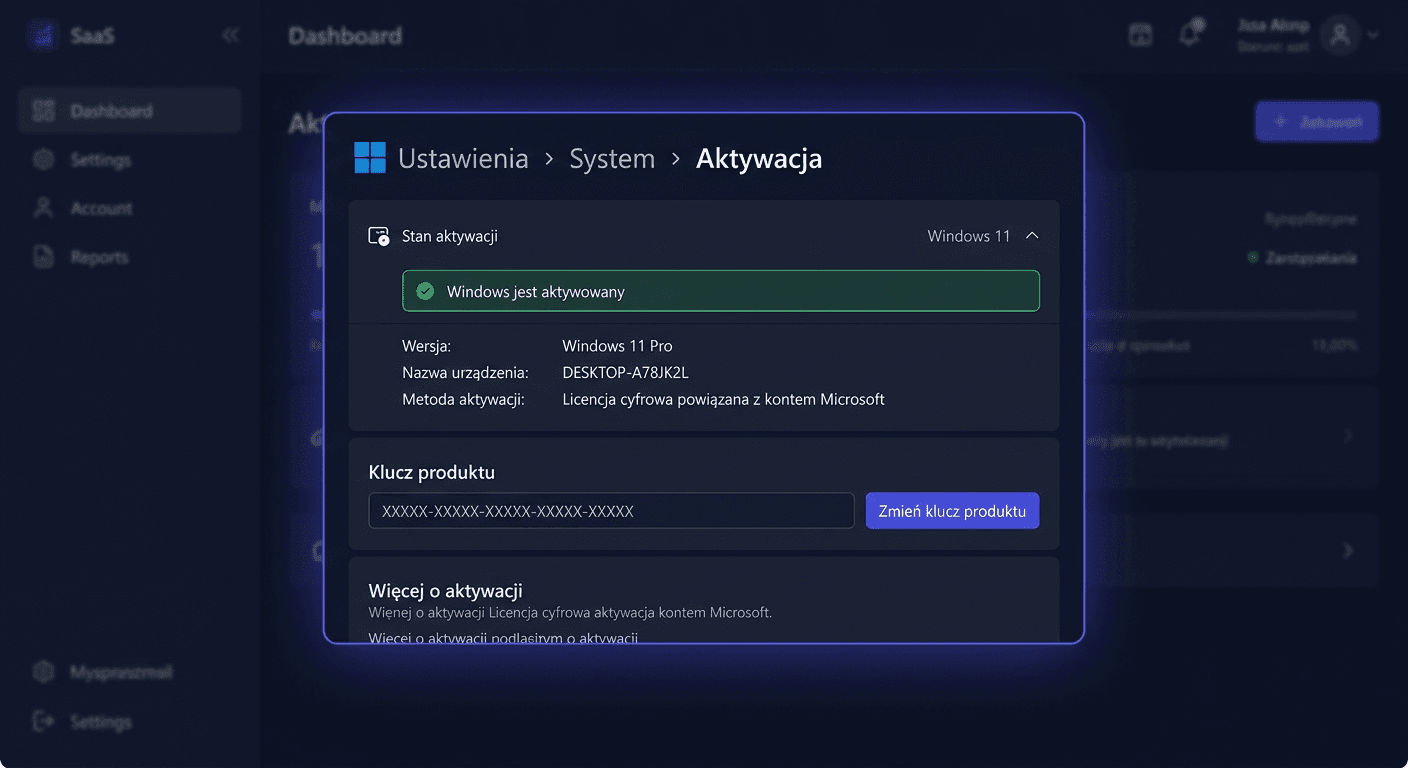
Step 5. Check Activation Status
After completing the process, you can check if Windows has been activated:
- Go to Settings
- Open System
- Go to Activation
A message should appear stating that the Windows is activated.
You can also use the command:
slmgr /xpr
This command displays information about the license status.
Most Common Issues with Windows 11 Pro Activation
If activation fails, check the following:
- if the entered key is correct and complete
- if the installed system version is indeed Windows 11 Pro
- if the computer has an active internet connection
- if the commands were run in the administrator window
In many cases, the problem is due to edition inconsistencies. The Pro key does not activate the Home version. If you are unsure, first verify the system version.
Activating Office 2024 Professional Plus Step by Step
The Office 2024 Professional Plus package can be activated in two ways, depending on the type of installation and user scenario:
- through an account and the setup.office.com website
- through the command-line tool ospp.vbs
Not all installation variants use exactly the same path, so we describe both methods separately.
Method 1. Activating Office 2024 through setup.office.com
This method works when the provided key is intended for online activation through a Microsoft account.
Step 1. Go to the Activation Page
Open the following website in your browser:
setup.office.com
Step 2. Log in to Your Microsoft Account
After accessing the website, log in to your Microsoft account. If you don't have one, you can create it during the process.
It's a good idea to use the account you will also use for installing or reactivating the Office package.
Step 3. Enter the Office 2024 Professional Plus Key
In the appropriate field, enter the received product key for Office 2024 Professional Plus.
Make sure to:
- not confuse it with the Windows key
- not copy additional spaces
- enter the characters exactly as they were sent
Step 4. Confirm Product Assignment
After confirming the key, the product will be assigned to your Microsoft account. Depending on the on-screen messages, you may be asked to select a region or language.
Step 5. Download or Launch the Office Package
If Office is not installed, your Microsoft account usually allows you to download the correct version. If the package is already installed, launch any Office program, such as Word or Excel, and log in to the same account.
After connecting to the account, the system should recognize the license and complete the activation.
Method 2. Activating Office 2024 through ospp.vbs
In some cases, Office 2024 Professional Plus activation is performed from the command line using the ospp.vbs script. This method is particularly useful when the package is already installed locally and you want to manually add the key and perform activation.
Step 1. Close All Office Programs
Before starting, close Word, Excel, Outlook, and other Office applications.
Step 2. Run the Command Prompt as Administrator
Just like with the Windows system:
- Click Start
- Type
cmd - Right-click Command Prompt
- Select Run as administrator
If you need help or have questions, please contact us at [email protected] or call 00 800 121 1654.
Step 3. Go to the Office folder
The script is usually located in one of the following directories:
For 64-bit systems:
cd "C:\Program Files\Microsoft Office\Office16"
For 32-bit installation on a 64-bit system:
cd "C:\Program Files (x86)\Microsoft Office\Office16"
Note: even though you are using Office 2024, the working folder is often still named Office16. This is normal.
Step 4. Add the Office product key
Enter the command:
cscript ospp.vbs /inpkey:YOUR-OFFICE-2024-KEY
Example:
cscript ospp.vbs /inpkey:XXXXX-XXXXX-XXXXX-XXXXX-XXXXX
After a moment, a confirmation message should appear.
Step 5. Perform activation
Then run:
cscript ospp.vbs /act
This command will start the attempt to activate the Office package via the internet.
Step 6. Check the license status
To make sure everything went smoothly, enter:
cscript ospp.vbs /dstatus
In response, you should see information about the license status. If the activation was successful, the Office package will be listed as activated.
What to do if Office 2024 does not want to activate
If a problem appears, check:
- if the correct Office 2024 Professional Plus package is installed on the computer
- if you are using a key intended for this specific product
- if there are no remnants of older Office versions that could cause a conflict
- if the computer has internet access
- if the commands were entered in the directory where
ospp.vbsis located
If activation via setup.office.com does not work, and the product is already installed locally, it's worth trying the method with ospp.vbs. It also happens that the situation is reversed, and activation with a Microsoft account turns out to be simpler than manual activation.
Important information about activating the entire set
In the case of the Windows 11 Pro + Office 2024 Professional Plus set, remember the most important rule: each product is activated separately, with a separate key and a separate method.
The shortest summary looks like this:
- Windows 11 Pro:
slmgr /ipkandslmgr /ato - Office 2024 Professional Plus:
setup.office.comorospp.vbs
If one product has been activated correctly, it does not yet mean that the other is also active. The status must be checked separately for Windows and separately for Office.
Summary
Activating the set is not complicated if you remember that it involves two independent processes. First, you activate Windows 11 Pro using the slmgr /ipk and slmgr /ato commands, and then you activate Office 2024 Professional Plus via setup.office.com or using the ospp.vbs script.
The most important thing is to match the correct key to the correct product, run the commands as an administrator, and ensure that the installed version of the system and Office package is compatible with the purchased license.
If you need help with activation, contact support: [email protected] or call 00 800 121 1654.