
Activation of Windows 11 Pro + Office 2024 Standard Bundle
Purchasing the Windows 11 Pro + Office 2024 Standard bundle means you receive two separate activation keys: one for Windows 11 Pro and another for Microsoft Office 2024 Standard. Each product is activated separately, so it's best to go through the entire process step by step for both components.
In this guide, we show you how to properly activate:
- Windows 11 Pro using the
slmgrtool - Office 2024 Standard using the
ospp.vbsscript
The instructions have been prepared for users of the pomoc.kluczesoft.pl service. If you encounter errors or license issues during activation, please contact us: [email protected].
Important Information Before You Begin
The bundle contains separate keys for each product. This means that:
- the key for Windows 11 Pro activates only the operating system,
- the key for Office 2024 Standard activates only the Office package,
- you should not enter the Windows key into Office or the Office key into Windows,
- it's best to activate on a stable internet connection,
- before starting, log in to an account with administrator privileges.
Activating Windows 11 Pro Step by Step
You can activate the Windows 11 Pro system from the command line using the slmgr tool, which is built into the system.
Step 1. Run the Command Prompt as Administrator
To begin:
- Click the Start button
- Type cmd
- Right-click on Command Prompt
- Select Run as administrator
If you are prompted by User Account Control, select Yes.
Step 2. Enter the Windows 11 Pro Product Key
In the open window, type the following command, replacing the example with your own key:
slmgr /ipk XXXXX-XXXXX-XXXXX-XXXXX-XXXXX
The meaning of the command:
slmgrlaunches the system license management tool,/ipkmeans installing the product key.
After correctly entering the command, a window should appear confirming that the key has been installed.
Step 3. Run Online Activation
After adding the key, type:
slmgr /ato
The /ato command attempts to activate the system over the internet.
If everything goes smoothly, the system should display a message indicating successful activation.
Step 4. Check Activation Status
To ensure that Windows 11 Pro has been activated, you can use the command:
slmgr /xpr
After entering this command, the system should display information that the device is permanently activated or that activation was successful.
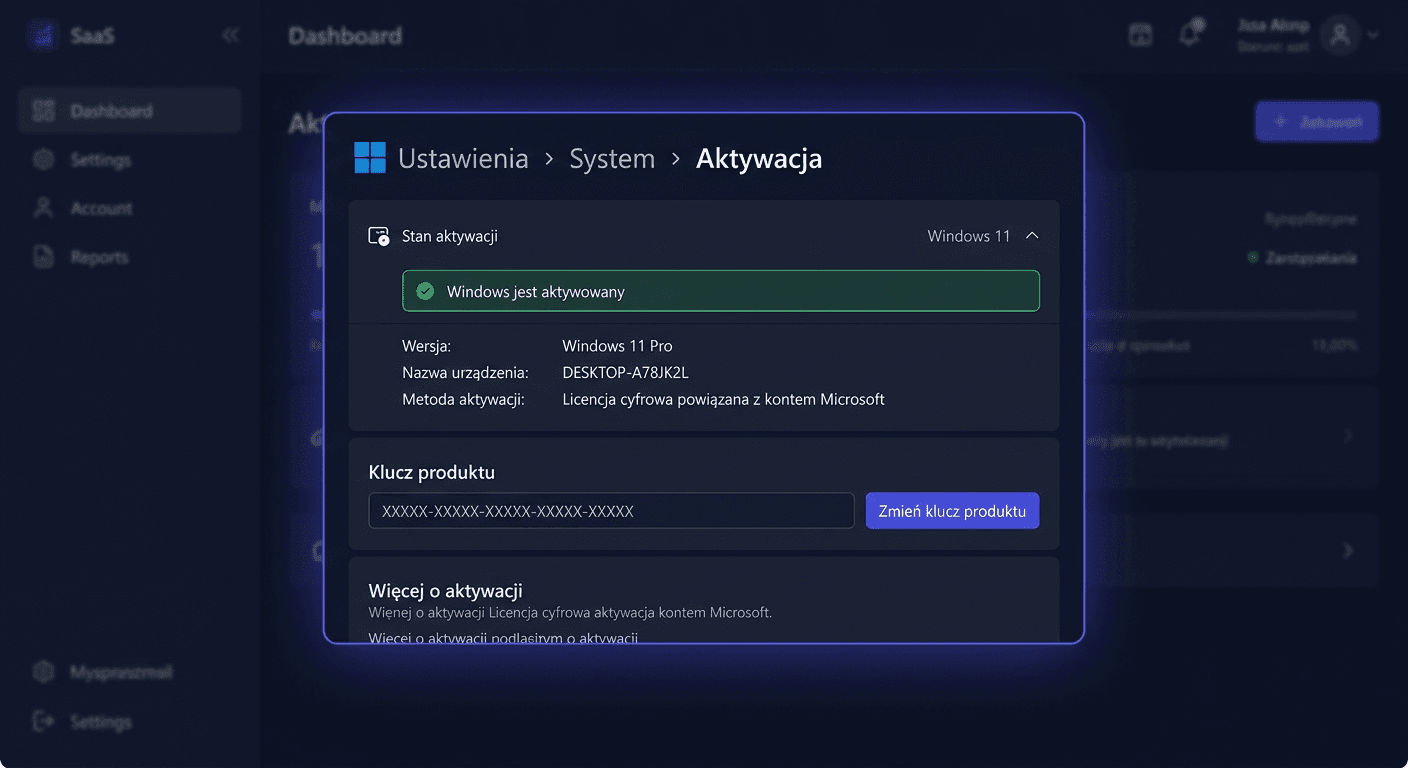
You can also check the status in the settings:
- Open Settings
- Go to System
- Select Activation
In this section, you'll see the current state of the Windows license.
Common Notes During Windows Activation
If you encounter a problem, check:
- if the installed edition is indeed Windows 11 Pro,
- if the key was entered without typos,
- if the computer has an internet connection,
- if the commands were run as an administrator.
If a different edition is installed on the computer, for example, Home, the Pro key may not activate the system without first changing the edition.
Activating Office 2024 Standard Step by Step
The Office 2024 Standard package is activated separately using the ospp.vbs script. This is a standard Microsoft tool for managing licenses for the Office package installed locally.
Step 1. Close All Office Programs
Before activation, close all open applications, such as:
- Word
- Excel
- Outlook
- PowerPoint
This will prevent conflicts when saving license information.
Step 2. Run the Command Prompt as Administrator
Similarly to Windows:
- Click Start
- Type cmd
- Right-click Command Prompt
- Select Run as administrator
Step 3. Go to the Office Folder
Most often, Office 2024 is installed in one of the following locations.
For the 64-bit version:
cd /d "C:\Program Files\Microsoft Office\Office16"
For the 32-bit version installed on a 64-bit system:
cd /d "C:\Program Files (x86)\Microsoft Office\Office16"
Note: Even though you are using Office 2024, the installation folder is often still named Office16. This is normal.
Step 4. Enter the Office 2024 Standard Product Key
After going to the correct directory, type:
cscript ospp.vbs /inpkey:XXXXX-XXXXX-XXXXX-XXXXX-XXXXX
The meaning of the command:
cscriptruns the script in text mode,ospp.vbsis the Office licensing tool,/inpkeyis used to add the product key.
After a moment, you should see a message confirming that the key has been accepted.
Step 5. Activate Office
Then, type:
cscript ospp.vbs /act
This command activates the Office package via the internet.
If the activation is successful, the script will return a success message.
Step 6. Check the Office License Status
To verify the activation status, type:
cscript ospp.vbs /dstatus
In response, you should see information about the current license and the product activation status.
What to Do if Office Activation Fails
In case of errors, check:
- if the installed version is indeed Office 2024 Standard,
- if you are using the correct key assigned to Office,
- if you are executing the commands in the correct folder,
- if the Command Prompt was run as administrator,
- if Office was previously installed correctly.
If there was a previous version of the Office package in the system, it may be necessary to remove it before activating the new license.
Windows and Office are Activated Separately
This is the most important issue in the case of this set. You receive two independent products, so each of them requires separate activation:
- Windows 11 Pro is activated with
slmgrcommands - Office 2024 Standard is activated with
ospp.vbscommands
Activating one product does not automatically activate the other. Even if both come from the same set, the system and Office have separate licensing mechanisms.
Additional Tips
During activation, it's worth remembering a few rules:
- enter keys exactly as they were provided,
- do not add spaces at the beginning or end,
- it's best to copy the key carefully to avoid mistakes,
- after activation, you can restart your computer, although it's not always necessary,
- keep the received keys and purchase confirmation for the future.
If you need help, please contact us at [email protected] or call 00 800 121 1654.
Summary
Activating the Windows 11 Pro + Office 2024 Standard bundle is straightforward, provided you remember that it includes separate keys for each product. You activate the Windows system using slmgr, and the Office package using ospp.vbs. It is also crucial to run the commands as an administrator and ensure that the correct edition of the product is installed.
If you encounter difficulties despite following all the steps, visit pomoc.kluczesoft.pl or email us at: [email protected]. We will help you identify the stage at which the problem occurred and how to correctly complete the activation.