
Before You Start
What Does Office 2021 Professional Plus Include?
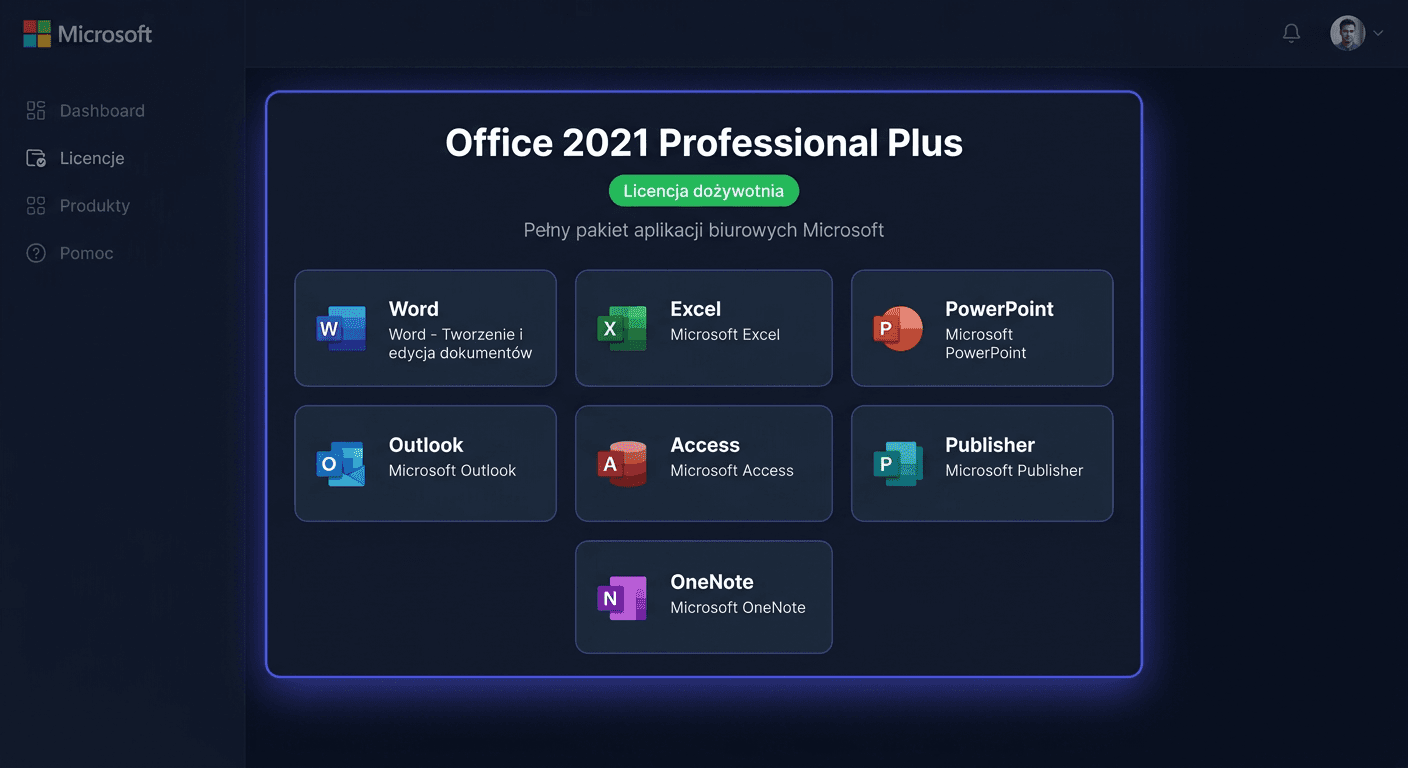
Office 2021 Professional Plus (LTSC) is a one-time purchase of an office suite package — a full edition with 7 applications:
| Application | Use |
|---|---|
| Microsoft Word | Text editor — documents, reports, letters |
| Microsoft Excel | Spreadsheets, analysis, budgets, pivot tables, XLOOKUP |
| Microsoft PowerPoint | Multimedia presentations |
| Microsoft Outlook | Email client, calendar, contacts |
| Microsoft Access | Databases — creating and managing relational databases |
| Microsoft Publisher | DTP layout — flyers, brochures, business cards |
| Microsoft OneNote | Digital notebook with synchronisation |
Office 2021 vs 2024: Office 2021 PP includes Publisher and Access. In Office 2024, Publisher has been discontinued, and Access is only available in the Professional Plus edition. If you need Publisher — Office 2021 is a better choice.
System Requirements
| Component | Minimum | Recommended |
|---|---|---|
| Processor | 1.1 GHz, 2 cores | 2 GHz+ |
| RAM | 4 GB | 8 GB |
| Disk space | 4 GB free | SSD |
| Operating system | Windows 10 or Windows 11 | Windows 11 |
| Screen resolution | 1280 × 768 | 1920 × 1080 |
| Graphics | DirectX 9, WDDM 2.0 | — |
| Internet connection | Required for activation | — |
Note: Office 2021 is available in 32-bit and 64-bit versions. 64-bit is recommended on computers with 4 GB RAM or more.
Support and Lifecycle
- Start of support: 5 October 2021
- End of support: 13 October 2026
- License type: Lifetime (one-time purchase, no subscription)
- Important: No extended support — after October 2026, Office 2021 will still work, but it will not receive security updates
Step 1: Uninstall the Previous Version of Office
If you have Office 2016, 2019, or Microsoft 365 installed — uninstall it before installing Office 2021. Having two versions of the suite on one computer causes conflicts.
Method A: Through Windows Settings
- Open Settings (Win + I) → Apps → Installed apps
- Search for "Microsoft Office" or "Microsoft 365"
- Click ⋯ (three dots) → Uninstall
- Follow the wizard
- Restart your computer
Method B: Using the SaRA Tool
If standard uninstallation does not work:
- Go to aka.ms/SaRA-officeUninstall
- Download and run Microsoft Support and Recovery Assistant
- The tool will completely remove the old version of Office
Tip: Your documents (Word, Excel, etc.) will not be deleted — uninstallation only applies to the program.
Step 2: Download and Mount the ISO File
Downloading
- Open the email with the order confirmation from KluczeSoft
- Click the link to download the ISO file — size around 3–4 GB
- Wait for the download to complete
Mounting the ISO Image
- Find the downloaded
.isofile in File Explorer - Right-click → Mount
- Windows will assign a drive letter to the file (e.g., D: or E:) and open it as a virtual DVD drive
Don't see the "Mount" option? Right-click → Open with → Windows Explorer. Mounting ISO files is built into Windows 10 and 11 — you don't need additional software.
Step 3: Run the Installation
- Open the virtual drive in File Explorer
- Find the Setup.cmd (or Setup.exe) file and double-click it
- If the User Account Control (UAC) window appears — click Yes
Windows Defender SmartScreen
On the first run, a blue warning window may appear:
- Click More info (small link at the bottom of the window)
- Click Run anyway
- The installation will start automatically
Installation time: 5–15 minutes. Do not close the window or turn off your computer.
Tip: If your antivirus blocks the installation, temporarily disable it during the installation.
Step 4: Activate Office with a Product Key
Method 1: Through the Application (Recommended)
- Run any application — e.g., Microsoft Word
- Click File → Account
- Click Change product key
- Enter the 25-character key from KluczeSoft
- Click Activate
- The status should appear: "Product activated"
Method 2: Through the Command Line (ospp.vbs)
- Open CMD as administrator
- Go to the Office directory:
cd "C:\Program Files\Microsoft Office\Office16"
- Install the key:
cscript ospp.vbs /inpkey:XXXXX-XXXXX-XXXXX-XXXXX-XXXXX
- Activate online:
cscript ospp.vbs /act
- Check the status:
cscript ospp.vbs /dstatus
Useful ospp.vbs Commands
| Command | What it does |
|---|---|
cscript ospp.vbs /dstatus | License status, edition, partial key |
cscript ospp.vbs /act | Online activation |
cscript ospp.vbs /inpkey:XXXXX-... | Install a new key |
cscript ospp.vbs /unpkey:XXXXX | Uninstall a key (last 5 characters) |
cscript ospp.vbs /dinstid | Installation ID for phone activation |
cscript ospp.vbs /actcid:CID | Activation by confirmation code (phone) |
Run all commands in CMD as administrator, from the
Office16directory.
Method 3: Phone Activation
If online activation does not work:
- In CMD as administrator, from the Office16 directory:
cscript ospp.vbs /dinstid
- Save the displayed installation ID
- Call:
- 00 800 121 1654 (toll-free)
- +48 801 802 000
- +48 22 594 19 99
- Provide the installation ID → receive a confirmation code
- In CMD:
cscript ospp.vbs /actcid:CONFIRMATION-CODE
Step 5: Dismount the ISO Image and Configure Office
Dismount ISO
- File Explorer → This PC → right-click on the virtual drive → Eject
Check for Updates
- Open any Office application → File → Account
- Update Options → Update Now
- Install all available updates
Configure Outlook
- Run Outlook → enter your email address
- Outlook will automatically detect settings (Gmail, Outlook.com, Office 365)
- For company servers: manual IMAP/SMTP configuration may be required
If you need help, please contact us at [email protected] or call 00 800 121 1654.
Key Features of Office 2021
Office 2021 introduced several significant new features compared to Office 2019:
Excel 2021
- Dynamic Arrays — formulas returning multiple results automatically
- XLOOKUP function — replaces VLOOKUP, searches in any direction
- LET function — creates variables in formulas
- Map charts and funnel charts
Word 2021
- Dark Mode — editor with a dark background
- Real-time co-authoring — simultaneous editing by multiple users
- Modern comments — threaded replies
PowerPoint 2021
- Recording presentations — record slides with narration and video
- Ink drawing — draw and write on slides
- Morph animation — smooth transitions between slides
Outlook 2021
- Quick search — improved email search
- Built-in translation — translate emails without leaving Outlook
Office 2021 vs Office 2024 — Comparison
| Feature | Office 2021 PP | Office 2024 PP |
|---|---|---|
| Word, Excel, PowerPoint, Outlook | ✓ | ✓ |
| Access | ✓ | ✓ |
| Publisher | ✓ | ✗ (discontinued) |
| OneNote | ✓ | ✓ |
| Dynamic Arrays (Excel) | ✓ | ✓ |
| IMAGE function (Excel) | ✗ | ✓ |
| Cameo (PowerPoint) | ✗ | ✓ |
| 14 new functions (Excel) | ✗ | ✓ |
| Windows 11 interface | Partially | Fully |
| End of support | X 2026 | X 2029 |
Which one to choose? Office 2021 is cheaper and includes Publisher. Office 2024 has a newer interface, more Excel features, and 3 years longer support. Both are lifetime licenses.
Troubleshooting
Activation Error — "Limit exceeded" (0xC004C008)
The key was used on another device.
- Try phone activation (Method 3)
- If it doesn't work — write to [email protected], we will exchange the key
"Unlicensed Product" / "Product without a license"
- Check your internet connection and retry activation:
cscript ospp.vbs /act
- If it doesn't work — reinstall the key:
cscript ospp.vbs /unpkey:XXXXX
cscript ospp.vbs /inpkey:XXXXX-XXXXX-XXXXX-XXXXX-XXXXX
cscript ospp.vbs /act
Installation doesn't start / SmartScreen error
- Restart your computer
- Temporarily disable antivirus software
- Remount and mount the ISO again
- Run Setup.cmd as administrator (right-click → Run as administrator)
Conflict with an old version of Office
- Use the SaRA tool to completely remove the old Office
- Restart your computer
- Install Office 2021 from scratch
Download link doesn't work
Write to [email protected] — a new link will be provided within a few hours. You can also contact us by phone: 00 800 121 1654.
Frequently Asked Questions
Does Office 2021 require a subscription? No. It's a one-time purchase with a lifetime licence — you pay once, use it indefinitely.
How long will I receive updates? Until 13 October 2026. After this date, Office will still work, but without security updates.
Can I transfer Office 2021 to a new computer? Yes — uninstall on the old one, install on the new one, activate with the same key. If you've reached the activation limit, use phone activation.
Is Office 2021 compatible with Windows 11? Yes — Office 2021 is fully compatible with Windows 10 and Windows 11.
What's the difference between Professional Plus and Standard? Professional Plus includes Access and Publisher. Standard includes only Word, Excel, PowerPoint, Outlook, and OneNote.
Is it worth buying 2021 instead of 2024? Office 2021 is cheaper and includes Publisher. If you don't need the latest Excel/PowerPoint features and don't miss Publisher — Office 2024 has longer support (until 2029 vs 2026).
Need Help?
- E-mail: [email protected] — we respond within a few hours
- Help Centre: pomoc.kluczesoft.pl
- When contacting us, please provide your order number and the error message text
- You can also call us on 00 800 121 1654