
Before You Begin
Ensure your computer meets the system requirements for Microsoft Office LTSC 2024:
| Component | Requirements |
|---|---|
| Processor | 1.1 GHz, at least 2 cores (64-bit) |
| RAM | 4 GB (8 GB recommended) |
| Disk | 4 GB of free space |
| System | Windows 11, Windows 10 LTSC 2021/2019, Windows Server 2025/2022 |
| Screen | 1280 × 768 pixels or higher resolution |
| Internet | Required for activation |
Important: Office 2024 LTSC is available only in 64-bit version. If your system runs on 32-bit architecture, installation will not be possible.
Note: If you have another version of Office installed (2021, 2019, or Microsoft 365) — you must uninstall it first. Two versions of Office cannot run in parallel.
Step 1: Uninstall the Previous Version of Office
If you don't have any Office package installed — proceed to Step 2.
- Open Settings (Win + I) → Apps → Installed apps
- Search for "Office" or "365" in the list
- Click … (three dots) next to the name → Uninstall
- Wait for completion and restart your computer
If uninstallation doesn't work, use the official Microsoft SaRA tool:
- Download from aka.ms/SaRA-OfficeUninstall
- Run and follow the instructions — SaRA will remove all remnants of the old Office
Step 2: Download the Installation Files
KluczeSoft provides a ready-to-use ISO file with a pre-configured Office 2024 installation. This is a simplified version of the official Microsoft method (Office Deployment Tool), which does not require any configuration on your part.
- Open the email with the order confirmation from KluczeSoft.pl
- Click the download link for the ISO file (~3–4 GB)
- Wait for the download to complete
- Double-click the downloaded .iso file — Windows will mount it as a virtual DVD drive
Mounting ISO is a built-in feature of Windows 10 and 11 — you don't need any additional programs.
If your browser or antivirus displays a warning — you can ignore it. The files are original.
Step 3: Run the Installation
- Open File Explorer and navigate to the new DVD drive
- Find the Setup file (or Setup.cmd) and double-click it
- If the User Account Control window appears — click Yes
- If Windows Defender SmartScreen appears:
- Click More info
- Click Run anyway
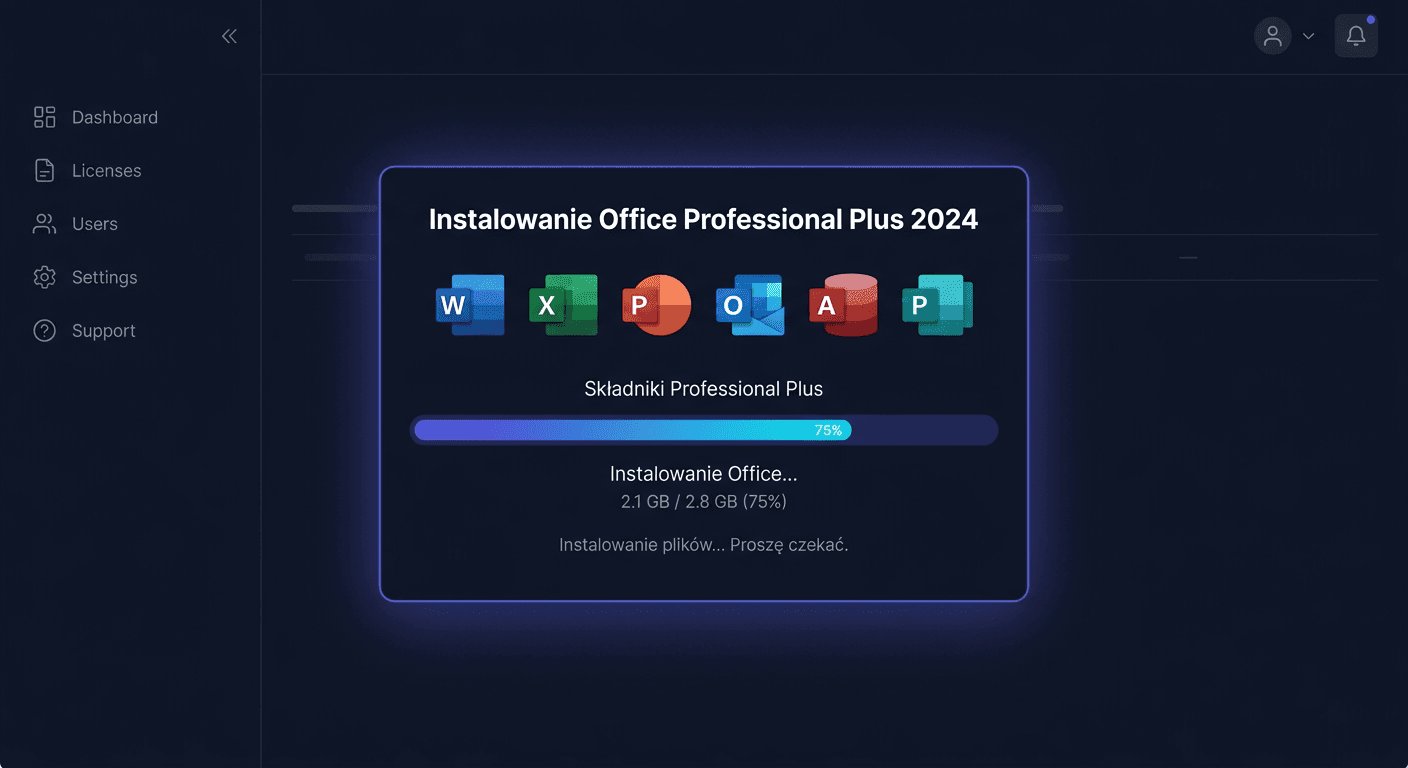
- The installation will take 5–15 minutes — do not close the window and do not turn off your computer
- After completion, click Close
Tip: If you have a third-party antivirus program (ESET, Kaspersky, Bitdefender), consider temporarily disabling it during installation.
Step 4: Activate Office package with a product key
Office 2024 LTSC requires activation with a MAK (Multiple Activation Key) key, which you received from KluczeSoft.
Method A: Through the Office interface (recommended)
- Run Word and click Blank document
- Go to File → Account (bottom left corner)
- Click Change product key
- Enter the 25-character key (format: XXXXX-XXXXX-XXXXX-XXXXX-XXXXX)
- Click Activate Office package
- Select activate over the Internet (recommended)
After activation, you will see: Microsoft Office LTSC Professional Plus 2024 — Product activated.
Method B: Through the command line (if Method A does not work)
- Open Terminal as an administrator (Win + X → Terminal (administrator))
- Type:
cd "C:\Program Files\Microsoft Office\Office16" - Check status:
cscript ospp.vbs /dstatus - Enter key:
cscript ospp.vbs /inpkey:YOUR-KEY-HERE - Activate:
cscript ospp.vbs /act
Method C: Telephone activation (no internet)
- In Terminal (administrator):
slui 4 - Select country: Poland
- Call: 00 800 121 1654 (free) or +48 22 594 19 99
- Provide the installation ID displayed on the screen
- You will receive an activation code to enter
Step 5: Eject the virtual drive (optional)
- Open This PC in File Explorer
- Right-click on the DVD drive
- Select Eject
You can keep the ISO file as a backup for the future.
Troubleshooting
Error 0xC004C020 — "Activation limit reached"
The MAK key has a limited number of allowed activations. If the limit is exceeded:
- Contact us at [email protected] — we will replace the key within 1-4 business hours
- Or use telephone activation (Method C above)
Error 0xC004F074 — "Cannot connect to KMS server"
The key is trying to activate through KMS instead of MAK. Solution:
- Terminal as admin:
cd "C:\Program Files\Microsoft Office\Office16" - Remove old key:
cscript ospp.vbs /unpkey:XXXXX(last 5 characters of the key from /dstatus) - Enter your MAK key:
cscript ospp.vbs /inpkey:YOUR-KEY - Activate:
cscript ospp.vbs /act
"Product key is not valid"
- Check if you are entering the key from the KluczeSoft order email (not from another source)
- Be careful with similar characters: 0/O, 1/I/L, 8/B
- Try entering the key manually instead of copying
"This product is unlicensed"
Go to File → Account → Change product key and enter the key again. If the problem persists, use Method B (command line) to remove the old key and enter a new one.
Installation stopped or ended with an error
- Restart your computer
- Temporarily disable antivirus
- Dismount and remount the ISO file
- Run Setup again
What does Office 2024 Professional Plus include?
| Application | Description |
|---|---|
| Microsoft Word | Text editor — documents, reports, CVs, contracts |
| Microsoft Excel | Spreadsheets — analyses, budgets, charts |
| Microsoft PowerPoint | Multimedia presentations |
| Microsoft Outlook | Email, calendar, contacts, tasks |
| Microsoft Access | Databases (only in Professional Plus version) |
| Microsoft OneNote | Digital notebook — notes, sketches, to-do lists |
Note: Microsoft Publisher is not part of Office 2024 — it was discontinued by Microsoft in 2026. If you need Publisher, consider using Microsoft Designer or Canva.
Difference between Professional Plus and Standard: The Standard version does not include Access or OneNote. It includes: Word, Excel, PowerPoint, Outlook.
Support and product lifecycle
- Start of support: 18 September 2024
- End of support: 9 October 2029 (5 years)
- License type: Perpetual (one-time purchase, one computer, no subscription)
- Security updates: Yes, throughout the support period
- New features: No — the LTSC version does not receive new features (unlike Microsoft 365)
Need help?
- Email: [email protected] (response within a few working hours)
- Help centre: pomoc.kluczesoft.pl
- Microsoft phone (activation): 00 800 121 1654 (Poland, free of charge)
When contacting us, please provide your order number and a detailed error message or screenshot.