
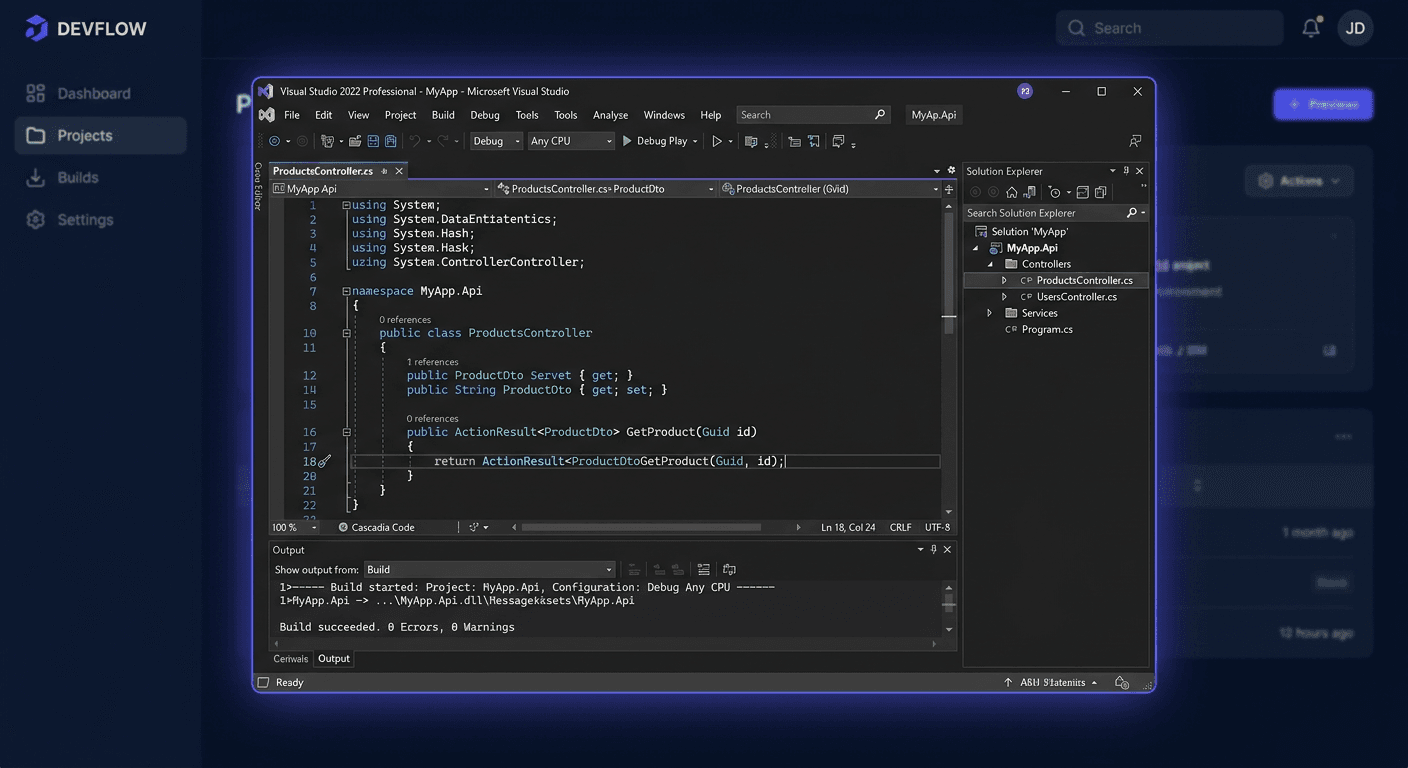
Before You Start — Visual Studio 2019 Professional
Microsoft Visual Studio 2019 Professional is a professional IDE environment for .NET, C++, Python, and web developers. Perpetual license — a one-time purchase without a subscription.
- Mainstream support: April 2024
- Extended support: April 2029
Key features:
- advanced debugging and diagnostics,
- code analysis and refactoring suggestions,
- unit test tools,
- integration with Git,
- CodeLens — preview of changes and references in the code,
- Live Share — real-time collaboration.
Note: Visual Studio does not use
ospp.vbsfor activation. The key is entered directly in the IDE.
At KluczeSoft.pl, you receive a digital product key with immediate email delivery.
System Requirements
| Element | Requirement |
|---|---|
| Operating System | Windows 10 v1703+ / Windows 11 |
| Processor | 1.8 GHz, recommended quad-core |
| RAM | 4 GB minimum, 8 GB+ recommended |
| Disk Space | 20–50 GB (depending on workloads) |
| Display | 1366 × 768 minimum |
Downloading the Installer
Download from the official Microsoft website:
https://visualstudio.microsoft.com/vs/older-downloads/
Visual Studio works modularly — you choose workloads (tool sets):
.NET desktop developmentASP.NET and web developmentDesktop development with C++Python developmentAzure development
Step-by-Step Installation
1. Run Visual Studio Installer
After downloading, run the installer and wait for the component list to load.
2. Choose Workloads
Select the workloads that match your work.
3. Individual Components
The Individual components tab — add specific SDKs, compilers, testing tools.
4. Set Location
Specify the installation path if you want to use a different disk.
5. Install
Click Install and wait for the download and configuration. The time depends on the selected workloads and connection speed.
Activating with a Product Key
Method 1: During Installation
If the installer displays a key window — enter the key from KluczeSoft and confirm.
Method 2: After Installation (most common)
In Visual Studio:
Help → Register Product → Unlock with a Product Key
Enter or paste the key and confirm. The status will change to Licensed.
Method 3: Microsoft Account
Log in with a Microsoft account with a assigned VS subscription. The IDE will automatically recognize the permissions.
Verifying Activation
- Help → About Microsoft Visual Studio — check the license status.
- Help → Register Product — should show Licensed.
If you still see the trial version, close and restart VS.
Post-Installation Configuration
Extensions
Menu Extensions → Manage Extensions — add productivity tools, linters, integrations.
Themes and Layout
Change the color theme (dark recommended), editor fonts, window layout.
Git
Set the username, email for commits, connect to GitHub/Azure DevOps.
NuGet
Configure NuGet package sources for .NET projects.
Code Analysis Rules
Set consistent formatting and warning rules for the team.
For assistance, contact [email protected] or call 00 800 121 1654.
Troubleshooting
1. Key is not accepted
Make sure it's a key for VS 2019 Professional (not Enterprise, not 2022). Enter it through Help → Register Product, not through Office tools. Do not copy additional spaces.
2. Trial version has expired
Go to Help → Register Product and activate with the key. No need to reinstall.
3. Workload installation ends with an error
Insufficient disk space, antivirus blocking, unstable internet. Restart the system, run the Installer as an administrator.
4. VS Installer freezes
Close and restart. Clear temporary files. Update the Installer itself.
5. Poor performance with large solutions
Increase RAM (8→16 GB), move projects to SSD, limit extensions, disable unnecessary diagnostic tools.
6. Missing tools after installation
The relevant workload was not selected. VS Installer → Modify → add missing components.
Version comparison
| Version | For whom | Main features | Price at KluczeSoft |
|---|---|---|---|
| Community | Learning, individuals, small projects | Basic IDE, free with limitations | Free |
| Professional | Freelancers, companies, teams | Debugging, testing, CodeLens, Live Share, Git | Check offer |
| Enterprise | Large organisations, QA/DevOps | Most advanced testing, analytics, architecture | Check offer |
Professional is usually the best choice for commercial use.
Summary
Visual Studio 2019 Professional — a solid IDE with a perpetual licence, support until 2029.
- Download:
visualstudio.microsoft.com - Installation: Visual Studio Installer → select workloads → Install
- Activation: Help → Register Product → Unlock with a Product Key (NOT ospp.vbs!)
- Verification: Help → About → check "Licensed"
Support: 00 800 121 1654
Also check: Visual Studio 2022 Professional, Visual Studio 2019 Enterprise at KluczeSoft.pl. If you have any questions, please contact us at [email protected].