
Before You Begin
Windows 11 Home System Requirements
| Component | Minimum | Recommended |
|---|---|---|
| Processor | 1 GHz, 2 cores, 64-bit | Intel 8th gen+ / AMD Ryzen 2000+ |
| RAM | 4 GB | 8 GB |
| Hard Disk | 64 GB | 256 GB SSD |
| Firmware | UEFI with Secure Boot | — |
| TPM | version 2.0 (required) | — |
| Graphics Card | DirectX 12, WDDM 2.0 | — |
| Display | 720p, > 9 inches | 1080p |
| Internet | Required for setup | — |
| Microsoft Account | Required (Home requires a Microsoft account) | — |
Important: Windows 11 Home requires a Microsoft account during initial setup. In the Pro edition, this can be skipped — in Home, it cannot.
Check Compatibility
- Download PC Health Check from microsoft.com
- Run and click Check now
- The application will inform you if your computer is compatible
Manual TPM check: Win + R → tpm.msc → look for version 2.0
Manual Secure Boot check: Win + R → msinfo32 → "Secure Boot state: On"
Step 1: Download the Windows 11 ISO Image
From KluczeSoft Email (Recommended)
After purchasing, you will receive an email with a download link for the ISO file.
From Microsoft Website
- Go to microsoft.com/software-download/windows11
- Select Windows 11 (multi-edition ISO)
- Select language: Polish, click Download 64-bit (approx. 5-6 GB)
Step 2: Create a USB Drive
You need a USB drive with a minimum of 8 GB. Data will be deleted.
Rufus (Recommended)
- Download Rufus from rufus.ie
- Connect the USB drive → run Rufus
- Boot selection: click SELECT → point to ISO
- Partition scheme: GPT | Target system: UEFI
- Click START → wait 5-15 minutes
Media Creation Tool
- Download MCT from Microsoft website → Run
- Select Create installation media (USB)
- Point to the USB drive → wait
Step 3: Boot from the USB Drive
- Connect the USB drive to the target computer
- Restart and press the Boot Menu key:
| Manufacturer | Boot Menu | BIOS |
|---|---|---|
| Dell | F12 | F2 |
| HP | F9 | F10/ESC |
| Lenovo | F12 | F2/Fn+F2 |
| ASUS | F8 | Del/F2 |
| Acer | F12 | F2/Del |
| MSI | F11 | Del |
- Select the USB drive from the list
Step 4: Install Windows 11
- Language: Polish | Keyboard: Polish → Install now
- Product key: click I don't have a product key (activate later)
- Edition: select Windows 11 Home
Important: select Home, not Pro. The Home key will not work on Pro.
- Accept terms → Custom: only install (clean installation)
- Select partition → Next → wait 15-30 minutes
- Initial setup (OOBE):
- Country: Poland | Keyboard: Polish
- Connect to Wi-Fi (required in Home)
- Sign in with a Microsoft account (required in Home — cannot be skipped)
- Set PIN
- Configure privacy
Step 5: Activate with a Key
Through Settings
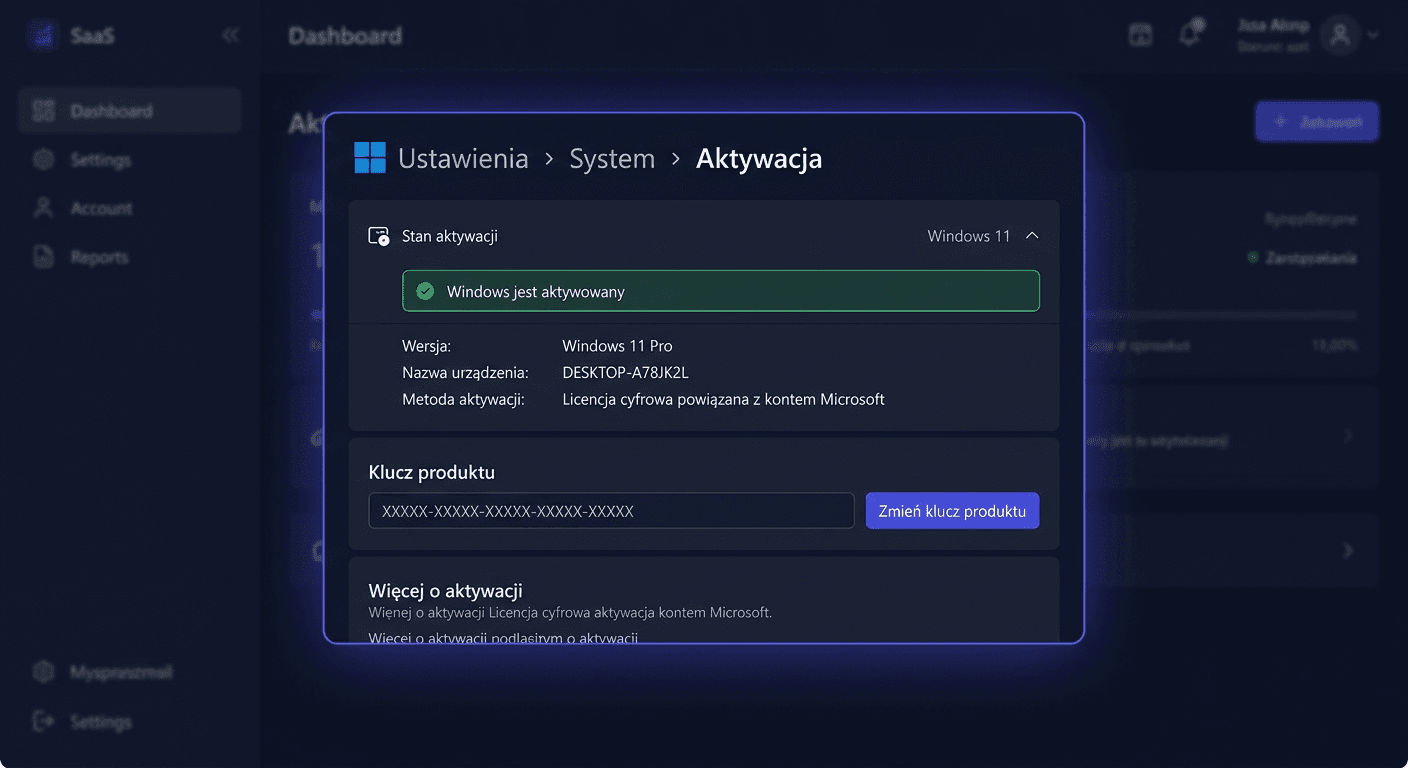
- Win + I → System → Activation → Change product key
- Enter the 25-character key from KluczeSoft
- Next → Activate
Through CMD
- CMD as administrator
slmgr /ipk XXXXX-XXXXX-XXXXX-XXXXX-XXXXXslmgr /ato
Phone Activation
slmgr /dti→ save the installation ID- Call: 00 800 121 1654 (free) or +48 22 594 19 99
- Provide the ID → receive a confirmation code
slmgr /atp CONFIRMATION-ID
If you need help, please contact us at [email protected] or call 00 800 121 1654.
Step 6: After Installation
- Windows Update: Settings → Windows Update → Check for updates
- Drivers: Device Manager (Win + X) → look for yellow triangles
- Device Encryption: Windows 11 Home has Device Encryption (a simplified version of BitLocker). Enabled automatically when logging in with a Microsoft account. Recovery key saved on account.microsoft.com.
Windows 11 Home vs Pro
| Feature | Home | Pro |
|---|---|---|
| Price | Lower | Higher |
| BitLocker (full) | ✗ (only Device Encryption) | ✓ |
| Remote Desktop (host) | ✗ | ✓ |
| Hyper-V | ✗ | ✓ |
| Windows Sandbox | ✗ | ✓ |
| Group Policy (gpedit.msc) | ✗ | ✓ |
| Domain / Entra ID | ✗ | ✓ |
| Local account during installation | ✗ (Microsoft required) | ✓ |
| Max. RAM | 128 GB | 2 TB |
| Max. CPU | 1 (64 cores) | 2 (128 cores) |
When is Home sufficient? For home use, learning, entertainment, and office work, Home is fully sufficient. You need Pro for virtualization (Hyper-V), remote desktop, or joining a company domain.
Troubleshooting
"TPM 2.0 not found"
In BIOS → Security → enable Intel PTT or AMD fTPM → save (F10)
"Secure Boot required"
In BIOS → Boot/Security → Secure Boot: Enabled | Mode: UEFI (not Legacy)
Error code 0xC004F050 — "Key does not match"
Check if you selected the Home edition (not Pro). Home key will not work on Pro.
Forcing Microsoft account
Windows 11 Home requires a Microsoft account. If you don't want to use it — consider the Pro edition or use an account you can create for free on outlook.com.
Activation limit
Write to [email protected] — we will exchange the key.
Frequently Asked Questions
Does Windows 11 Home require a Microsoft account? Yes — during initial setup, a Microsoft account is required. In the Pro edition, this can be skipped.
Can I upgrade from Home to Pro? Yes — just buy a Pro key from KluczeSoft and enter it in Settings → Activation → Change key. The system will automatically add Pro features.
Can I upgrade from Windows 10 Home to 11 Home? Yes — use the Windows 11 Installation Assistant from the Microsoft website. You will keep your files and programs.
What is the difference between Home and Pro? Pro adds BitLocker, Hyper-V, Remote Desktop, Group Policy, and local account. The performance of both editions is identical.
How long is the key valid? Lifetime license — one computer, no subscription.
Is Home slower than Pro? No — performance is identical. Pro has additional features, not speed.
Need Help?
- E-mail: [email protected]
- Help Center: pomoc.kluczesoft.pl
- Microsoft Phone: 00 800 121 1654 (free)