
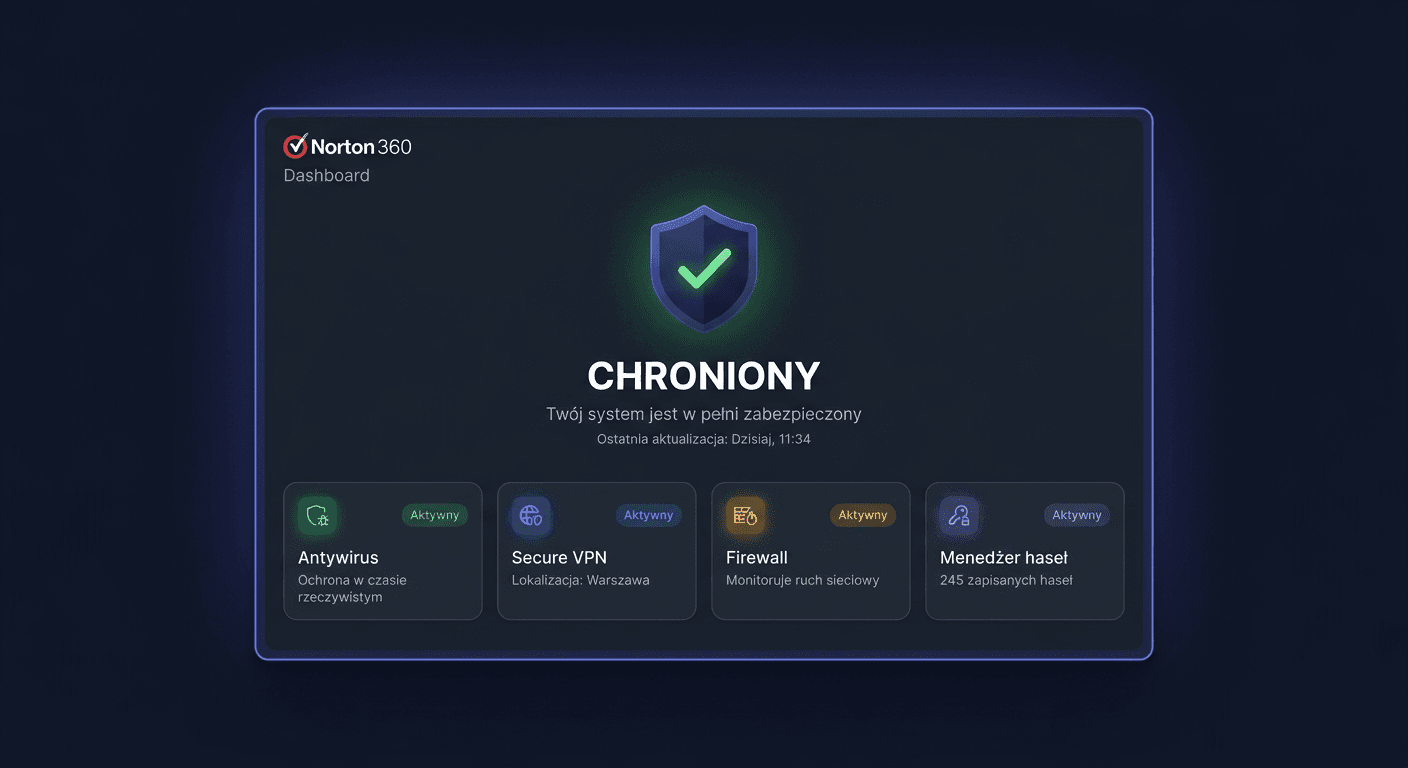
What does Norton 360 Deluxe include?
Norton 360 Deluxe is a comprehensive cybersecurity package:
| Feature | Details |
|---|---|
| Antivirus protection | Protection against viruses, ransomware, phishing, trojans |
| Norton Secure VPN | VPN with unlimited transfer — secure browsing |
| Cloud Backup | 25 GB (3 devices) or 50 GB (5 devices) — automatic backup |
| Password Manager | Norton Password Manager — encrypted password vault |
| Dark Web Monitoring | Monitoring of personal data leaks |
| Parental Control | Screen time, content filtering, location |
| SafeCam | Protection of the camera from unauthorised access |
| Smart Firewall | Network traffic monitoring |
| Platforms | Windows, Mac, Android, iOS |
Variants
| Variant | Devices | Cloud Backup |
|---|---|---|
| Norton 360 Standard | 1 | 10 GB |
| Norton 360 Deluxe (3) | 3 | 25 GB |
| Norton 360 Deluxe (5) | 5 | 50 GB |
| Norton 360 Premium | 10 | 75 GB |
| Norton 360 Advanced | 10 | 200 GB |
Step 1: Create a Norton account
- Go to my.norton.com (or norton.com/setup)
- Click Create account (if you don't have one)
- Enter your email and password
- Your subscription will be linked to this account
Step 2: Activate the product key
- Log in to my.norton.com/setup
- Click Enter product key (or "Activate Now")
- Enter the 25-character key from KluczeSoft
- Norton may ask for a payment method (for automatic renewal) — you can disable auto-renewal immediately after activation in your account settings
- Click Confirm
Tip: Disabling auto-renewal: My Norton → Subscription → Disable automatic renewal. Your subscription will still be active until the end of the period.
Step 3: Install on your computer
Windows / Mac
- After activation, click Download (or go to my.norton.com → Download Norton)
- Run the downloaded installer file
- Follow the instructions — installation takes 5-10 minutes
- After installation, log in with your Norton account
Android / iOS
- App Store / Google Play → Norton 360
- Install → log in with the same Norton account
- The application will automatically recognise your subscription
Step 4: Configure
Cloud Backup (only Windows)
- Open Norton → Cloud Backup → Configure
- Select folders to back up (Documents, Photos, Desktop)
- Norton will automatically create backups
VPN
- Norton → Secure VPN → Enable
- Choose a server location or leave it on "Automatic"
Dark Web Monitoring
- Norton → Dark Web Monitoring → Configure
- Add email addresses to monitor
- Norton will notify you if your data appears in a leak
Troubleshooting
"Key has already been used"
Each Norton key can be activated once. Check my.norton.com → Subscription. If you haven't activated it — contact [email protected].
Norton won't install
- Uninstall the previous antivirus (Norton, Kaspersky, McAfee, etc.)
- Restart your computer
- Download Norton again from my.norton.com
Conflict with Windows Defender
Norton automatically disables Windows Defender after installation. This is normal — Norton takes over protection.
Norton slows down your computer
Norton → Settings → Performance → enable Silent Mode during games/presentations.
Frequently Asked Questions
Is Norton 360 a subscription? Yes — the key activates a subscription for 12 months. After it expires, you need a new key.
Is the VPN unlimited? Yes — Norton Secure VPN has unlimited data transfer.
Does Cloud Backup work on Mac? No — Cloud Backup is only available on Windows.
Can I install it on my phone? Yes — Norton 360 works on Windows, Mac, Android, and iOS.
Can I turn off auto-renewal? Yes — My Norton → Subscription → Turn off automatic renewal.
Does Norton replace Windows Defender? Yes — Norton automatically takes over protection. You don't need to configure anything.
Need Help?
- E-mail: [email protected]
- Help Centre: pomoc.kluczesoft.pl
- Norton Support: support.norton.com
- You can also contact us by phone: 00 800 121 1654