
Windows 11 Pro + Office 2024 Home and Student Bundle
Bundle price: 470,73 zł gross
This package combines two independent Microsoft products in one order: Windows 11 Pro and Office 2024 Home and Student. The most important rule for the bundle: each product has a separate activation key. This means that you do not receive a single common code, but two separate keys assigned to two different products.
What the bundle includes
The buyer receives:
- 1 licence key for Windows 11 Pro
- 1 separate licence key for Office 2024 Home and Student
- installation and activation instructions
- the possibility of activating products separately, at different times
- the possibility of installing on different computers, if it meets the conditions of the given licence and the purpose of the workstation
In practice, this means that you can:
- install Windows 11 Pro on one computer,
- and Office 2024 Home and Student on the same or another compatible device.
This is a significant advantage of the bundle: products are separated by licence, so the customer retains greater flexibility than in the case of solutions linked to one account or one type of subscription.
Savings when purchasing the bundle
The package is more convenient and usually more cost-effective than buying both products separately. At a price of 470,73 zł, the customer receives a complete set for work, education, and home-office applications in one order, with one after-sales service and two independent keys. This is a real time-saving and simplification of implementation.
Requirements and compatibility
Windows 11 Pro
The system requires a computer compatible with Microsoft's requirements, in particular:
- a 64-bit processor compatible with Windows 11
- at least 4 GB of RAM
- at least 64 GB of disk space
- UEFI firmware
- TPM 2.0 module
- an active internet connection to download updates and part of the activation processes
Office 2024 Home and Student
The Office 2024 package requires:
- a compatible Windows system
- an up-to-date system environment and free disk space
- an internet connection to download the installer and activate
- a recommended Microsoft account, if installation is done through the manufacturer's portal
Important migration note
If you are migrating from very old environments, such as Windows 7, Windows 8.1, older versions of Office, or systems covered only by ESU (Extended Security Updates), it is worth planning the migration before installation. Older platforms may not meet the requirements of Windows 11 or may not provide full compatibility with the new Office. In such a case, it is recommended to make a copy of the data and check the drivers before implementation.
Installation and activation
Installation through the graphical interface
Windows 11 Pro
- Install or run the Windows 11 system.
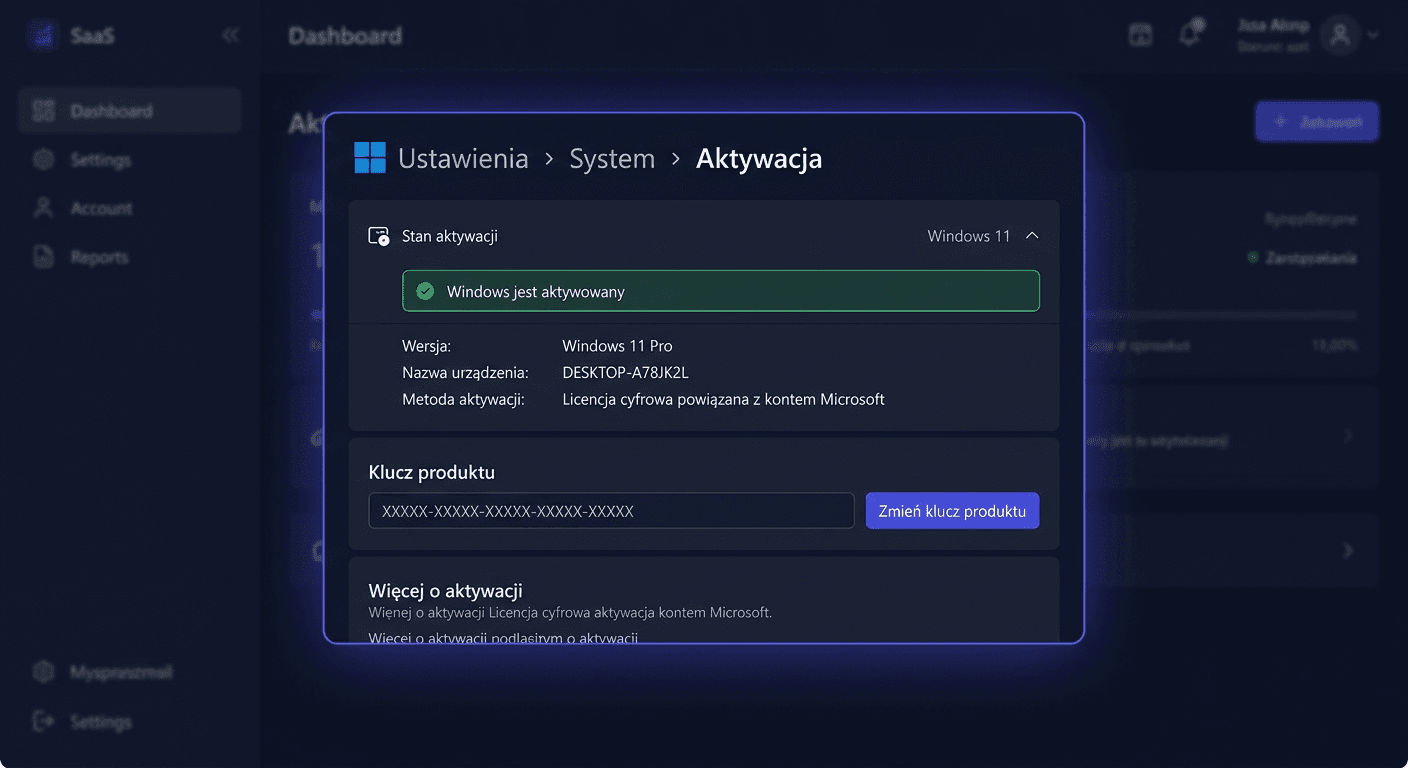
- Open Settings > System > Activation.
- Select the option to change the product key.
- Enter the Windows 11 Pro key.
- Confirm and connect the computer to the internet.
Office 2024 Home and Student
- Download and install Office 2024 from the official Microsoft source.
- Run any application, e.g. Word or Excel.
- When the activation window appears, enter the separate key for Office 2024 Home and Student.
- Complete the online activation.
Activation using CMD
Windows 11 Pro
Run Command Prompt as administrator and enter:
slmgr.vbs /ipk XXXXX-XXXXX-XXXXX-XXXXX-XXXXX
slmgr.vbs /ato
The first command installs the product key, and the second initiates online activation.
Office 2024 Home and Student
Run Command Prompt as administrator, navigate to the Office directory, and execute:
cd "C:\Program Files\Microsoft Office\Office16"
ospp.vbs /inpkey:XXXXX-XXXXX-XXXXX-XXXXX-XXXXX
ospp.vbs /act
If Office is installed in 32-bit version on a 64-bit system, use the path:
cd "C:\Program Files (x86)\Microsoft Office\Office16"
Telephone Activation
If online activation fails, you can use Microsoft's telephone activation at:
00 800 121 1654
Prepare:
- product key,
- installation ID displayed by the system,
- information about which product the activation concerns: Windows or Office.
Activation Verification
After completing the process, check the status of both products.
Windows
- go to Settings > System > Activation
- ensure that the system is active
You can also use the command:
slmgr.vbs /xpr
Office
- run Word or Excel
- go to File > Account
- check the product activation status
Additionally, in CMD:
cscript ospp.vbs /dstatus
Troubleshooting
Error 1: Invalid product key
Most common causes:
- entering a Windows key for Office activation or vice versa
- typo when manually entering the key
- attempting to activate a different edition than purchased
Solution: check if you are using the correct key for the correct product. There are two different keys in the set.
Error 2: No connection to the activation server
Symptoms:
- message about temporary unavailability of the service
- activation does not complete successfully despite a correct key
Solution:
- check your internet connection
- disable VPN or custom firewall
- try again after a few minutes
- if necessary, use telephone activation: 00 800 121 1654
Error 3: Incorrect Office or Windows version
Example: a key for Office 2024 Home and Student will not work with a different edition, e.g. Professional Plus. Similarly, a Windows 11 Pro key will not activate an incompatible installation version.
Solution: install exactly the edition for which the license is intended.
Error 4: Activation limit exceeded message
May occur after changing hardware, reinstallation, or previous activation.
Solution: verify your installation history and use telephone activation. The consultant can help complete the process for a legally used license.
Comparison with Alternatives
Bundle vs separate purchase
The bundle offers:
- one transaction instead of two
- two separate keys
- greater deployment convenience
- usually a better total cost than separate purchases
Office 2024 Home and Student vs Microsoft 365
Office 2024 Home and Student is a solution for those who want a one-time purchase without a subscription.
Microsoft 365 is better suited where cloud, subscription, and a broader range of services are needed.
Windows 11 Pro vs Windows Home
The Pro version offers more business and administrative features, making it a better choice for businesses, advanced users, and workstations.
If you need assistance, please contact us at [email protected] or visit our website for more information.
Summary
Windows 11 Pro + Office 2024 Home and Student is a practical bundle for users who want to legally run the system and office suite without a subscription. Key information: it's two separate products and two separate keys, which can be installed and activated independently, also on different computers. At a price of 470,73 zł, the bundle is a convenient and economical solution for home, education, and office use.
If online activation is unsuccessful or you have doubts during installation, use Microsoft's phone activation: 00 800 121 1654.