
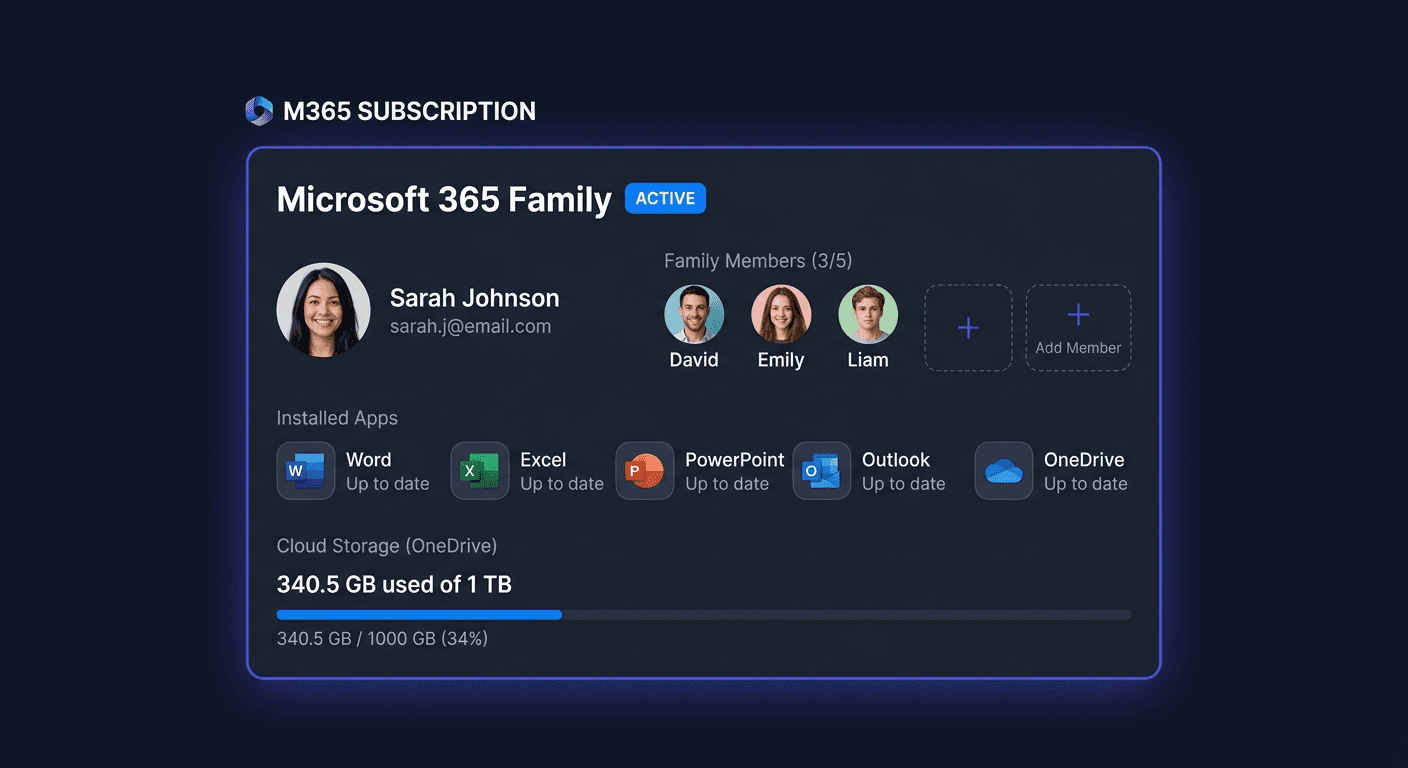
What is Microsoft 365 Personal?
Microsoft 365 Personal is a subscription (not a one-time purchase) that provides access to the latest versions of Office applications, 1 TB of OneDrive cloud storage, and many additional services. The subscription is for 1 person and allows you to sign in on up to 5 devices simultaneously (PC, Mac, phone, tablet).
What do you get with Microsoft 365 Personal?
| Category | What's included |
|---|---|
| Office applications | Word, Excel, PowerPoint, Outlook, OneNote, Access, Publisher |
| Cloud | 1 TB of OneDrive storage |
| Communication | Microsoft Teams (video calls, chat) |
| Security | Microsoft Defender (device and identity protection) |
| AI | Microsoft Copilot (AI assistant in Office applications) |
| Multimedia | Clipchamp (video editor), Microsoft Designer |
| Devices | Up to 5 signed-in devices simultaneously (PC, Mac, iOS, Android) |
M365 Personal vs Office 2024: Microsoft 365 Personal is a subscription (you pay annually) with continuous updates, 1 TB of OneDrive, and Copilot AI. Office 2024 is a one-time purchase without OneDrive and AI. M365 always has the latest features.
System requirements
| Component | Windows | Mac |
|---|---|---|
| System | Windows 10 or 11 | 3 latest versions of macOS |
| Processor | 1.6 GHz, 2 cores | Intel or Apple Silicon |
| RAM | 4 GB | 4 GB |
| Disk | 4 GB free | 10 GB free |
| Screen | 1280 × 768 | 1280 × 800 |
| Internet | Required for installation and activation | Required |
Microsoft 365 also works on iOS (2 latest versions) and Android (4 latest versions).
Step 1: Create or sign in to your Microsoft account
Microsoft 365 requires a Microsoft account — the subscription is associated with the account, not the computer.
- Go to account.microsoft.com
- If you have an account, sign in
- If you don't have an account, click Create account and follow the instructions
- Use the email address you use every day — you'll use it to log in to Office
Important: Remember your login details! The M365 subscription is associated with your Microsoft account, not the key. After activation, the key is no longer needed — the account is what matters.
Step 2: Activate the product key
After purchasing from KluczeSoft, you receive a 25-character product key (e.g. XXXXX-XXXXX-XXXXX-XXXXX-XXXXX). The key adds 12 months of subscription to your Microsoft account.
- Go to microsoft.com/setup (or setup.office.com)
- Sign in to your Microsoft account
- Enter the 25-character key from KluczeSoft
- Click Next
- Select your country and language
- Click Confirm — the subscription will be added to your account for 12 months
Tip: If you already have an active M365 subscription, the new key will extend it by another 12 months (up to 5 years in advance). It won't overwrite the existing subscription.
Check your subscription status
- Go to account.microsoft.com/services
- Find "Microsoft 365 Personal"
- Check the expiration date
If you have any questions or need help, please contact us at [email protected] or call 00 800 121 1654.
Step 3: Install Office Applications
On a Computer (Windows or Mac)
- Go to office.com and log in
- Click Install apps (or Install apps) in the top right corner
- Click Microsoft 365 Apps — the installer file will be downloaded
- Run the downloaded file
- The installation will take 5–15 minutes — the applications will be installed automatically
- After completion, run any application (e.g. Word) — log in with your Microsoft account
Note: You don't need an ISO file or a key to install. Just log in with the Microsoft account where you activated your subscription.
On a Phone/Tablet
- Open App Store (iOS) or Google Play (Android)
- Search for Microsoft 365 (one application contains Word, Excel, PowerPoint)
- Install and log in with your Microsoft account
- The application will automatically recognize your subscription
In a Browser (No Installation)
- Go to office.com
- Log in with your Microsoft account
- Use Word, Excel, PowerPoint online — without installation
- Documents will be saved automatically to OneDrive
Step 4: Configure OneDrive (1 TB)
Your subscription includes 1 TB (1000 GB) of cloud storage on OneDrive.
Windows
- OneDrive is built into Windows 10/11 — click the cloud icon in the system tray
- Log in with your Microsoft account
- Choose folders to sync
- Files will be available from any device
Backup
- OneDrive → Settings → Backup → Manage backups
- Choose folders: Desktop, Documents, Pictures
- OneDrive will automatically sync them
1 TB is a lot: You can store around 500,000 Word documents, 300,000 photos, or 500 hours of HD video.
Step 5: Configure Microsoft Defender
The M365 Personal subscription includes Microsoft Defender — protection for devices and identity.
- Download Microsoft Defender from the Microsoft Store or App Store
- Log in with your Microsoft account
- The application will monitor the security of your devices
- The dashboard shows the protection status of all logged-in devices
Troubleshooting
"Key has already been used"
Each M365 key can only be activated once. If you see this message:
- Check if you haven't activated the key before (on another Microsoft account)
- Go to account.microsoft.com/services — if the subscription is active, the key is already working
- If you haven't activated it — write to [email protected], we will exchange the key
Applications do not install
- Check your internet connection
- Check if you have enough disk space (at least 4 GB)
- Temporarily disable antivirus software
- Try downloading the installer again from office.com
"You don't have an active subscription"
- Make sure you're logging in with the same Microsoft account where you activated the key
- Check the status on account.microsoft.com/services
- If the subscription has expired — activate a new key from KluczeSoft
Applications work in read-only mode
- Run any Office application
- Click File → Account
- Click Sign in and log in with your Microsoft account with an active subscription
- Applications will unlock full functionality
I want to change my Microsoft account
The subscription is tied to the account — you cannot transfer the key to another account after activation. If you activated on the wrong account, contact Microsoft support.
For assistance, you can also contact us at [email protected] or call 00 800 121 1654.
Microsoft 365 Personal vs Family
| Feature | Personal | Family |
|---|---|---|
| Users | 1 person | Up to 6 people |
| OneDrive | 1 TB (1 account) | 1 TB × 6 (separate accounts) |
| Devices | Up to 5 simultaneously | Up to 5 per person (30 in total) |
| Applications | Identical | Identical |
| Family Safety | No | Yes (parental control) |
Frequently Asked Questions
Does Microsoft 365 require a constant internet connection? No. After installation, applications work offline. Internet is required for activation, OneDrive synchronisation, and downloading updates.
What happens when the subscription expires? Applications will switch to "read-only" mode — you will be able to open documents, but not edit them. Files on OneDrive will remain accessible (but you will not be able to add new ones if you exceed 5 GB). Activating a new key will immediately restore full functionality.
Can I extend my subscription with another key? Yes. Each new key adds 12 months. You can accumulate up to 5 years of subscription in advance.
Do I get the latest application versions? Yes — this is the main advantage of M365. You receive automatic updates with the latest features, including AI Copilot. One-time versions (Office 2024, 2021) do not receive new features.
Can I install it on my phone? Yes — Microsoft 365 works on Windows, Mac, iOS, and Android. All devices have access to the same documents through OneDrive.
What is the difference between M365 Personal and an Office 2024 key? M365 Personal is a subscription (you pay annually) with 1 TB OneDrive, Teams, Copilot AI, and continuous updates. Office 2024 is a one-time purchase — cheaper in the long run, but without OneDrive, AI, and new features after purchase.
Need Help?
- E-mail: [email protected]
- Help Centre: pomoc.kluczesoft.pl
- Subscription Management: account.microsoft.com/services
- Phone: 00 800 121 1654