
What is Windows activation?
Windows activation confirms that your copy of the system is original and not used on more devices than the licence allows. Without activation, the system works normally, but with limitations — a watermark on the desktop and no personalisation options.
After purchasing a key from KluczeSoft, you receive a 25-character product key (format: XXXXX-XXXXX-XXXXX-XXXXX-XXXXX). Below, you will find all activation methods.
Method 1: Activation through Settings (recommended)
The easiest method — it works in a few clicks.
- Open Settings — press the Win + I shortcut
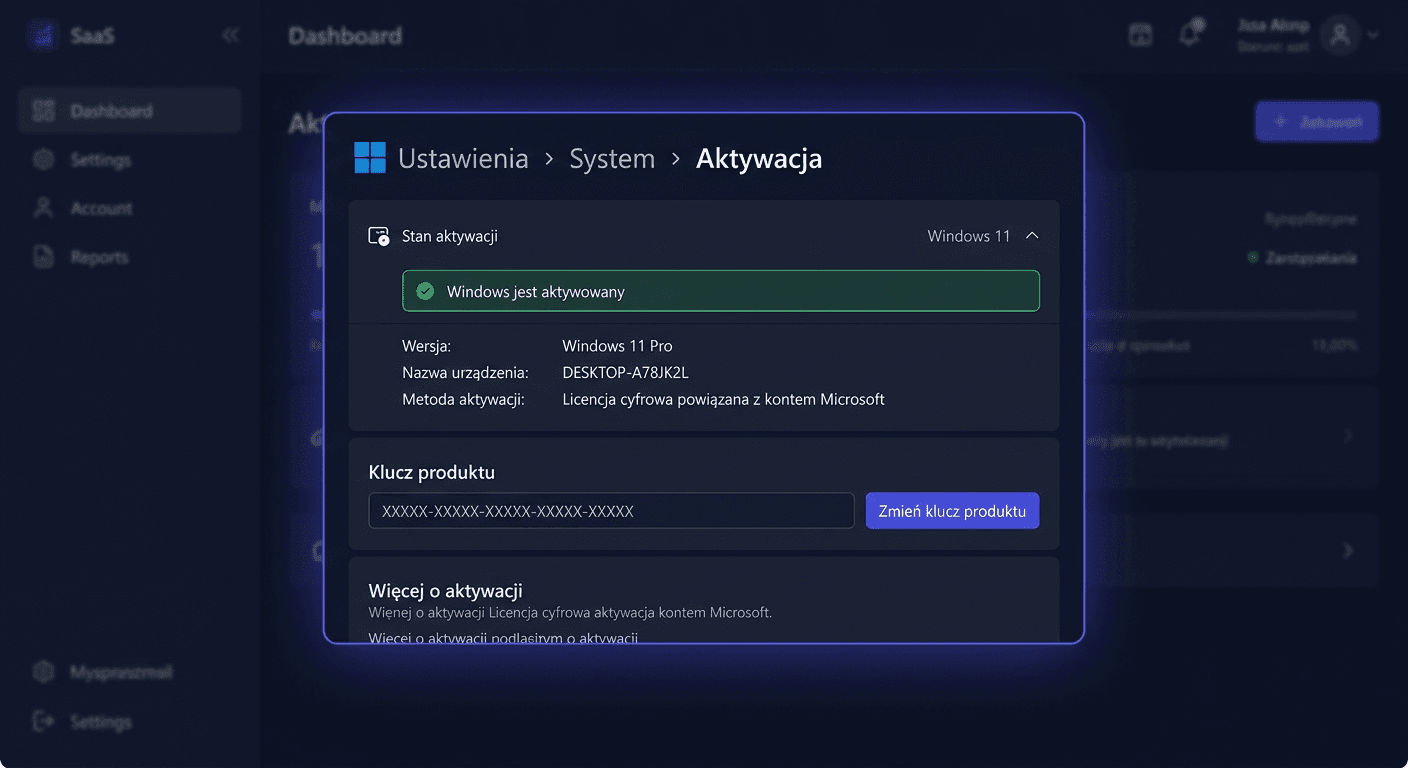
- Go to System → Activation
- Click Change product key (or "Change" next to "Product key")
- Enter the 25-character key from KluczeSoft
- Click Next → Activate
- You should see the message: "Windows is activated"
Tip: If the "Change product key" button is not visible, click the Activation status dropdown menu — the button is at the bottom.
Method 2: Activation through the command line (CMD)
A method for advanced users or when Settings do not work properly.
- Right-click on Start → Terminal (Administrator) or Command Prompt (Administrator)
- Install the key:
slmgr /ipk XXXXX-XXXXX-XXXXX-XXXXX-XXXXX
(replace XXXXX with your KluczeSoft key)
- Wait for the message "Product key installed successfully"
- Activate online:
slmgr /ato
- After a while, you will see the window: "Product activated successfully"
Useful diagnostic commands
| Command | What it does |
|---|---|
slmgr /dli | Displays basic licence information (edition, status, partial key) |
slmgr /dlv | Displays detailed information (activation ID, installation ID, licence channel) |
slmgr /xpr | Displays the expiration date — a lifetime licence will show "permanent activation" |
slmgr /dti | Generates a 63-digit installation ID for phone activation |
slmgr /upk | Uninstalls the current key (useful when transferring to another computer) |
slmgr /cpky | Removes the key from the registry (security — the key remains installed, but cannot be read) |
slmgr /rearm | Resets the licence status — extends the trial period (max. 3 times) |
Note: All
slmgrcommands require running CMD/Terminal as administrator.
Method 3: Telephone Activation
If online activation does not work — for example, the key has reached its activation limit after changing hardware or reinstalling the system — use telephone activation.
Step by Step
- Open CMD as administrator
- Type:
slmgr /dti
-
A window with a 63-digit installation ID (Installation ID) will appear. Save it or take a screenshot.
-
Call the Microsoft Poland number:
| Number | Type |
|---|---|
| 00 800 121 1654 | Free |
| +48 801 802 000 | Free from landlines |
| +48 22 594 19 99 | Paid call (from mobile) |
| +48 22 584 42 67 | Paid call (alternative) |
- The automated system will ask you to enter the installation ID digits — enter them on your phone keypad
- You will receive a Confirmation ID — a string of digits
- In CMD, type:
slmgr /atp CONFIRMATION-ID
- The system will be activated
Telephone Activation Tips
- If the automated system suggests visiting a website — say nothing or press 0. The system will switch to the option to enter the installation ID.
- Prepare a piece of paper and a pen — the confirmation number has about 48 digits
- Telephone activation is available 24/7
Method 4: Activation when Upgrading from Home to Pro
If you have Windows 11 Home installed and you purchased a Pro key from KluczeSoft:
- Open Settings → System → Activation
- Click Change product key
- Enter your Pro key from KluczeSoft
- The system will automatically download and install Pro features (BitLocker, Hyper-V, Remote Desktop, Group Policy)
- The computer will restart
- After restarting, check: Settings → System → Info → the edition should indicate Windows 11 Pro
Note: Upgrading from Home to Pro preserves all files, programs, and settings. You do not need to reinstall anything.
Troubleshooting Activation Issues
Error Code 0xC004F074 — "Cannot connect to activation server"
Cause: Windows cannot connect to the Microsoft activation server. Solution:
- Check your internet connection — open a browser and visit any website
- Disable VPN and proxy server (if you're using one)
- Check your system date and time — they must be correct. Open Settings → Time & Language → enable Set time automatically
- Run the activation command again in CMD:
slmgr /ato
- If it still doesn't work — try phone activation (Method 3)
Error Code 0xC004C003 — "Key is blocked"
Cause: The Microsoft server has blocked the key — usually due to reaching the activation limit. Solution:
- Try phone activation — the consultant may unblock the key
- If that doesn't help — write to us at [email protected]. We'll replace the key with a new one for free.
Error Code 0xC004F050 — "Key does not match the edition"
Cause: A Pro key is being entered on a Home edition (or vice versa). Solution:
- Check the installed edition: Settings → System → About → Edition
- If you have Home and the key is for Pro — use Method 4 (upgrade from Home to Pro)
- If the edition is correct, try:
slmgr /upk
slmgr /ipk XXXXX-XXXXX-XXXXX-XXXXX-XXXXX
slmgr /ato
Error Code 0xC004F034 — "No license key found"
Cause: A volume license key is being used on a consumer computer. Solution: Ensure you're using a retail key, not a volume key. Keys from KluczeSoft are always the correct type.
"Windows requires a digital license or product key"
Cause: The previous digital license did not transfer after a hardware change. Solution:
- Open Settings → System → Activation → Troubleshoot
- Select "I recently changed the hardware on this device"
- Sign in with the Microsoft account associated with the previous license
- If that doesn't help — enter the KluczeSoft key manually (Method 1 or 2)
Activation after Motherboard Replacement
After replacing the motherboard, Windows treats the computer as a new device:
- If you have a Microsoft account: Use the activation troubleshooter (above)
- If you have a KluczeSoft key: Use phone activation (Method 3) — the consultant will verify the hardware change
- If nothing works: Write to [email protected] — we'll replace the key
Check Activation Status
Through Settings
- Open Settings (Win + I) → System → Activation
- The activation status will show:
- "Windows is activated" — everything is OK
- "Windows is activated with a digital license" — activation is linked to a Microsoft account
- "Windows is not activated" — activation is required
Through CMD
slmgr /dli
This will display:
- Name: e.g. "Windows(R), Professional edition"
- Description: license type (RETAIL, OEM, VOLUME_KMSCLIENT)
- License Status: "Licensed" = activated
Detailed information:
slmgr /dlv
This will also show: activation ID, partial key, license channel, and remaining resets.
You can also contact us at [email protected] or call 00 800 121 1654 for assistance.
Frequently Asked Questions
Does activation require an internet connection? Methods 1 and 2 require an internet connection. Method 3 (telephone) works without the internet — you only need a phone.
Is activation a one-time process? Yes. After activation, you don't need to do anything else. The licence is linked to the computer's hardware and remains valid even after Windows updates. Re-activation is only required after replacing the motherboard.
Can I activate Windows 11 with a Windows 10 key? Yes — Windows 10 Pro keys work on Windows 11 Pro (and vice versa). Microsoft confirms full backward compatibility of keys.
How many times can I use the same key?
The key is intended for one computer. If you want to transfer it to another computer, first deactivate it on the old one: slmgr /upk, and then activate it on the new one.
What is a digital licence? A digital licence is an activation method linked to a Microsoft account, without a physical key. If you activated Windows with a key from KluczeSoft and logged in with a Microsoft account, a digital licence is created automatically as a backup.
Do I need to reactivate after the 24H2 update? No. Windows updates (including major ones like 24H2) do not require re-activation. The activation status is preserved.
Need Help?
- E-mail: [email protected] — we respond within 24 hours
- Help Centre: pomoc.kluczesoft.pl
- Microsoft Poland Phone: 00 800 121 1654 (toll-free)