
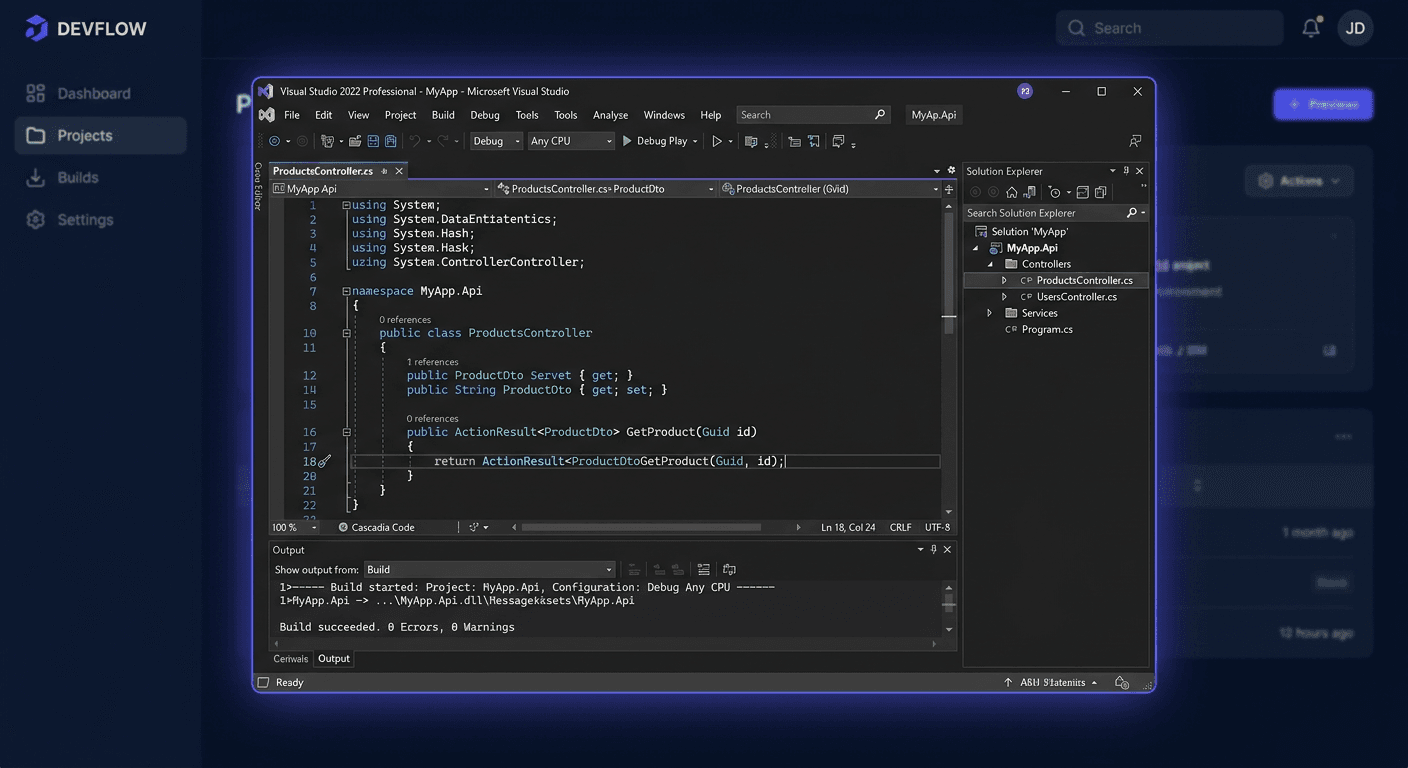
Activating Microsoft Visual Studio 2022 Professional
This guide is exclusively about activating Microsoft Visual Studio 2022 Professional after a correct installation of the program. It does not describe the installation, edition selection, or environment configuration. The three most important paths are: activation from the program interface, activation from the command line, and a phone call to Microsoft support at 00 800 121 1654.
Activating with a product key in the program interface
This is the simplest method for a single workstation. Run Visual Studio 2022 Professional, then go to:
Help > Register Product > Unlock with a Product Key
In the next step, enter the product key in the format:
XXXXX-XXXXX-XXXXX-XXXXX-XXXXX
After confirmation, Visual Studio should assign the license to the local installation. This method is recommended when you are manually activating the program on one computer and want to see the license status in the application immediately.
Activating with a product key from CMD
The second method is useful in administration, remote work, or when the activation window in the GUI does not work properly. Visual Studio 2022 provides the StorePID.exe tool, which can apply the key after installation.
For the Professional 2022 edition, use the command run as an administrator:
"%ProgramFiles%\Microsoft Visual Studio\2022\Professional\Common7\IDE\StorePID.exe" XXXXX-XXXXX-XXXXX-XXXXX-XXXXX 09662
In this command:
XXXXX-...is your product key09662is the MPC code for Visual Studio 2022 Professional
If Visual Studio is installed in a non-standard location, first determine the installation directory with the command:
"%ProgramFiles(x86)%\Microsoft Visual Studio\Installer\vswhere.exe" -products * -requires Microsoft.VisualStudio.Product.Professional -property installationPath
Then substitute the received path into StorePID.exe.
Telephone activation
If key activation ends with an error, the activation limit has been exhausted, or the key is not accepted despite the correct format, prepare:
- the full product key
- information that it is about Microsoft Visual Studio 2022 Professional
- a description of the error message
- purchase data or order number, if the license was purchased electronically
- information on whether the activation has already been used on another computer
Then contact Microsoft support at:
00 800 121 1654
Over the phone, the validity of the key, edition compatibility, and the possibility of re-activation after changing the computer or motherboard are usually verified.
For any further assistance or issues with KluczeSoft products, please contact [email protected].
Activation Verification
The most reliable way to verify activation via CMD is to check the exit code of the last command. Immediately after running StorePID.exe, type:
echo %ERRORLEVEL%
Interpretation of the result:
0means the key was applied correctly- a code other than
0indicates an activation error or a problem with license assignment
Additionally, it's worth verifying the status from the program level:
Help > Register Product
If the license has been accepted correctly, Visual Studio should no longer display a prompt to unlock the trial version, and the product status should indicate the activated Professional edition.
If you want to confirm that you are referring to the correct Professional installation, use:
"%ProgramFiles(x86)%\Microsoft Visual Studio\Installer\vswhere.exe" -products * -requires Microsoft.VisualStudio.Product.Professional -property installationPath
This does not show the license status itself, but eliminates a common error involving the activation of the wrong instance or edition.
Activation Troubleshooting
When activating via StorePID.exe, you may encounter real error codes returned by the tool.
PID_ACTION_NOTINSTALLED = 1
Visual Studio is not installed in the specified path, or you are using the wrong StorePID.exe location. Check the path using vswhere.
PID_ACTION_INVALID = 2
The key is invalid. The most common causes are typos, a key for a different edition, or an attempt to use a key not intended for Visual Studio 2022 Professional.
PID_ACTION_EXPIRED = 3
The key has expired or can no longer be used in the current licensing scenario. This applies to certain limited or historical distribution channels.
PID_ACTION_INUSE = 4
The key is already in use or the activation limit has been reached. In practice, this often occurs after hardware replacement, system migration, or multiple license transfers.
PID_ACTION_FAILURE = 5
A general error occurred while applying the key. The cause may be a lack of administrator privileges, a damaged installation, or a problem with the licensing component.
PID_ACTION_NOUPGRADE = 6
The key does not match the current edition or upgrade scenario. A typical case is an attempt to use a key that does not match the installed Professional edition.
What to Do When the Key Does Not Work
If the key does not work, follow these steps in order:
- Check if the key is intended exactly for Visual Studio 2022 Professional, and not for another version or edition.
- Enter the key again, paying attention to easily confused characters, such as
Band8orGand6. - Ensure you are activating the correct installation using
vswhere. - Try activating as an administrator via
StorePID.exe. - If code
4appears, treat the problem as a possible activation limit exhaustion. - If the key was purchased from a reseller, prepare proof of purchase and ask for confirmation of the license origin.
- If the problem persists, contact Microsoft: 00 800 121 1654 or KluczeSoft at [email protected] for further assistance.
Reactivation after hardware change
After replacing the mainboard, migrating to a new computer, or making significant changes to the hardware configuration, Visual Studio may treat the device as a new workstation. In such a situation:
- try to reactivate the same key again through the GUI or
StorePID.exe - if the
PID_ACTION_INUSE = 4error appears, contact Microsoft support - prepare information that it is a reactivation after a hardware change, and not a concurrent use on an additional device
In practice, this is a case where a phone call is the quickest solution. Support number: 00 800 121 1654.
Summary
The best way to activate Microsoft Visual Studio 2022 Professional is through:
Help > Register Product > Unlock with a Product Key- or from CMD using
StorePID.exewith the MPC code09662
To verify, use:
echo %ERRORLEVEL%
and check the status in:
Help > Register Product
If the key does not work, has already been used, or you want to reactivate the program after a hardware change, prepare the key and purchase data, and then contact Microsoft at 00 800 121 1654.