
Back to Help Center
Windows 11
Activation Guide

How to activate Microsoft Windows 11 Professional — activation instructions

Instructions for activating Windows 11 Pro with a product key. Online activation (Settings and CMD), phone activation, upgrading from Home to Pro, troubleshooting errors 0xC004F074, 0xC004C003, 0xC004F050.

8 min czytania·Zaktualizowano dzisiaj

What is Windows activation?

Windows activation confirms that your copy of the system is original and not used on more devices than the licence allows. Without activation, the system works normally, but with limitations — a watermark on the desktop and no personalisation options.

After purchasing a key from KluczeSoft, you receive a 25-character product key (format: XXXXX-XXXXX-XXXXX-XXXXX-XXXXX). Below, you will find all activation methods.


Method 1: Activation through Settings (recommended)

The easiest method — it works in a few clicks.

  1. Open Settings — press the Win + I shortcut
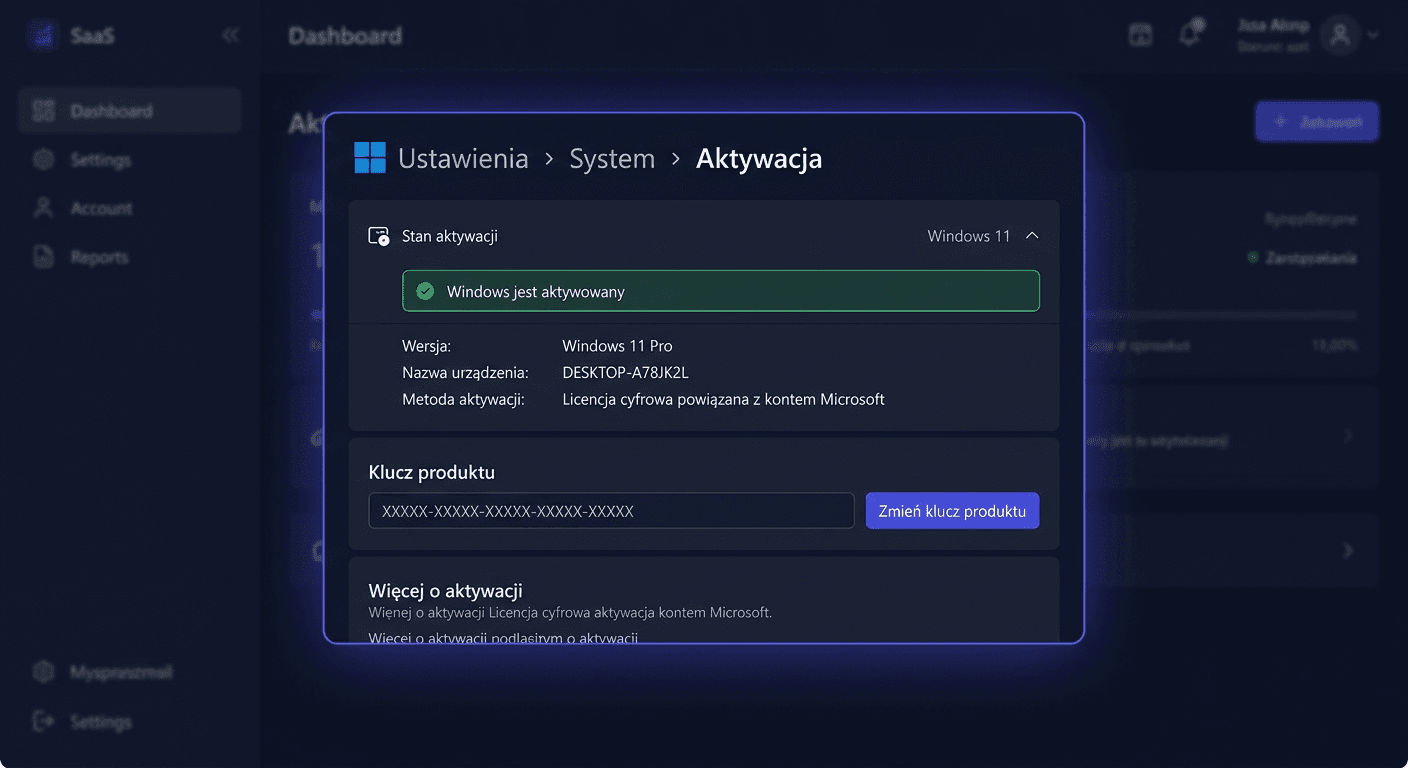
  2. Go to SystemActivation
  3. Click Change product key (or "Change" next to "Product key")
  4. Enter the 25-character key from KluczeSoft
  5. Click NextActivate
  6. You should see the message: "Windows is activated"

Tip: If the "Change product key" button is not visible, click the Activation status dropdown menu — the button is at the bottom.


Method 2: Activation through the command line (CMD)

A method for advanced users or when Settings do not work properly.

  1. Right-click on StartTerminal (Administrator) or Command Prompt (Administrator)
  2. Install the key:
slmgr /ipk XXXXX-XXXXX-XXXXX-XXXXX-XXXXX

(replace XXXXX with your KluczeSoft key)

  1. Wait for the message "Product key installed successfully"
  2. Activate online:
slmgr /ato
  1. After a while, you will see the window: "Product activated successfully"

Useful diagnostic commands

CommandWhat it does
slmgr /dliDisplays basic licence information (edition, status, partial key)
slmgr /dlvDisplays detailed information (activation ID, installation ID, licence channel)
slmgr /xprDisplays the expiration date — a lifetime licence will show "permanent activation"
slmgr /dtiGenerates a 63-digit installation ID for phone activation
slmgr /upkUninstalls the current key (useful when transferring to another computer)
slmgr /cpkyRemoves the key from the registry (security — the key remains installed, but cannot be read)
slmgr /rearmResets the licence status — extends the trial period (max. 3 times)

Note: All slmgr commands require running CMD/Terminal as administrator.


Method 3: Telephone Activation

If online activation does not work — for example, the key has reached its activation limit after changing hardware or reinstalling the system — use telephone activation.

Step by Step

  1. Open CMD as administrator
  2. Type:
slmgr /dti
  1. A window with a 63-digit installation ID (Installation ID) will appear. Save it or take a screenshot.

  2. Call the Microsoft Poland number:

NumberType
00 800 121 1654Free
+48 801 802 000Free from landlines
+48 22 594 19 99Paid call (from mobile)
+48 22 584 42 67Paid call (alternative)
  1. The automated system will ask you to enter the installation ID digits — enter them on your phone keypad
  2. You will receive a Confirmation ID — a string of digits
  3. In CMD, type:
slmgr /atp CONFIRMATION-ID
  1. The system will be activated

Telephone Activation Tips

  • If the automated system suggests visiting a website — say nothing or press 0. The system will switch to the option to enter the installation ID.
  • Prepare a piece of paper and a pen — the confirmation number has about 48 digits
  • Telephone activation is available 24/7

Method 4: Activation when Upgrading from Home to Pro

If you have Windows 11 Home installed and you purchased a Pro key from KluczeSoft:

  1. Open SettingsSystemActivation
  2. Click Change product key
  3. Enter your Pro key from KluczeSoft
  4. The system will automatically download and install Pro features (BitLocker, Hyper-V, Remote Desktop, Group Policy)
  5. The computer will restart
  6. After restarting, check: SettingsSystemInfo → the edition should indicate Windows 11 Pro

Note: Upgrading from Home to Pro preserves all files, programs, and settings. You do not need to reinstall anything.


Troubleshooting Activation Issues

Error Code 0xC004F074 — "Cannot connect to activation server"

Cause: Windows cannot connect to the Microsoft activation server. Solution:

  1. Check your internet connection — open a browser and visit any website
  2. Disable VPN and proxy server (if you're using one)
  3. Check your system date and time — they must be correct. Open SettingsTime & Language → enable Set time automatically
  4. Run the activation command again in CMD:
slmgr /ato
  1. If it still doesn't work — try phone activation (Method 3)

Error Code 0xC004C003 — "Key is blocked"

Cause: The Microsoft server has blocked the key — usually due to reaching the activation limit. Solution:

  1. Try phone activation — the consultant may unblock the key
  2. If that doesn't help — write to us at [email protected]. We'll replace the key with a new one for free.

Error Code 0xC004F050 — "Key does not match the edition"

Cause: A Pro key is being entered on a Home edition (or vice versa). Solution:

  1. Check the installed edition: SettingsSystemAboutEdition
  2. If you have Home and the key is for Pro — use Method 4 (upgrade from Home to Pro)
  3. If the edition is correct, try:
slmgr /upk
slmgr /ipk XXXXX-XXXXX-XXXXX-XXXXX-XXXXX
slmgr /ato

Error Code 0xC004F034 — "No license key found"

Cause: A volume license key is being used on a consumer computer. Solution: Ensure you're using a retail key, not a volume key. Keys from KluczeSoft are always the correct type.

"Windows requires a digital license or product key"

Cause: The previous digital license did not transfer after a hardware change. Solution:

  1. Open SettingsSystemActivationTroubleshoot
  2. Select "I recently changed the hardware on this device"
  3. Sign in with the Microsoft account associated with the previous license
  4. If that doesn't help — enter the KluczeSoft key manually (Method 1 or 2)

Activation after Motherboard Replacement

After replacing the motherboard, Windows treats the computer as a new device:

  1. If you have a Microsoft account: Use the activation troubleshooter (above)
  2. If you have a KluczeSoft key: Use phone activation (Method 3) — the consultant will verify the hardware change
  3. If nothing works: Write to [email protected] — we'll replace the key

Check Activation Status

Through Settings

  1. Open Settings (Win + I) → SystemActivation
  2. The activation status will show:
    • "Windows is activated" — everything is OK
    • "Windows is activated with a digital license" — activation is linked to a Microsoft account
    • "Windows is not activated" — activation is required

Through CMD

slmgr /dli

This will display:

  • Name: e.g. "Windows(R), Professional edition"
  • Description: license type (RETAIL, OEM, VOLUME_KMSCLIENT)
  • License Status: "Licensed" = activated

Detailed information:

slmgr /dlv

This will also show: activation ID, partial key, license channel, and remaining resets.

You can also contact us at [email protected] or call 00 800 121 1654 for assistance.

Frequently Asked Questions

Does activation require an internet connection? Methods 1 and 2 require an internet connection. Method 3 (telephone) works without the internet — you only need a phone.

Is activation a one-time process? Yes. After activation, you don't need to do anything else. The licence is linked to the computer's hardware and remains valid even after Windows updates. Re-activation is only required after replacing the motherboard.

Can I activate Windows 11 with a Windows 10 key? Yes — Windows 10 Pro keys work on Windows 11 Pro (and vice versa). Microsoft confirms full backward compatibility of keys.

How many times can I use the same key? The key is intended for one computer. If you want to transfer it to another computer, first deactivate it on the old one: slmgr /upk, and then activate it on the new one.

What is a digital licence? A digital licence is an activation method linked to a Microsoft account, without a physical key. If you activated Windows with a key from KluczeSoft and logged in with a Microsoft account, a digital licence is created automatically as a backup.

Do I need to reactivate after the 24H2 update? No. Windows updates (including major ones like 24H2) do not require re-activation. The activation status is preserved.


Need Help?

  • E-mail: [email protected] — we respond within 24 hours
  • Help Centre: pomoc.kluczesoft.pl
  • Microsoft Poland Phone: 00 800 121 1654 (toll-free)

Microsoft

Microsoft Windows 11 Professional

Licencja dożywotniaWysyłka w 1 min
Kup w KluczeSoft

Related Articles

How to install Microsoft Windows 11 Professional — a complete guide## Windows 11 Professional — FAQ - **Czy mogę zainstalować system Windows 11 Professional na moim komputerze?** > Aby sprawdzić, czy Twój komputer spełnia wymagania systemowe, odwiedź stronę internetową Microsoft i skorzystaj z narzędzia do sprawdzania zgodności systemu Windows 11. - **Jakie są różnice między systemem Windows 11 Home, a Windows 11 Professional?** > Główne różnice między systemem Windows 11 Home, a Windows 11 Professional to dodatkowe funkcje związane z bezpieczeństwem, zarządzaniem i obsługą sieci firmowej w wersji Professional. - **Czy system Windows 11 Professional jest kompatybilny z moimi ulubionymi programami?** > System Windows 11 Professional jest kompatybilny z większością popularnych programów, w tym z pakietem biurowym Microsoft Office. - **Jak mogę uzyskać pomoc techniczną w przypadku problemów z systemem Windows 11 Professional?** > W przypadku problemów z systemem Windows 11 Professional, skontaktuj się z nami pod adresem `[email protected]` lub zadzwoń pod numer `00 800 121 1654`. Nasi specjaliści pomogą Ci rozwiązać problemy i odpowiedzą na Twoje pytania. - **Czy mogę zainstalować system Windows 11 Professional na kilku komputerach?** > Licencja systemu Windows 11 Professional umożliwia zainstalowanie systemu na jednym komputerze. Jeśli chcesz zainstalować system na kilku komputerach, musisz kupić oddzielną licencję dla każdego komputera. - **Jak zainstalować system Windows 11 Professional?** ```bash # Przykładowa instalacja systemu Windows 11 Professional # 1. Pobierz plik ISO systemu Windows 11 Professional # 2. Utwórz pendrive z plikiem ISO # 3. Uruchom komputer z pendrive # 4. Postępuj zgodnie z instrukcjami instalacji ``` > Szczegółowa instrukcja instalacji znajduje się na stronie internetowej Microsoft.## Activation of Windows 10 ESU Year 1 To activate **Windows 10 ESU**, follow these steps: - Ensure your system meets the requirements for **Windows 10 ESU**. - Purchase a licence key from **KluczeSoft** or another authorised reseller. - Go to `Settings` > `Update & Security` > `Activation`, and click on `Change product key`. - Enter the licence key you purchased, then click `Next` to activate **Windows 10**. > If you encounter any issues during activation, contact our support team at `[email protected]` or call us on `00 800 121 1654` for assistance. **Important:** Activation of **Windows 10 ESU** requires a valid licence key. **KluczeSoft** is not affiliated with **Microsoft**, but our licence keys are compatible with **Windows 10** and **Office** products. ```bash # Example command to activate Windows 10 ESU using the command line slmgr /ipk <licence_key> ``` Replace `<licence_key>` with your actual licence key. For more information on **Windows 10 ESU** and its system requirements, visit the **Microsoft** website.## Activation of Windows 10 ESU Year 2 To activate **Windows 10 ESU Year 2**, follow these steps: - Ensure your system meets the requirements for **Windows 10 ESU**. - Purchase a valid **KluczeSoft** activation key for **Windows 10 ESU Year 2**. - Go to `Settings` > `Update & Security` > `Activation`, and click on `Change product key`. - Enter the activation key you purchased from **KluczeSoft**, and follow the prompts to complete the activation process. If you encounter any issues during activation, you can contact **KluczeSoft** support at `[email protected]` or call `00 800 121 1654` for assistance. > Note: Ensure you are using a genuine **Microsoft** product and that your system is compatible with **Windows 10 ESU Year 2** before attempting activation. For more detailed instructions and troubleshooting, refer to the **Microsoft** documentation for **Windows 10 ESU**. ```bash # Example command to check activation status slmgr /xpr ``` Please note that activating **Windows 10 ESU Year 2** requires a valid product key from **KluczeSoft** or another authorized reseller. **Office** and other **Microsoft** products may have separate activation requirements.## Activation of Windows 10 ESU Year 3 Activating **Windows 10 ESU Year 3** ensures that your operating system remains updated with the latest security patches and features. To activate **Windows 10 ESU Year 3**, follow these steps: - Ensure your system is running **Windows 10** and that you have a valid license key for **Windows 10 ESU Year 3**. - Go to `Settings` > `Update & Security` > `Activation`, and click on `Change product key`. - Enter your **Windows 10 ESU Year 3** license key and follow the prompts to complete the activation process. If you encounter any issues during activation, you can try troubleshooting using the `slmgr /ato` command in the Command Prompt as an administrator. For more detailed instructions or if you need further assistance, please contact our support team at `[email protected]` or call us at `00 800 121 1654`. ### Troubleshooting Activation Issues > If your activation fails, check that your license key is correct and that your system clock is set to the correct date and time. ```bash slmgr /ato ``` This command will attempt to activate **Windows 10 ESU Year 3** using the installed product key. If activation issues persist, consider reinstalling your **Windows 10** and then applying the **ESU Year 3** license key. ### Additional Resources For more information on **Windows 10 ESU**, including system requirements and FAQs, visit the **Microsoft** support website. Remember, **KluczeSoft** is here to help with any questions or concerns about your **Windows 10 ESU Year 3** activation.## Activating Microsoft Windows 7 Professional To activate **Microsoft Windows 7 Professional**, follow these steps: - Ensure your computer is connected to the internet. - Click on `Start` and then select `Control Panel`. - In the **Control Panel**, click on `System and Security`, then click on `System`. - In the **System** window, click on `Activate Windows` in the **Windows Activation** section. > If you have a **product key**, click on `Enter a different product key` and enter your 25-character product key. - Follow the on-screen instructions to complete the activation process. If you encounter any issues during activation, you can try activating **Windows 7 Professional** via phone: ```bash slui 4 ``` This command will open the **Windows Activation** window, where you can select your country or region and call the provided phone number to activate **Windows**. For more information or assistance with activating **Microsoft Windows 7 Professional**, please contact our support team at `[email protected]` or call us at `00 800 121 1654`. We will be happy to help you with any questions or concerns you may have. Remember to always use genuine **Microsoft** products and follow the official activation procedures to ensure the security and stability of your system.

Najczęściej zadawane pytania

Online methods (Settings, CMD) require internet. Phone activation works without internet — you just need a phone.
Yes — Windows 10 Pro keys work on Windows 11 Pro. Microsoft confirms full backward compatibility of keys.
The key is intended for one computer. To transfer, deactivate on the old computer with the command `slmgr /upk`, then activate on the new one.
Check the edition (Pro vs Home), internet connection, date, and time. If the activation limit is reached — use phone activation or write to `[email protected]`.
No. Windows updates (including 24H2) do not require re-activation. The activation status is preserved.
A digital license is an activation linked to a Microsoft account. It is created automatically after key activation, when you are logged in with a Microsoft account.

Czy ten artykuł był pomocny?