
Before you start
SQL Server 2019 Standard 50 Device CAL is a licensing solution designed for companies and organisations that require a stable, efficient, and scalable database platform. In this licensing model, it is necessary to have a server licence and the appropriate number of access licences (CAL - Client Access License) assigned to devices. The 50 Device CAL package allows access to the SQL Server 2019 Standard instance from 50 different devices, regardless of the number of users using each of them.
SQL Server 2019 Standard offers a wide range of possibilities in terms of data management, security, high availability, and integration with other systems. The Standard version is ideal for medium and large companies that require advanced features but do not need the full functionality of the Enterprise version.
As part of your purchase from KluczeSoft, you will receive:
- The original SQL Server 2019 Standard licence key
- A 50 Device CAL package (device access licences)
- Installation and activation instructions
- Access to KluczeSoft's technical support
- A VAT invoice
SQL Server 2019 support dates:
| Version | Release date | End of mainstream support | End of extended support |
|---|---|---|---|
| SQL Server 2019 | 4 November 2019 | 7 January 2025 | 8 January 2030 |
Important: Device CAL licences are not installation software – they are access rights that must be assigned to specific devices and properly documented for audit purposes.
System requirements
To properly install and run SQL Server 2019 Standard, you must meet the following hardware and software requirements in accordance with Microsoft documentation:
| Component | Minimum requirements | Recommended requirements |
|---|---|---|
| Operating system | Windows Server 2016/2019/2022, Windows 10 TH1 1507 or later | Windows Server 2019/2022 or Windows 11 |
| Processor | x64, at least 1.4 GHz | x64, 2.0 GHz or faster |
| RAM | 1 GB (except Express: 512 MB) | 4 GB or more |
| Disk space | 6 GB of free space | 10 GB or more |
| Network | Built-in network software of the operating system | - |
| Network protocol | Shared Memory, Named Pipes, TCP/IP | TCP/IP |
| Permissions | Local administrator account | - |
| .NET Framework | 4.6 or later | 4.8 |
Note: In the case of installation on a virtual machine, the hardware requirements refer to the resources allocated to that machine.
Step 1: Downloading the SQL Server 2019 Standard Installer
- Log in to the administrator account on the target server.
- Download the SQL Server 2019 Standard installer from the official Microsoft website or from the link provided by KluczeSoft.
- Save the installation file (e.g.,
SQLServer2019-Standard-x64-Polish.iso) to the local disk. - Mount the ISO image (right-click → "Mount") or extract it to a temporary folder.
Step 2: Running the Installer
- Open the mounted ISO image or the extracted folder.
- Run the
setup.exefile as an administrator (right-click → "Run as administrator"). - After launching the installer, the SQL Server Installation Center welcome screen will appear.
Step 3: Choosing the Installation Type
- In the left-hand menu, select "New standalone installation or add shared features to an existing installation".
- The installer will perform a preliminary system requirements check.
- After the check is complete, click "Next".
Step 4: Entering the Product Key
- On the "Product Key" screen, enter the 25-character SQL Server 2019 Standard license key provided by KluczeSoft.
- Click "Next".
Step 5: Accepting the License Terms
- Read the license terms.
- Check the box "I accept the license terms".
- Click "Next".
Step 6: Installing Required Files and Updates
- The installer will check for updates and install the required components.
- After the installation is complete, click "Next".
Step 7: Selecting Features to Install
- Select the SQL Server features you want to install (e.g., Database Engine Services, SQL Server Replication, Full-Text and Semantic Extractions for Search).
- It is recommended to leave the default settings if you do not have specific requirements.
- Click "Next".
Step 8: Configuring the Instance
- Choose the instance type:
- Default instance – if this is the first installation on the server.
- Named instance – if you are installing an additional instance.
- Click "Next".
Step 9: Configuring SQL Server Services
- Specify the service accounts and startup mode (it is recommended to leave the default settings unless your company's policy requires otherwise).
- Click "Next".
Step 10: Configuring Authentication Mode and Administrators
- Choose the authentication mode:
- Windows Authentication Mode (recommended)
- Mixed Mode (Windows + SQL Server Authentication) – requires setting a password for the
saaccount.
- Add server administrator accounts (e.g., click "Add current user").
- Click "Next".
Step 11: Summary and Installation
- Review the summary of the selected options.
- Click "Install".
- The installer will start copying files and configuring services. This process may take several minutes.
- After the installation is complete, click "Close".
If you need help or have questions, please contact us at [email protected] or call 00 800 121 1654.
Product Key Activation
Method 1: Activation during installation (GUI)
- You enter the product key during the installation process (see: Step 4).
- After completing the installation, the system automatically activates SQL Server if you have an internet connection.
Method 2: Activation from the command line (cmd)
If you need to reactivate SQL Server or change the product key:
- Open the Command Prompt as an administrator.
- Go to the SQL Server tools directory, for example:
cd "C:\Program Files\Microsoft SQL Server\150\Setup Bootstrap\SQLServer2019" - Enter the command:
Replacesetup.exe /q /ACTION=Activate /PID=XXXXX-XXXXX-XXXXX-XXXXX-XXXXXXXXXX-XXXXX-XXXXX-XXXXX-XXXXXwith your product key.
Note: SQL Server does not require activation through tools like slmgr.vbs. The product key is verified during installation or through the above command.
Device CAL – assignment and documentation
Device CAL licenses do not require installation or technical activation. They are access rights that need to be assigned to specific devices and kept track of (e.g., in an Excel spreadsheet or ITAM system). In the event of an audit, you must present a list of devices with assigned Device CALs.
Activation Verification
To check if SQL Server is working correctly and activated:
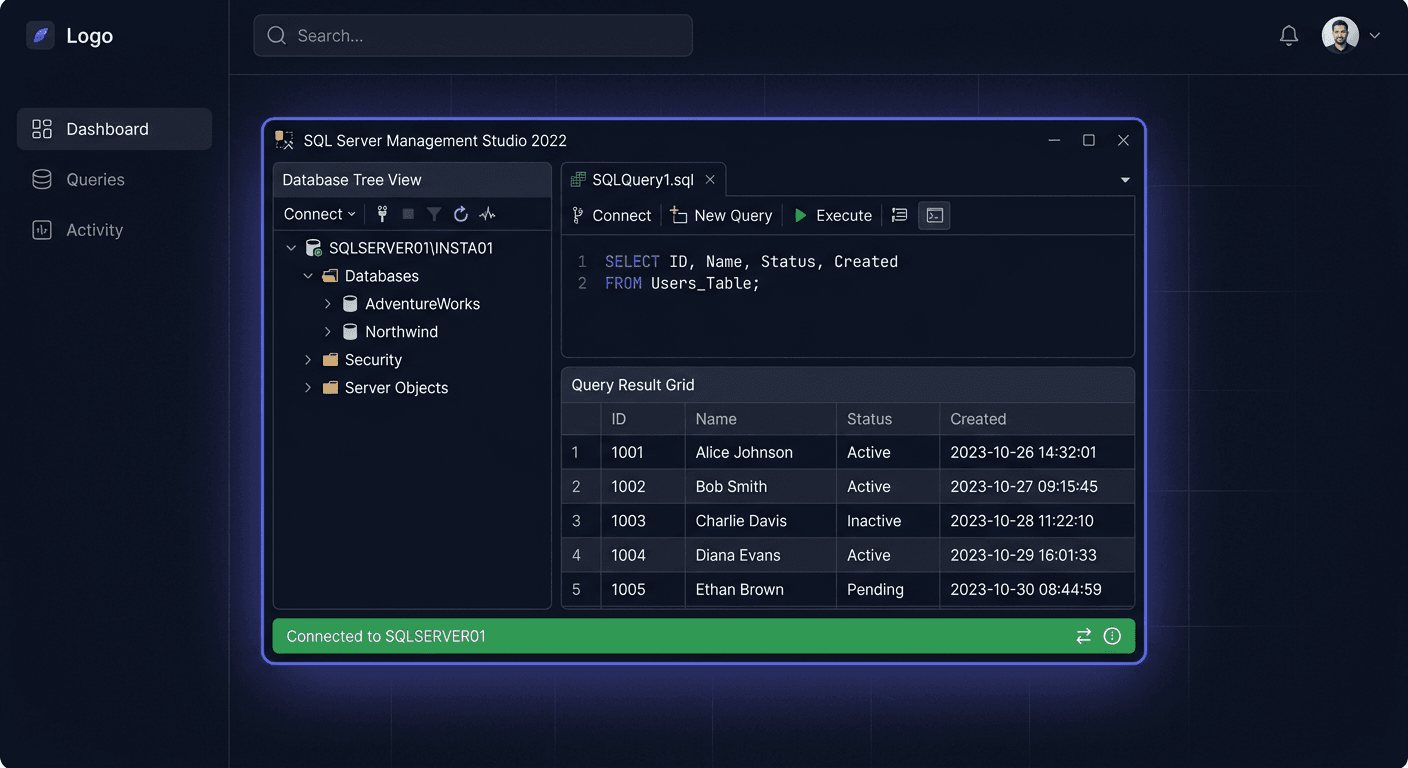
- Open SQL Server Management Studio (SSMS).
- Connect to the SQL Server instance.
- Execute the query:
SELECT SERVERPROPERTY('Edition'), SERVERPROPERTY('ProductVersion'), SERVERPROPERTY('LicenseType'); - Check if the edition is "Standard Edition" and the product version is 15.x (SQL 2019).
Tip: SQL Server does not explicitly display the activation status like Windows, but if the product key has been accepted and no licensing errors occur, the installation is correct.
Post-Installation Configuration
After completing the installation and activation of SQL Server 2019 Standard, we recommend performing the following steps:
1. Installing the latest updates
- Run Windows Update or download the latest Cumulative Update for SQL Server 2019 from the Microsoft website.
- Install the updates and restart the server.
2. Configuring backups
- Configure a backup schedule for databases (full, differential, transaction logs).
- Verify the backup destination and test the restore process.
3. Configuring monitoring
- Configure alerts and performance monitoring (e.g., SQL Server Agent, external tools).
- Set up email notifications for critical errors.
4. Configuring permissions
- Assign appropriate roles to users and groups.
- Limit access to the server to only necessary personnel.
5. Documenting Device CAL licenses
- Create a list of devices assigned Device CALs.
- Store the documentation for audit purposes.
If you have any questions or need assistance, please contact us at [email protected] or call 00 800 121 1654.
Troubleshooting
Below, we present the most common issues and their solutions related to the installation and licensing of SQL Server 2019 Standard:
1. Error: "Product key is invalid"
- Check if the key was copied correctly (without spaces, hyphens in the correct places).
- Ensure you are using the key for the Standard version, not e.g. Enterprise or Evaluation.
- Contact KluczeSoft to verify the key.
2. Installer does not start or interrupts installation
- Run the installer as an administrator.
- Check if the operating system meets the requirements.
- Disable antivirus software during installation.
- Verify the integrity of the ISO file (download again if it is damaged).
3. Connection error to SQL Server instance
- Check if SQL Server services are running (Control Panel → Administrative Tools → Services).
- Verify the firewall configuration (open TCP port 1433 for remote connections).
- Ensure the selected protocol (TCP/IP) is enabled in SQL Server Configuration Manager.
4. Problem with Device CAL licenses during audit
- Ensure you keep up-to-date documentation of Device CAL assignment to devices.
- In case of hardware replacement, update the list and assign CAL to the new device.
- Store the purchase invoice and device list for control purposes.
5. Error: "Lack of installation permissions"
- Log in to an account with local administrator privileges.
- If installing on a domain server, ensure you have the necessary permissions in the domain.
6. SQL Server Management Studio does not detect instances
- Ensure SSMS is installed in the latest version.
- Check if the SQL Server instance is running and visible on the network.
- Verify the network protocol configuration in SQL Server Configuration Manager.
Comparison of versions and prices at KluczeSoft
| SQL Server Version | Licensing | Price (KluczeSoft) | Number of devices (Device CAL) | Support until |
|---|---|---|---|---|
| Standard 2019 + 50 CAL | Server + 50 Device CAL | 1690 zł | 50 | January 2030 |
| Standard 2019 + 10 CAL | Server + 10 Device CAL | 590 zł | 10 | January 2030 |
| Standard 2019 (without CAL) | Server | 399 zł | 0 | January 2030 |
| Enterprise 2019 | Per core | from 6990 zł | No limit (per core) | January 2030 |
Details and other packages can be found on the page: /sql-server-cals-
Summary
SQL Server 2019 Standard with a package of 50 Device CAL is a flexible and efficient solution for companies that want to provide access to the database for multiple devices while maintaining compliance with Microsoft licensing requirements. Installation and activation are simple, and proper documentation of Device CAL allows you to avoid problems during audits. If you have any questions or problems, please contact our technical support at 00 800 121 1654 or visit our knowledge base at pomoc.kluczesoft.pl. You can also contact us at [email protected] for more information.