
Before you start
SQL Server 2017 Standard 50 Device CAL is an advanced database solution from Microsoft, designed for medium and large organisations that require a reliable, efficient, and secure data management system. The Standard edition offers a wide range of features, including support for relational databases, reporting, data analysis, programming in T-SQL, R, and Python languages, as well as integration with BI tools.
Licensing in the Server + Device CAL model involves assigning a licence to a specific server and to devices that will access the SQL Server. In the case of 50 Device CAL, you can legally enable access to the server for 50 different devices (e.g. office computers, warehouse terminals, laboratory computers). This model is particularly beneficial in environments where many people use the same devices (e.g. shift work).
KluczeSoft provides:
- The original product key for SQL Server 2017 Standard (50 Device CAL)
- Access to installation files (download link)
- Installation and activation instructions
- Technical support in Polish
- VAT invoice
Prices and support:
| Product | Price (zł) | End of support | Product link |
|---|---|---|---|
| SQL Server 2017 Standard 50 Device CAL | 1690 | October 2027 | /sql-server-2017 |
Note: SQL Server 2017 will receive technical support and security updates until October 2027. After this date, we recommend considering migration to a newer version.
System requirements
Before starting the installation, ensure that your server meets the minimum hardware and software requirements in accordance with Microsoft documentation. It is recommended to use Windows Server systems, but SQL Server 2017 also supports selected versions of Windows 10.
| Requirement | Minimum | Recommended |
|---|---|---|
| Processor | x64, 1.4 GHz (minimum) | x64, 2.0 GHz or faster |
| RAM | 2 GB (minimum) | 4 GB or more |
| Disk space | 6 GB (basic installation) | 10 GB or more |
| Operating system | Windows Server 2016/2012 R2, | Windows Server 2019/2016 |
| Windows 10 Pro/Enterprise/Edu (64-bit) | ||
| Screen resolution | 800x600 | 1024x768 or higher |
| .NET Framework | 4.6 or later | 4.7.2 or later |
| Network card | Required for network installation | |
| Permissions | Local administrator | Domain administrator (recommended) |
Important: SQL Server 2017 is only available in 64-bit version. Installation on 32-bit systems is not possible.
If you need help or have questions, please contact us at [email protected] or call us at 00 800 121 1654.
Step 1: Downloading the installation files
- Log in to your KluczeSoft account and go to the "My products" section.
- Find SQL Server 2017 Standard 50 Device CAL and click "Download".
- Save the ISO file to the local disk of the server.
- Mount the ISO image:
- Right-click on the ISO file and select "Mount".
- Alternatively, use an ISO image mounting tool (e.g. WinCDEmu).
Step 2: Starting the SQL Server 2017 Standard installation
- Open the mounted disk in "This PC" and run the
setup.exefile as an administrator. - In the installer window, select New SQL Server stand-alone installation or add features to an existing installation.
- Wait for the preliminary requirements verification (you may be prompted to install .NET Framework or system updates).
- In the Product Key section, enter the SQL Server 2017 Standard product key provided by KluczeSoft and click "Next".
- Accept the license terms and click "Next".
- In the Feature Selection section, select the required features (recommended: Database Engine Services, SQL Server Replication, Full-Text and Semantic Extractions for Search). Click "Next".
- In Instance Configuration, select:
- Default instance (MSSQLSERVER) or
- Named instance (e.g. SQL2017) Click "Next".
- In Server Configuration, set the service accounts (default: NT Service\MSSQLSERVER) and startup mode (Automatic). Click "Next".
- In Database Engine Configuration, select the authentication mode:
- Windows Authentication Mode (recommended in a domain environment)
- Mixed Mode (Windows Authentication and SQL Server Authentication) — set a strong password for the sa account. Add server administrators.
- Click "Next" and proceed to the summary.
- Click "Install" and wait for the installation to complete.
- After completion, click "Close".
Tip: During installation, you can monitor the progress and any errors in the log file:
C:\Program Files\Microsoft SQL Server\140\Setup Bootstrap\Log\.
Step 3: Installing client tools (SQL Server Management Studio)
- After completing the server installation, the installer will offer to download SQL Server Management Studio (SSMS).
- Click "Install SQL Server Management Tools" or download the latest version of SSMS from the Microsoft website: https://aka.ms/ssms
- Run the downloaded SSMS installer (
SSMS-Setup-*.exe). - Follow the installation wizard's instructions.
- After completing the installation, run SSMS and connect to the SQL Server instance.
Step 4: Activation with a Product Key
SQL Server 2017 Standard requires activation with a product key. You can do this in two ways: through the graphical user interface (GUI) or from the command line.
Method 1: Activation via GUI
- Open the SQL Server Installation Center (
setup.exe). - Select Maintenance > Edition Upgrade.
- Enter the SQL Server 2017 Standard product key and click "Next".
- Follow the wizard's instructions.
- After completion, restart the SQL server.
Method 2: Activation from the Command Line
- Open the Command Prompt as an administrator.
- Go to the SQL Server tools directory:
cd "C:\Program Files\Microsoft SQL Server\140\Setup Bootstrap\SQLServer2017" - Enter the command to activate the key:
Replaceslmgr.vbs /ipk XXXXX-XXXXX-XXXXX-XXXXX-XXXXX slmgr.vbs /atoXXXXX-XXXXX-XXXXX-XXXXX-XXXXXwith your product key.
Note: For SQL Server, activation often occurs during installation, but the above commands allow for re-activation or changing the key.
Verification of Activation
To check the activation status of SQL Server:
- Open the Command Prompt as an administrator.
- Type:
You should see a message indicating successful activation.slmgr.vbs /xpr
Step 5: Configuring Device CAL
Device CAL licenses do not need to be installed on devices, but they must be assigned in accordance with Microsoft's licensing policy. It is recommended to keep a record of CAL assignment to devices (e.g., in an Excel spreadsheet or SAM tool).
Device CAL Assignment Rules:
- Each Device CAL is assigned to one device.
- You can transfer CAL to another device only in case of a permanent change or temporarily when the device is being repaired.
- Users using this device can access SQL Server on all licensed servers.
Tip: In the event of a Microsoft audit, you should provide documentation of CAL assignment to devices.
Step 6: Verification of Activation and Licensing
After completing the installation and activation, it's worth verifying the status of the SQL server and the correctness of the Device CAL assignment.
Checking the Status of SQL Server
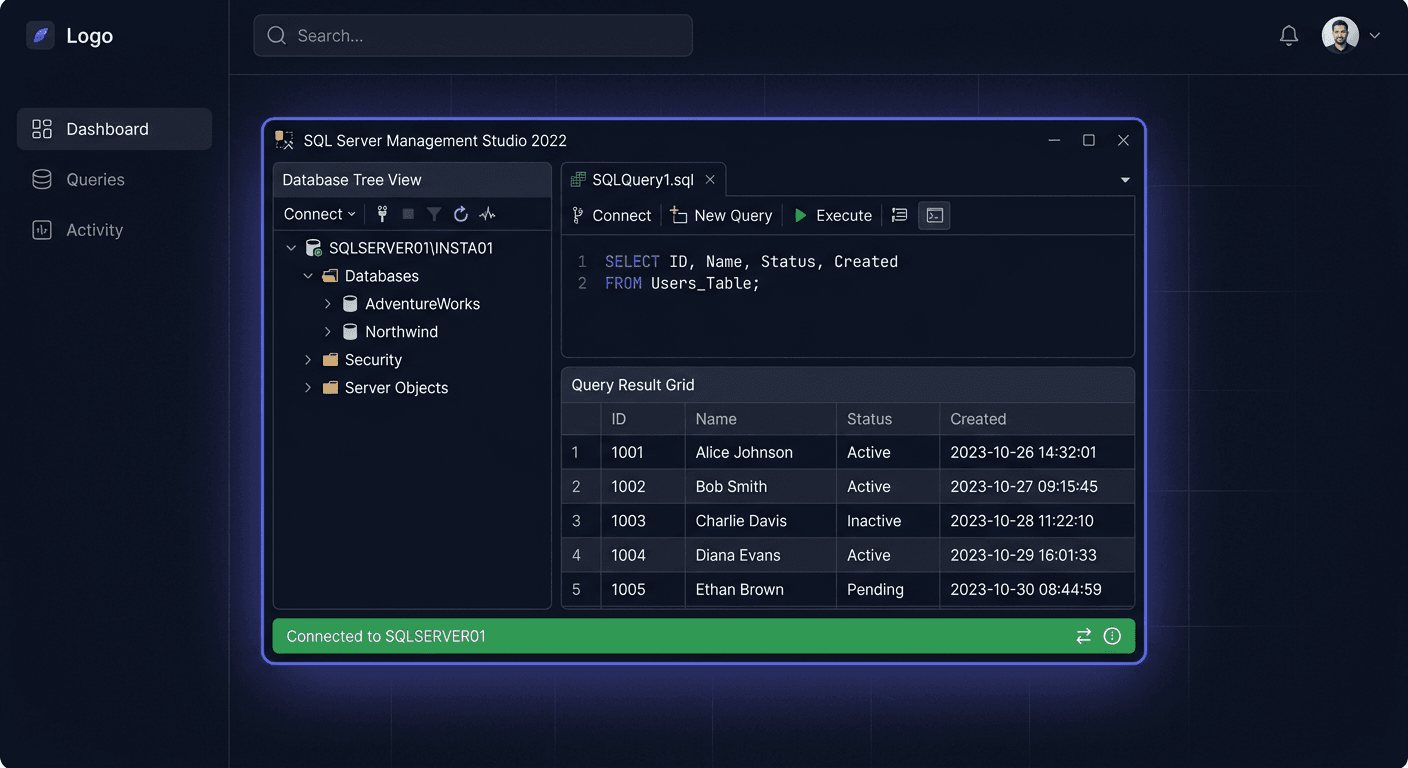
- Open SQL Server Management Studio.
- Connect to the SQL Server instance.
- Execute the query:
The result should indicate "Standard Edition" and version 14.x.xxxx.SELECT SERVERPROPERTY('Edition'), SERVERPROPERTY('ProductVersion'), SERVERPROPERTY('ProductLevel');
Checking Windows Activation
- Open the Command Prompt as an administrator.
- Type:
You should see a message indicating activation.slmgr.vbs /xpr
Checking Device CAL (Documentation)
- Make sure you have a record of CAL assignment to devices.
- If necessary, prepare a report for the IT department or auditor.
If you need help or have questions, please contact us at [email protected] or call 00 800 121 1654.
Step 7: Post-Installation Configuration
After installing and activating SQL Server 2017 Standard, it is recommended to perform several basic configuration tasks:
- SQL Server Update — Install the latest Service Packs and security updates.
- Backup Creation — Configure database backup schedules.
- Role and Permission Configuration — Establish user roles and assign appropriate permissions.
- Network Protocol Configuration — Enable required protocols (TCP/IP, Named Pipes) in SQL Server Configuration Manager.
- Performance Monitoring — Configure monitoring tools (SQL Profiler, Performance Monitor).
- Database Creation — Create the first databases and configure application access.
Tip: Regularly create backups and monitor server logs to ensure the security and stability of the environment.
Troubleshooting
Below, we present the most common issues encountered during the installation and activation of SQL Server 2017 Standard, along with their solutions.
1. Error: "A required file is missing or corrupted"
Solution:
- Check the ISO file's checksum before installation.
- Download the file again from the official KluczeSoft source.
- Ensure the ISO image is properly mounted.
2. Error: "SQL Server Setup has failed. See the setup log for details."
Solution:
- Open the installation log file:
C:\Program Files\Microsoft SQL Server\140\Setup Bootstrap\Log\Summary.txt. - Check the error details and look for a solution in Microsoft documentation.
- Ensure you have administrator privileges.
3. Activation Error: "Invalid product key"
Solution:
- Verify the correctness of the entered product key.
- Ensure you are using the SQL Server 2017 Standard key, not another edition.
- Contact KluczeSoft support for further issues.
4. Connection Error: "Cannot connect to server"
Solution:
- Check if the SQL Server service is running (Services.msc).
- Verify firewall settings — open port 1433 for TCP/IP.
- Ensure TCP/IP protocol is enabled in SQL Server Configuration Manager.
5. Error: "Login failed for user 'sa'"
Solution:
- Check if you selected Mixed Mode during installation.
- Reset the 'sa' account password in SQL Server Management Studio.
- Ensure the 'sa' account is not locked.
6. Device CAL Issue: "Lack of CAL assignment documentation"
Solution:
- Create a record of Device CAL assignment to devices (e.g., in Excel).
- Store documentation according to company policy.
Tip: For other issues, contact KluczeSoft technical support: 00 800 121 1654 or email [email protected].
Comparison of versions and prices in KluczeSoft
Below, we present a comparison of the most popular SQL Server 2017 editions available in KluczeSoft:
| Edition | Licensing model | Price (zł) | Number of CAL | Purpose |
|---|---|---|---|---|
| SQL Server 2017 Standard | Server + 50 Device CAL | 1690 | 50 | Medium and large companies |
| SQL Server 2017 Standard | Per Core (2 core) | 3990 | N/D | Large environments, unrestricted access |
| SQL Server 2017 Standard | Server + 10 User CAL | 790 | 10 | Small companies |
| SQL Server 2017 Enterprise | Per Core (2 core) | 13990 | N/D | Advanced environments, BI, HA |
Note: The choice of licensing model depends on the number of users, devices, and the specifics of the IT environment. Device CAL is beneficial where many people use the same computers.
Summary
SQL Server 2017 Standard 50 Device CAL is a comprehensive solution for companies that need a reliable and efficient database platform with a flexible licensing model. Installation, activation, and configuration are straightforward if you follow the above instructions. Remember to keep documentation of Device CAL assignments and regularly perform backups and updates.
If you have any questions or problems, please contact KluczeSoft's technical support:
Phone: 00 800 121 1654
You can find more information in the category: /sql-server-2017 or contact us via email: [email protected]